Category: Ai Hacks

  • How to Edit AMAZING Football Videos

    How to Edit AMAZING Football Videos in the Viggle App

    Football season is upon us, and with it comes the excitement of capturing and sharing those unforgettable moments on the field. If you’re a fan looking to elevate your video editing skills, the Viggle app is a fantastic tool for creating engaging football videos. In this guide, we’ll explore how to edit amazing football videos using the Viggle app, breaking down tips, techniques, and features to help you craft stunning content that stands out.

    Table of Contents

    1. Introduction to Viggle
    2. Getting Started with the Viggle App
    3. Importing Your Football Footage
    4. Basic Editing Features
      • Trimming and Cutting
      • Adding Music
      • Incorporating Text
    5. Advanced Editing Techniques
      • Slow Motion Effects
      • Adding Transitions
      • Color Correction
    6. Using Filters for Impact
    7. Creating Highlights and Montages
    8. Sharing Your Videos
    9. Tips for Capturing Better Footage
    10. Conclusion

    1. Introduction to Viggle

    Viggle is more than just a video editing app; it’s a platform that allows users to engage with content dynamically. Designed for both casual users and aspiring videographers, Viggle offers a range of features that can help you create stunning football videos. Whether you’re editing highlights from your local team or capturing moments from the big game, Viggle can help you present your footage in a captivating way.

    2. Getting Started with the Viggle App

    Before diving into editing, ensure you have the Viggle app installed on your device. Available for both iOS and Android, the app is user-friendly and offers intuitive navigation.

    Creating an Account

    1. Download the App: Search for “Viggle” in the App Store or Google Play Store.
    2. Sign Up: Create an account using your email address or social media profiles.
    3. Familiarize Yourself: Spend a few minutes exploring the app’s interface to understand its features.

    3. Importing Your Football Footage

    Once you’re familiar with the app, it’s time to import your football footage. Here’s how:

    1. Open the Viggle App.
    2. Select the ‘Create’ Button: This will take you to the editing interface.
    3. Import Videos: Choose videos from your device’s gallery. You can import multiple clips to combine them later.

    Organizing Your Clips

    Organizing your clips before editing can save you time. Label your videos based on games, players, or moments you want to highlight. This makes it easier to access and edit them later.

    4. Basic Editing Features

    Trimming and Cutting

    One of the first steps in editing your football videos is trimming the footage to focus on key moments. Here’s how:

    1. Select the Clip: Tap on the clip you want to edit.
    2. Trim the Edges: Drag the sliders at the beginning and end of the clip to remove unnecessary footage.
    3. Cutting Clips: If you have longer footage, you can cut it into smaller segments. Simply position the playhead where you want to cut and select the cut tool.

    Adding Music

    Adding music can enhance the emotional impact of your videos. Here’s how to do it:

    1. Access the Audio Library: Navigate to the audio section within the app.
    2. Choose Your Track: Select a music track that fits the mood of your video.
    3. Adjust the Volume: Make sure the music doesn’t overpower any audio from the game, such as commentary or crowd reactions.

    Incorporating Text

    Text overlays can provide context and highlight specific moments. Follow these steps:

    1. Select the Text Tool: Look for the text option in the editing menu.
    2. Choose a Style: Pick from various fonts and styles that suit your video’s theme.
    3. Position Your Text: Drag the text box to the desired location on the screen and adjust the duration it appears.

    5. Advanced Editing Techniques

    To take your football videos to the next level, consider incorporating advanced editing techniques.

    Slow Motion Effects

    Slow-motion effects can emphasize dramatic moments, such as a game-winning goal. Here’s how to apply it:

    1. Select the Clip: Choose the clip you want to slow down.
    2. Adjust Speed: Look for the speed adjustment feature and set it to a lower speed.
    3. Preview Your Changes: Make sure the slow motion enhances the moment rather than detracts from it.

    Adding Transitions

    Transitions can help create a smooth flow between different clips. Here’s how to add them:

    1. Select Transition Options: Choose from various transition styles available in the app.
    2. Drag and Drop: Place the transition between two clips.
    3. Adjust Duration: You can adjust how long the transition lasts for a more polished look.

    Color Correction

    Enhancing the color of your footage can make it more visually appealing. Follow these steps:

    1. Access the Color Adjustment Tool: Find this option in the editing menu.
    2. Adjust Brightness and Contrast: Experiment with brightness, contrast, saturation, and shadows to improve the overall look of your footage.
    3. Use Presets: If available, apply color correction presets to save time.

    6. Using Filters for Impact

    Filters can dramatically change the mood of your videos. Here’s how to apply them:

    1. Select a Clip: Tap on the clip you wish to enhance.
    2. Choose Filters: Browse through the available filters and select one that enhances your footage.
    3. Adjust Opacity: You can often adjust the strength of the filter to find the perfect balance.

    7. Creating Highlights and Montages

    Creating highlight reels is a great way to showcase your favorite moments from a game. Here’s how to do it:

    1. Select Multiple Clips: Import several clips that you want to include in your highlight reel.
    2. Arrange Clips: Drag and drop to rearrange clips in the order you want them to appear.
    3. Add a Theme: Consider using a consistent style, music, or filter across all clips for a cohesive look.

    8. Sharing Your Videos

    Once you’ve edited your amazing football video, it’s time to share it with the world!

    Exporting Your Video

    1. Preview Your Video: Make sure everything looks good.
    2. Select Export: Choose the export option and select your desired resolution.
    3. Save to Device: Save the video to your device or directly share it on social media.

    Sharing on Social Media

    1. Connect Your Accounts: If you want to share directly from Viggle, connect your social media accounts.
    2. Craft a Captivating Caption: Write a short, engaging caption to draw viewers in.
    3. Use Hashtags: Use relevant hashtags to reach a larger audience.

    9. Tips for Capturing Better Footage

    While editing is crucial, the quality of your footage matters just as much. Here are some tips for capturing better football videos:

    • Use a Stabilizer: If you’re recording on the move, consider using a stabilizer to minimize shaky footage.
    • Capture Different Angles: Get a variety of shots—close-ups, wide shots, and action shots—to add depth to your videos.
    • Be Mindful of Lighting: Good lighting is key. Try to shoot in well-lit conditions or during golden hour for the best visuals.
    • Plan Your Shots: If possible, plan the key moments you want to capture ahead of time.

    10. Conclusion

    Editing amazing football videos in the Viggle app is a fun and rewarding experience. With its user-friendly interface and powerful editing features, you can create content that showcases the excitement of the game. By mastering both basic and advanced editing techniques, you can produce videos that capture the spirit of football, whether you’re sharing them with friends, posting on social media, or simply keeping memories alive.

    Click Here

    Now, go ahead and unleash your creativity. Start editing those football videos, and show the world your unique perspective on the game! With practice, you’ll become a pro in no time. Happy editing!
  • Generate Hugging Trending Videos

    How to Generate Hugging Trending Videos with PixVerse.ai: A Comprehensive Guide

    In the ever-evolving landscape of digital content, creating engaging and emotionally resonant videos is a powerful way to connect with audiences. Hugging videos, in particular, have become a trend due to their comforting and heartwarming nature. If you’re looking to harness the power of AI to create such content, PixVerse.ai offers an innovative platform to generate stunning hugging videos that can captivate your audience. In this detailed guide, we’ll walk you through the process of creating hugging trending videos using PixVerse.ai, optimizing your content for maximum reach and impact.

    Understanding PixVerse.ai

    PixVerse.ai is a cutting-edge platform that leverages advanced AI technologies to create high-quality, AI-generated videos. Its sophisticated algorithms and user-friendly interface make it an ideal choice for generating a variety of video content, including trending hugging videos. PixVerse.ai combines the power of deep learning and neural networks to produce realistic and emotionally engaging visuals, ensuring that your content stands out in a crowded digital landscape.

    Why Hugging Videos?

    Before diving into the technical aspects, it’s essential to understand why hugging videos are trending. Hugging videos evoke a sense of warmth and connection, tapping into fundamental human emotions. They are particularly effective in conveying messages of support, love, and compassion, making them ideal for social media and other digital platforms.

    Step-by-Step Guide to Creating Hugging Trending Videos with PixVerse.ai

    1. Sign Up and Set Up Your AccountTo get started with PixVerse.ai, you’ll first need to create an account. Visit the PixVerse.ai website and sign up using your email address or social media accounts. Once registered, you can access the platform’s features and start generating videos.
    2. Choose a Template or Start from ScratchPixVerse.ai offers a variety of templates that can serve as a starting point for your hugging videos. Browse through the available options and select a template that closely matches your vision. Alternatively, you can start from scratch if you have a specific idea in mind.
    3. Customize Your VideoAfter selecting a template, you can begin customizing your video. PixVerse.ai provides a range of tools and features to tailor the content to your needs. Here’s how to make the most of these options:
      • Select Characters: Choose characters that will appear in your hugging video. PixVerse.ai offers a diverse selection of characters, including humans and animals, to suit various themes and styles.
      • Set the Scene: Customize the background and environment where the hugging takes place. Whether it’s a cozy living room or a scenic outdoor setting, the right backdrop can enhance the emotional impact of your video.
      • Adjust Movements: Use PixVerse.ai’s intuitive interface to control the characters’ movements. Fine-tune the hugging gestures to ensure they look natural and convey the desired emotional tone.
    4. Add Audio and MusicAudio plays a crucial role in enhancing the emotional depth of your video. PixVerse.ai allows you to add background music, sound effects, and voiceovers. Choose soothing, uplifting music that complements the hugging scene and reinforces the message of warmth and connection.
    5. Preview and EditOnce you’ve customized your video, it’s time to preview it. Watch the video to ensure that all elements are aligned and that the hugging action appears realistic. Make any necessary adjustments to the characters’ movements, audio, or background to perfect your video.
    6. Optimize for SEOTo maximize the reach of your hugging video, it’s important to optimize it for search engines. Here are some SEO tips to help your video gain visibility:
      • Use Relevant Keywords: Incorporate keywords related to hugging, emotional videos, and AI-generated content in your video title, description, and tags.
      • Create an Engaging Title: Craft a compelling title that includes relevant keywords and captures the essence of your video. For example, “Heartwarming AI-Generated Hugging Video: A Comforting Touch of Warmth.”
      • Write a Detailed Description: Provide a thorough description of your video, including the purpose, emotional impact, and any relevant details about the characters or scenes. Use keywords naturally throughout the description.
      • Add Tags: Include tags that reflect the content of your video, such as “hugging video,” “AI-generated,” “emotional content,” and “PixVerse.ai.”
      • Share on Social Media: Promote your video across various social media platforms. Use relevant hashtags and engage with your audience to boost visibility and encourage sharing.
    7. Publish and MonitorAfter finalizing your video, you can publish it on your preferred platforms, such as YouTube, social media, or your website. Monitor the performance of your video using analytics tools to track views, engagement, and feedback. This data will help you refine your approach and create even more compelling content in the future.

    Tips for Success

    • Stay Updated on Trends: Keep an eye on emerging trends in video content and incorporate them into your projects. Hugging videos are just one example of how emotional themes can resonate with audiences.
    • Engage with Your Audience: Interact with viewers who comment on your video. Responding to feedback and fostering a sense of community can enhance viewer loyalty and increase the chances of your video going viral.
    • Experiment with Different Styles: Don’t be afraid to experiment with various styles and themes. PixVerse.ai’s flexibility allows you to explore different creative directions and find what works best for your audience.

    PixVerse.ai: Your Gateway to Viral Hugging Videos

    Now that you understand the allure of hugging videos, let’s dive into PixVerse.ai and unlock its potential:

    1. Prepare Your Images: The Building Blocks of Your Embrace

    The quality of your source images plays a crucial role in the final video. Here are some key things to keep in mind:

    • Clarity is King: Use clear, high-resolution photos where both individuals (or person and pet) are facing the camera.
    • Framing Matters: Close-up head-and-shoulder shots work best. Ensure there’s enough background space to accommodate the AI-generated hug animation.
    • Matching Styles: For a more realistic hug, use photos with similar lighting, poses, and clothing styles.

    2. Embark on Your Hugging Journey with PixVerse.ai

    Head over to PixVerse.ai and create an account (it’s free for basic features!). Here’s the exciting part:

    • Upload Your Photos: Select the “Image to Video” option and upload the two photos you want to feature in the hug.
    • Choose Your Hug Style: PixVerse.ai offers a variety of hug styles, from a warm embrace to a playful side hug. Pick the one that best suits your vision.
    • Customize Away (Optional): While the basic hug animation delivers heartwarming results, PixVerse.ai also allows you to add background music, text overlays, and adjust the video duration for extra personalization.

    3. Generate and Download Your Viral Masterpiece

    Once you’re happy with your selections, click on “Generate” and PixVerse.ai will work its magic. The AI will seamlessly blend your photos, creating a heartwarming hug animation. Once it’s complete, download your video and get ready to share the love!

    Click On the Click Here Button to generate the most viral trending video like hugging video in so on…

    Click Here

    4. Pro Tips for Hugging Video Mastery

    Here are some additional insights to push your hugging video from good to great:

    • Sound Effects: Adding a gentle hug sound effect can further enhance the emotional impact.
    • Captions with Heart: Craft a captivating caption that complements the emotion of your video. Use relevant hashtags like #aihug, #pixverseai, and #huggingtrend.
    • Embrace the Trend with a Twist: Don’t be afraid to put a unique spin on the trend. Consider using photos with funny costumes or unexpected pairings for a lighthearted touch.

    5. Beyond the Hug: Explore PixVerse.ai’s Potential

    PixVerse.ai isn’t just about hugging videos. This versatile platform offers a wide range of AI-powered video creation features. Experiment with different effects and transitions to create stunning visuals for your next social media post or creative project.

    By following these steps and leveraging PixVerse.ai’s powerful tools, you can be well on your way to creating a hugging video that captures hearts, ignites trends, and secures those precious social media likes. So, what are you waiting for? Unleash the power of AI-powered hugs and share the warmth!

    Conclusion

    Generating hugging trending videos with PixVerse.ai is a rewarding and creative process that allows you to connect with your audience on a deep emotional level. By following the steps outlined in this guide, you can create captivating videos that resonate with viewers and stand out in the digital landscape. From customizing characters and scenes to optimizing for SEO and promoting your content, PixVerse.ai provides all the tools you need to bring your hugging videos to life.

  • How to Upscale Photos to 16K

    How to Upscale Photos to 16K with Keai.ai

    In the digital age, the demand for high-resolution images has skyrocketed. Whether for professional photography, digital art, or high-definition displays, the need for images that retain sharpness and detail at larger sizes has become crucial. One of the leading solutions in the realm of photo enhancement and upscaling is Keai.ai, an advanced AI-powered tool designed to elevate image quality to unprecedented levels. In this comprehensive guide, we’ll explore how you can use Keai.ai to upscale your photos to an astounding 16K resolution, transforming your visual content into ultra-high-definition masterpieces.

    What is Keai.ai?

    Keai.ai is an advanced photo enhancement platform that leverages artificial intelligence to deliver superior image quality. With cutting-edge algorithms designed for high-resolution upscaling, Keai.ai can transform images by increasing their resolution while preserving, and often enhancing, the clarity and detail. This tool is especially useful for photographers, designers, and anyone needing to produce images with exceptional sharpness and quality.

    Why Upscale to 16K?

    Before diving into the specifics of using Keai.ai, it’s important to understand why upscaling to 16K might be necessary or beneficial:

    1. Professional Standards: For high-end photography, commercial printing, and large-format displays, 16K resolution ensures that images remain crisp and clear, even when viewed up close or on very large screens.
    2. Future-Proofing: As display technology advances, higher resolutions become standard. Preparing images in 16K ensures they are ready for future technologies and platforms.
    3. Enhanced Detail: Upscaling to 16K allows for the display of intricate details that might be missed at lower resolutions, providing a richer and more immersive viewing experience.
    4. Versatility: High-resolution images can be downscaled to lower resolutions without losing quality, making them versatile for various applications while maintaining high standards.

    Getting Started with Keai.ai

    To upscale your photos to 16K using Keai.ai, follow these detailed steps:

    1. Create an Account and Log In

    First, navigate to the Keai.ai website. If you’re a new user, you’ll need to create an account. This typically involves providing your email address, creating a password, and verifying your account. For existing users, simply log in using your credentials.

    2. Upload Your Image

    Once logged in, locate the upload section on the platform. Keai.ai supports a range of file formats, so ensure your image is in a supported format (e.g., JPEG, PNG, TIFF). Drag and drop your image file into the designated area or use the upload button to select it from your device.

    3. Select the 16K Upscaling Option

    Keai.ai offers various upscaling options, typically ranging from 2K to 16K. Choose the 16K resolution option to start the enhancement process. This is often found in the settings or resolution dropdown menu.

    4. Adjust Enhancement Settings

    Before processing, you might have the option to fine-tune the enhancement settings. Keai.ai allows adjustments such as:

    • Noise Reduction: Minimize unwanted noise and graininess in your image.
    • Detail Enhancement: Increase the clarity and definition of fine details.
    • Color Correction: Adjust color balance and saturation for a more vibrant appearance.

    Customize these settings based on your preferences and the nature of your image.

    5. Initiate the Upscaling Process

    Click on the “Enhance” or “Upscale” button to begin the upscaling process. The time required will vary depending on the size of the original image and the complexity of the enhancement. Keai.ai uses sophisticated algorithms to ensure that the image quality is preserved or even improved during the upscaling.

    6. Download Your Upscaled Image

    Once the process is complete, you’ll receive a notification or see a download link. Click the link to download your 16K image. Ensure to check the file size, as 16K images can be significantly large.

    7. Review and Post-Processing

    After downloading, review the upscaled image to ensure it meets your expectations. You might want to use additional photo editing software for further tweaks or adjustments. Even with advanced tools like Keai.ai, final touch-ups can enhance the image further.

    Tips for Optimal Results

    To get the best results from Keai.ai, consider the following tips:

    • Start with High-Quality Originals: The better the quality of the original image, the better the upscaled result will be.
    • Check for Artifacts: Post-processing can sometimes introduce artifacts. Inspect your image closely after upscaling.
    • Understand Limitations: While Keai.ai is powerful, no tool can create details that weren’t in the original image. Ensure your expectations align with what’s achievable.

    Photo Revolution to 16K and Beyond

    The world of photography has always been on a relentless pursuit of capturing the essence of a moment in ever-increasing detail and clarity. From the grainy black and white photographs of the early days to the high-resolution marvels of today’s digital cameras, the journey has been nothing short of remarkable. But what if we told you there’s a whole new level of detail waiting to be explored? Buckle up, photography enthusiasts, because Keai.ai is ushering in a new era of upscale photo quality, pushing the boundaries of resolution to a staggering 16K and beyond.

    The Upscaling Revolution: From Blurry to Breathtaking

    Imagine this: you have a cherished photograph, a memory captured on film or an early digital camera. It holds immense sentimental value, but the resolution leaves a lot to be desired. The details are fuzzy, the edges are soft, and it just doesn’t do justice to the scene it portrays. With Keai.ai’s revolutionary upscaling technology, that’s a thing of the past. Our powerful AI algorithms can analyze your low-resolution photos and meticulously reconstruct them, pixel by pixel, to create stunningly detailed 16K masterpieces.

    Beyond Resolution: The Power of AI-Driven Enhancement

    Keai.ai doesn’t just stop at throwing megapixels at your photos. Our AI goes beyond simple upscaling. It intelligently analyzes the content of your image, recognizing patterns, edges, and textures. It then uses this knowledge to fill in the gaps, not with generic noise, but with realistic details that complement the original picture. This means sharper edges, clearer faces, and a newfound vibrancy in colors that were previously lost in the haze of low resolution.

    Applications Abound: A Boon for Professionals and Hobbyists Alike

    The possibilities unlocked by Keai.ai’s 16K upscaling technology are truly endless. Here are just a few ways photographers of all levels can benefit:

    • Professional Photographers: Deliver exceptional quality to your clients, even if they were captured on older cameras. Upscale your portfolio images to create a stunning first impression.
    • Stock Photographers: Breathe new life into your existing library. Keai.ai can transform your collection into a treasure trove of high-resolution gems, perfect for today’s demanding stock photo market.
    • Hobbyists and Enthusiasts: Give your personal photos a new lease on life. Relive those precious memories in stunning detail, allowing you to zoom in and appreciate the finer aspects of your captured moments.

    The Future of Photography: A Canvas Limited Only by Imagination

    Keai.ai’s 16K upscaling technology is just the beginning. As AI continues to evolve, we can expect even higher resolutions and even more sophisticated enhancement techniques. Imagine a future where you can not only upscale your photos but also manipulate them in ways never thought possible. Perhaps adding realistic elements to a scene, or transforming a low-resolution image into a work of art with different styles and effects. The possibilities are truly limitless.

    Click Here

    Join the Keai.ai Upscaling Revolution

    Keai.ai is here to democratize access to high-resolution photography. We believe that everyone should have the opportunity to experience their photos in stunning detail, regardless of the limitations of the original camera. Whether you’re a seasoned professional or a passionate hobbyist, Keai.ai is your gateway to the future of photo enhancement.

    Embrace the power of AI-driven upscaling. Upscale your photos today and unlock a world of breathtaking detail with Keai.ai.

    P.S. Stay tuned for further updates as Keai.ai continues to push the boundaries of what’s possible in the realm of photo enhancement. We’re constantly innovating and developing new features to empower photographers of all levels. The future of photography is bright, and Keai.ai is at the forefront of this exciting revolution.

    Conclusion

    Upscaling photos to 16K resolution with Keai.ai opens up new possibilities for visual content, enabling stunning clarity and detail that meets the highest standards. By following the steps outlined above, you can harness the power of AI to transform your images into ultra-high-definition assets, perfect for professional use and future technologies. Whether you’re a photographer, designer, or digital artist, Keai.ai provides the tools needed to push the boundaries of image quality and resolution. Embrace the future of photo enhancement and explore the extraordinary potential of 16K upscaling with Keai.ai.

  • Pubg 4k Video Editing Tutorial

    The Ultimate Guide to PUBG 4K Video Editing on Mobile: Step-by-Step Tutorial

    In the world of mobile gaming, PUBG (PlayerUnknown’s Battlegrounds) reigns supreme, captivating players with its intense battle royale action. For gamers and content creators alike, producing high-quality 4K videos of your PUBG gameplay can set your content apart from the rest. But how do you achieve stunning 4K video quality using just your mobile device? This comprehensive guide will walk you through the process of editing PUBG 4K videos on mobile, from capturing your gameplay to sharing your final masterpiece. Let’s dive into the ultimate PUBG 4K video editing tutorial designed specifically for mobile users!

    Why Edit PUBG Videos in 4K on Mobile?

    Editing PUBG videos in 4K on mobile devices allows you to produce high-quality content without needing a powerful PC. With advancements in mobile technology, editing apps have become increasingly sophisticated, offering tools and features that can rival those on desktop platforms. This guide will help you leverage these tools to create professional-grade 4K videos directly from your smartphone or tablet.

    Step 1: Setting Up Your Mobile Device

    Before diving into video editing, ensure your mobile device is equipped for the task:

    1.1. High-Resolution Display

    Ensure your device has a high-resolution display to view 4K content accurately. Look for devices with a 4K screen or at least a high-resolution display to get the best editing experience.

    1.2. Adequate Storage and Performance

    4K video files are large and require significant processing power. Make sure your device has:

    • Sufficient Storage: At least 64 GB of internal storage or expandable storage via microSD.
    • Powerful Processor: A recent model with a high-performance CPU and GPU.

    1.3. Reliable Internet Connection

    A stable internet connection is essential for downloading apps and uploading your final video to platforms like YouTube or social media.

    Step 2: Capturing PUBG Gameplay in 4K

    2.1. Choose the Right Recording App

    Select a mobile app that supports 4K recording. Some popular options include:

    • AZ Screen Recorder: Offers high-quality recording options.
    • Mobizen Screen Recorder: Known for its user-friendly interface and high-resolution capabilities.
    • DU Recorder: Provides various resolution settings, including 4K.

    2.2. Configure Recording Settings

    1. Open your chosen recording app and navigate to the settings or preferences section.
    2. Set the resolution to 3840 x 2160 (4K).
    3. Adjust the frame rate to 60 FPS for smooth and fluid video.
    4. Choose a high bitrate to maintain video clarity and detail.

    2.3. Record Your Gameplay

    1. Launch PUBG and start the recording app.
    2. Begin your gameplay session and ensure you capture all the exciting moments.
    3. Stop recording once you’ve finished playing to save your footage.

    Step 3: Importing Your 4K Footage

    3.1. Select an Editing App

    Choose a mobile video editing app that supports 4K resolution. Some highly recommended apps include:

    • KineMaster: Offers robust editing features and supports 4K video.
    • Adobe Premiere Rush: Provides powerful editing tools and cloud integration.
    • PowerDirector: Known for its user-friendly interface and advanced features.

    3.2. Import Your 4K Footage

    1. Open your editing app and create a new project.
    2. Set the project settings to 4K resolution (3840 x 2160).
    3. Import your recorded PUBG footage into the project library.

    Step 4: Editing Your PUBG 4K Video

    4.1. Organize Your Clips

    1. Sort your footage into different categories such as gameplay highlights, kills, and strategic plays.
    2. Drag and drop clips onto the timeline to begin assembling your video.

    4.2. Trim and Cut

    1. Use trimming tools to remove unnecessary parts of your clips.
    2. Cut out any errors or downtime to keep the video engaging and fast-paced.

    4.3. Add Transitions and Effects

    1. Incorporate smooth transitions between clips to ensure a cohesive flow.
    2. Apply effects such as slow motion, fast motion, or zoom to highlight key moments.

    4.4. Enhance Audio

    1. Adjust audio levels to balance in-game sounds and background music.
    2. Add music or sound effects from the app’s library or import your own.
    3. Use audio filters to improve sound quality and remove background noise.

    4.5. Color Grading

    1. Apply color correction to enhance the visual appeal of your video.
    2. Adjust brightness, contrast, and saturation to make your footage look vibrant and clear.

    4.6. Add Text and Graphics

    1. Include text overlays for commentary, player stats, or to emphasize significant moments.
    2. Use graphics and animations to make your video more engaging and informative.

    Step 5: Exporting Your 4K Video

    5.1. Set Export Settings

    1. Choose the export format: MP4 is widely supported and maintains good quality.
    2. Set the resolution to 3840 x 2160 (4K).
    3. Select a high bitrate to ensure the video quality remains sharp.

    5.2. Export Your Video

    1. Choose the destination folder on your device.
    2. Start the export process and wait for the app to render your video. This may take some time depending on the length and complexity of your project.

    Step 6: Uploading and Sharing

    6.1. Upload to Platforms

    1. YouTube: Ideal for reaching a broad audience. Ensure you select 4K quality during upload.
    2. Social Media: Share your video on platforms like Instagram, Twitter, or Facebook to engage with your followers.
    3. Gaming Forums: Post your video on forums and communities to reach fellow gamers.

    6.2. Optimize for SEO

    1. Use relevant keywords in your video title, description, and tags. Example: “PUBG Epic 4K Gameplay Moments.”
    2. Create an eye-catching thumbnail to attract viewers.
    3. Write a compelling description with relevant details and timestamps for key moments.

    Editing a 4K PUBG video in Wink (a simplified editing software) can be a bit different from using professional tools like Adobe Premiere Pro or DaVinci Resolve. While Wink isn’t widely known as a video editor (often associated with creating tutorials and presentations), if you’re referring to a user-friendly tool with basic video editing features, you’ll need to focus on the essentials. Here’s a basic guide to help you through the process:

    1. Set Up Your Project

    • Open Wink: Launch the Wink application.
    • Create New Project: Start a new project and select the option for video editing if available.

    2. Import Footage

    • Upload Video Files: Use the import feature to add your 4K PUBG footage to the project. Wink may have a straightforward drag-and-drop interface or an import dialog.
    • Organize Clips: Arrange your clips in a logical order on the timeline if Wink provides one.

    3. Basic Editing

    • Trim and Cut: Use the trim or cut tools to remove unwanted sections from your video. Look for simple options like cutting at a start and end point.
    • Combine Clips: If you have multiple clips, use the merge function to combine them into a single video.

    4. Add Transitions and Effects

    • Transitions: Add basic transitions (like fades or wipes) between clips if Wink supports them.
    • Effects: Apply any available effects to enhance your video. This might include simple color adjustments or filters.

    5. Add Text and Overlays

    • Text: Insert text overlays for titles, captions, or annotations. Customize font, size, and color if Wink allows.
    • Overlays: Add any image overlays or graphics relevant to your PUBG video, like logos or HUD elements.

    6. Include Audio

    • Background Music: Import and add background music to your video. Adjust the volume so it complements your gameplay.
    • Voiceover: If Wink supports audio recording, you can record and add voiceover commentary. Otherwise, import pre-recorded audio files.

    7. Color Adjustment

    • Basic Corrections: Make basic color adjustments if the software allows. This might include adjusting brightness, contrast, and saturation.

    8. Export Your Video

    • Export Settings: Choose the export option and set the resolution to 4K (3840 x 2160). Select the appropriate format (typically MP4 for most uses).
    • Quality Settings: Opt for high quality to ensure your video maintains its 4K resolution during export.

    9. Review and Finalize

    • Preview: Watch your exported video to ensure everything looks and sounds as expected.
    • Adjust if Necessary: Make any final tweaks if needed and re-export if necessary.

    Additional Tips

    • Project Backup: Save your project frequently and keep backup copies to avoid data loss.
    • Performance: Ensure your computer can handle 4K video processing, as even simplified tools can require significant resources.
    Download
    Download IOS

    Conclusion

    Editing PUBG videos in 4K on your mobile device is not only feasible but also an excellent way to produce high-quality content on the go. By following this detailed tutorial, you can capture, edit, and share stunning 4K gameplay videos that highlight your skills and engage your audience. Embrace these tips and techniques to elevate your PUBG content and stand out in the competitive world of gaming videos.

    For More Information Click Here….

  • The Trend of Changing Faces with AI

    Revolutionizing Cricket Videos: The Trend of Changing Faces with AI

    In the ever-evolving landscape of digital content, artificial intelligence (AI) continues to push the boundaries of what’s possible. The Trend of Changing Faces with AI. One of the most fascinating trends currently capturing attention is the ability to change faces in videos using AI technology. This trend is particularly notable in the realm of sports, with cricket videos being a prime example of how AI can be used to alter the appearance of players, create unique content, and enhance viewer engagement.

    What Is Face Swapping in Cricket Videos?

    Face swapping, powered by AI, refers to the process of replacing a person’s face with another’s in video content. This technology uses sophisticated algorithms and deep learning models to map one face onto another, creating a realistic and seamless effect. In cricket, this can mean swapping the faces of players, coaches, or even fans in video highlights, match replays, or promotional content.

    How Does AI Face Swapping Work?

    AI face swapping involves several key technologies and processes:

    1. Facial Recognition and Detection

    AI systems begin by detecting and recognizing faces within a video. This involves identifying key facial features and mapping them using a process called facial landmarking. These landmarks help the AI understand the structure and position of facial features, such as eyes, nose, and mouth.

    2. Deep Learning Models

    Deep learning models, particularly those based on Generative Adversarial Networks (GANs), play a crucial role. GANs consist of two neural networks: a generator and a discriminator. The generator creates new images (in this case, the face swap), while the discriminator evaluates the authenticity of these images. Through continuous training, these models learn to produce highly realistic face swaps.

    3. Image and Video Synthesis

    Once the AI has learned how to generate a new face, it synthesizes this face onto the existing video footage. This involves blending the swapped face with the original body movements, ensuring that the transition is smooth and realistic. The result is a video where the swapped face seamlessly integrates with the original video content.

    4. Post-Processing

    To enhance realism, additional post-processing techniques are often used. This may include adjusting lighting, shadows, and color grading to ensure that the swapped face matches the original video environment perfectly.

    Why Is This Trend Gaining Popularity?

    1. Entertainment and Humor

    Face swapping adds an element of fun and humor to cricket videos. Imagine swapping the face of a well-known player with that of a coach or a fan during a memorable moment in a match. Such videos can go viral, providing entertainment and laughter for viewers.

    2. Personalization

    For fans, face swapping offers a personalized experience. Some platforms allow users to swap their own faces into cricket highlights or promotional videos, creating a unique and engaging way to connect with their favorite sport.

    3. Marketing and Promotion

    Brands and teams are increasingly using AI face swapping for promotional purposes. By integrating famous personalities or influencers into cricket content, they can capture the attention of a broader audience and create memorable marketing campaigns.

    4. Creative Content

    For content creators, face swapping opens up new creative possibilities. It allows them to experiment with different scenarios, create mashups, and craft innovative narratives that capture viewers’ attention.

    Real-World Examples of AI Face Swapping in Cricket

    1. Interactive Fan Engagement

    Some cricket clubs have implemented face swapping in their fan engagement strategies. Fans can upload their photos and see themselves as players in famous cricket moments. This personalized touch not only delights fans but also boosts interaction with the sport.

    2. Marketing Campaigns

    During major cricket tournaments, brands have used face swapping to feature celebrities or fictional characters in cricket-related content. These campaigns are designed to be eye-catching and memorable, leveraging the novelty of AI technology to stand out.

    3. Social Media Trends

    Social media platforms have seen a surge in face-swapped cricket videos, with users creating and sharing their own versions of famous cricket highlights. These videos often become viral sensations, demonstrating the broad appeal and versatility of the technology.

    The Ethical Considerations

    While AI face swapping offers exciting possibilities, it also raises important ethical considerations:

    1. Consent and Privacy

    Using someone’s likeness without permission can lead to privacy violations. It’s crucial to obtain consent from individuals whose faces are being swapped, especially in commercial or public contexts.

    2. Misuse and Misinformation

    Face swapping can be misused to create misleading or harmful content. There’s a risk that AI-generated videos could be used to spread misinformation or create deceptive content. It’s important for creators and viewers to be aware of these risks and to approach face-swapped content with a critical eye.

    3. Authenticity and Trust

    As AI technology becomes more advanced, distinguishing between real and altered content can become challenging. This raises concerns about the authenticity of media and the potential for erosion of trust in digital content.

    How to Create Your Own AI Face-Swapped Cricket Videos

    If you’re interested in experimenting with face swapping in cricket videos, here’s a simple guide to get started:

    1. Choose the Right Tools

    Several AI-powered tools and apps are available for face swapping. Popular options include DeepFaceLab, Reface, and Zao. Choose a tool that suits your needs and offers the features you require.

    2. Prepare Your Footage

    Select high-quality cricket videos and clear photos of the faces you want to swap. The better the quality of your source material, the more realistic the final result will be.

    3. Upload and Configure

    Upload your video and photos to the chosen tool. Follow the instructions to configure the face swap settings, including selecting the faces and adjusting the animation parameters.

    4. Generate and Edit

    Generate the face-swapped video and review the results. Use editing software if needed to refine the video, adjust lighting, and make any final tweaks.

    5. Share and Enjoy

    Once you’re satisfied with your creation, share it with your friends or on social media. Enjoy the reactions and feedback from viewers who are likely to be impressed by your innovative use of AI.

    Conclusion

    The trend of changing faces in cricket videos using AI is a testament to the incredible advancements in technology and the creative potential it unlocks. From enhancing fan engagement to creating memorable marketing campaigns, AI face swapping is revolutionizing how we experience and interact with sports content. As this technology continues to evolve, we can expect even more exciting and innovative applications in the world of cricket and beyond.

    So, whether you’re a cricket fan, a content creator, or just someone intrigued by the possibilities of AI, face swapping offers a fascinating glimpse into the future of digital media. Embrace the trend, experiment with new ideas, and enjoy the creative journey that AI has to offer!

  • A Comprehensive Guide to Animating with Luma AI

    Bringing Your Photos to Life: A Comprehensive Guide to Animating with Luma AI

    In the digital age, transforming static images into dynamic, engaging content is more accessible than ever. One of the most exciting tools in this space is Luma AI, a groundbreaking technology that breathes life into your photos, turning them into captivating videos. Whether you’re a content creator, a social media enthusiast, or just someone looking to add a creative touch to your personal photos, Luma AI offers an innovative way to animate your images effortlessly.

    What is Luma AI?

    Luma AI is an advanced tool that leverages artificial intelligence to animate still photos. By analyzing your images, Luma AI can add motion and depth, making them appear as though they are alive. This is achieved through sophisticated algorithms that understand the context of your photos and then generate realistic animations. The result? Photos that move, breathe, and tell a story.

    Why Use Luma AI?

    1. Enhance Engagement: Animated photos are far more engaging than static images. They can grab attention quickly, making them ideal for social media, marketing, or personal projects.
    2. Tell a Story: Animation can add a narrative element to your photos. Whether it’s bringing historical images to life or showcasing a moment from a trip, animation can add depth and context.
    3. Boost Creativity: Luma AI allows for creative freedom, enabling you to experiment with different effects and styles to match your vision.

    Getting Started with Luma AI

    Before diving into the animation process, you’ll need to get familiar with Luma AI. Here’s a step-by-step guide to help you get started:

    Step 1: Sign Up and Access Luma AI

    First, you’ll need to create an account on the Luma AI platform. Visit the Luma AI website and sign up using your email or social media accounts. Once you’re logged in, you’ll have access to the various tools and features offered by Luma AI.

    Step 2: Upload Your Photos

    After logging in, you can start by uploading the photos you want to animate. Luma AI supports various file formats, so you can upload JPEGs, PNGs, and more. To ensure the best results, choose high-quality images with clear, distinct subjects.

    Step 3: Choose Animation Style

    Luma AI offers a range of animation styles and effects. Whether you want subtle motion, dramatic shifts, or artistic transformations, you can select a style that fits your needs. Browse through the available options and choose the one that best suits your project.

    Step 4: Customize Your Animation

    Once you’ve selected an animation style, you can customize it to your liking. Adjust parameters such as motion speed, effect intensity, and animation duration. Luma AI provides intuitive sliders and controls to help you fine-tune the animation to your exact specifications.

    Step 5: Preview and Adjust

    Before finalizing your animation, preview it to see how it looks. This step allows you to make any necessary adjustments. Check for any elements that may need tweaking and make sure the animation flows smoothly.

    Step 6: Export and Share

    When you’re satisfied with your animated photo, it’s time to export it. Luma AI allows you to save your animation in various formats, including MP4 and GIF. Choose the format that best suits your needs and download the file. You can now share your animated photo on social media, incorporate it into your presentations, or use it however you like.

    Tips for Creating Stunning Animations

    1. High-Quality Photos: Start with high-resolution images to ensure that your animation looks crisp and clear. Avoid blurry or pixelated photos for the best results.
    2. Focus on Composition: Well-composed photos often yield better animations. Pay attention to the framing, lighting, and subject of your photo.
    3. Experiment with Styles: Don’t be afraid to try different animation styles and effects. Experimentation can lead to unique and unexpected results.
    4. Keep It Simple: Sometimes less is more. A subtle animation can often be more effective than a complex one.
    5. Consider Your Audience: Tailor your animations to your target audience. For instance, playful animations might work well for social media, while more professional animations might be better suited for business presentations.

    Real-World Applications of Luma AI

    1. Social Media Content: Animate your photos to create eye-catching posts and stories. Animated content tends to attract more engagement and can help boost your social media presence.
    2. Marketing Campaigns: Incorporate animated images into your marketing materials to create compelling advertisements and promotional content.
    3. Personal Projects: Use Luma AI to animate cherished family photos, travel snapshots, or special events. Animated photos make for memorable gifts or keepsakes.
    4. Educational Content: Create engaging educational materials by animating historical photos, diagrams, or scientific illustrations. Animation can make complex topics easier to understand.

    Troubleshooting Common Issues

    1. Image Quality: If your animation appears blurry or pixelated, ensure you’re using high-resolution images. Low-quality photos can affect the final output.
    2. Animation Not Smooth: If the animation is choppy, try adjusting the motion speed and effect intensity. Sometimes, tweaking these parameters can smooth out the animation.
    3. Export Problems: If you encounter issues with exporting, check the file format settings and ensure that your internet connection is stable during the download process.

    Conclusion

    Animating photos with Luma AI is a fantastic way to add a new dimension to your images. Whether you’re looking to enhance your social media presence, create engaging marketing content, or simply add a creative touch to your personal photos, Luma AI offers powerful tools to make it happen. By following this guide, you’ll be well-equipped to transform your still images into dynamic, animated works of art.

    So go ahead—give Luma AI a try and watch your photos come to life in ways you never imagined. Happy animating!

    Read more post here

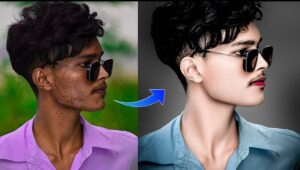
  • HD Face Photo Editing in Autodesk SketchBook

    Mastering Photo Editing in Autodesk SketchBook

    Introduction

    Autodesk SketchBook is a powerful tool for artists, designers, and illustrators. While it’s primarily known for its sketching capabilities, it’s also a great choice for photo editing. In this blog post, we’ll explore how to enhance your photos using SketchBook.

    Importing Your Image

    1. Open SketchBook: Launch the app on your device.
    2. Import Image: In the toolbar, click on “Import Image.”
    3. Choose Your Photo: Select the image you want to edit from your device.
    4. Position and Adjust: Use the Transform tools to resize, move, and rotate the image as needed.

    Basic Edits

    1. Brightness and Contrast:
      • Go to the Layer Editor and adjust the Brightness/Contrast layer.
      • Increase brightness to make the image lighter or decrease it for a darker look.
      • Adjust contrast to enhance details.
    2. Color Corrections:
      • Create a new layer and set its blending mode to Color.
      • Use the Brush tool with a low opacity to paint over areas that need color correction.

    Advanced Techniques

    1. Layer Masks:
      • Add a layer mask to isolate specific parts of the image.
      • Use the Brush tool with black or white to reveal or hide portions selectively.
    2. Filters and Effects:
      • Explore the Filters menu for effects like Gaussian BlurSharpen, and Distort.
      • Apply filters to create unique looks.

    Final Touches

    1. Save Your Work: Once satisfied, save your edited image.
    2. Export Options: Choose the appropriate format (JPEG, PNG, etc.) for your needs.

    Mastering

    HD Face Photo Editing in Autodesk SketchBook

    1. Importing Your Face Photo

    1. Open SketchBook: Launch the app on your device.
    2. Import Image: Click on “Import Image” in the toolbar.
    3. Choose Your Photo: Select a high-resolution face photo from your gallery.
    4. Position and Adjust: Use the Transform tools to resize, move, and rotate the image until the face is centered.

    2. Basic Retouching

    1. Skin Smoothing:
      • Create a new layer and name it “Skin.”
      • Use the Brush tool with a soft brush and low opacity.
      • Paint over blemishes, wrinkles, and uneven skin tones.
      • Adjust the layer opacity to maintain a natural look.
    2. Brighten Eyes and Teeth:
      • Create separate layers for eyes and teeth.
      • Use the Dodge tool to brighten the whites of the eyes and teeth.
      • Adjust the layer opacity for a subtle effect.

    3. Digital Makeup

    1. Lip Color:
      • Create a new layer for lips.
      • Use the Brush tool to apply lipstick or lip gloss.
      • Experiment with blending modes (Overlay, Soft Light) for realistic results.
    2. Eyeshadow and Eyeliner:
      • Create separate layers for eyeshadow and eyeliner.
      • Use soft brushes and adjust opacity.
      • Blend colors to create a natural or dramatic look.

    4. Advanced Techniques

    1. Frequency Separation:
      • Duplicate your image layer.
      • Apply a Gaussian Blur to the duplicate layer.
      • Set the original layer to “Linear Light” blending mode.
      • Use the duplicate layer to retouch imperfections without affecting texture.
    2. Sculpting and Contouring:
      • Create a new layer for contouring.
      • Use the Brush tool with a low opacity.
      • Add shadows to define cheekbones, jawline, and nose.

    5. Creative Effects

    1. Digital Painting:
      • Experiment with brushes, blending modes, and layers.
      • Turn your face photo into a digital painting by adding strokes and textures.
    2. Surreal Edits:
      • Combine face photos with other images (e.g., landscapes, textures).
      • Use layer masks to seamlessly blend elements.

    6. Final Touches and Export

    1. Save Your Work:
      • Save your edited image as a SketchBook file (for future edits).
      • Export a high-resolution JPEG or PNG for sharing.
    HD Face Photo Editing in Autodesk SketchBook

    HD Face Photo Editing: Unleashing Your Inner Artist with Autodesk SketchBook

    Autodesk SketchBook, often hailed as a digital canvas for artists, has quietly emerged as a powerful tool for photo editing as well. While primarily known for its drawing and painting capabilities, its versatile feature set allows for meticulous manipulation of images, particularly when it comes to enhancing facial features. Let’s delve into the world of HD face photo editing using this often overlooked gem.

    Why Choose Autodesk SketchBook for Face Editing?

    You might wonder why an art app would be your go-to for photo editing. The answer lies in its precision and control. Unlike many photo editing software that offer pre-set filters and automated enhancements, SketchBook empowers you to take granular control over every aspect of your image.

    • High Resolution Canvas: SketchBook supports high-resolution images, ensuring that even the minutest details of a face are preserved and enhanced.
    • Versatile Brush Set: From soft airbrushes for subtle adjustments to hard-edged brushes for precise corrections, SketchBook offers a vast array of tools tailored for facial editing.
    • Layer Functionality: This indispensable feature allows you to work non-destructively, experimenting with different effects without affecting the original image.
    • Customization: With customizable brushes, colors, and blending modes, you can create a truly unique and personalized look.

    A Step-by-Step Guide to HD Face Editing

    1. Import Your Image: Begin by importing your high-resolution photo into SketchBook. Ensure the image is clear and well-lit for optimal results.
    2. Duplicate the Layer: Create a duplicate of the original layer to preserve the original image. This layer will be your canvas for edits.
    3. Skin Refinement:
      • Use a soft airbrush to gently smooth out skin imperfections.
      • Employ a darker shade to add subtle shadows for depth and contour.
      • Enhance facial features like cheekbones and jawline by adding highlights and shadows.
    4. Eye Enhancement:
      • Use a small, hard brush to define the iris and pupil.
      • Add highlights to the eyes to make them sparkle.
      • Carefully adjust the eyebrow shape and thickness.
    5. Lip Perfection:
      • Create a base color for the lips using a soft brush.
      • Add highlights and shadows to give the lips a 3D appearance.
      • Use a darker shade to define the lip line.
    6. Color Correction:
      • Adjust the overall color tone of the image if needed.
      • Use color balance or hue/saturation tools for fine-tuning.
    7. Sharpening:
      • Apply a subtle sharpening effect to enhance facial details.
      • Be cautious to avoid over-sharpening, which can lead to a harsh look.

    Beyond the Basics

    While these steps provide a foundation for HD face editing in SketchBook, the possibilities are endless. Experiment with different brush techniques, layer blending modes, and color combinations to achieve your desired look. Consider using the app’s symmetry tools for precise adjustments to facial features.

    Face Enhancement with Autodesk SketchBook

    In an era dominated by heavily filtered, often unrealistic beauty standards, digital art offers a unique opportunity to explore a more nuanced approach to facial enhancement. Autodesk SketchBook, a powerful yet intuitive digital painting tool, provides a canvas for artists to refine features, correct imperfections, and enhance natural beauty without resorting to drastic alterations.

    The Art of Smoothing: A Balanced Approach

    Smoothing skin should aim to create a flawless, natural appearance rather than an artificial mask. Here’s a step-by-step guide:

    1. Duplicate Layer: Create a duplicate of your original layer to preserve the original image.
    2. Low Opacity Brush: Use a soft airbrush with low opacity to gently blend over imperfections. Focus on areas with blemishes, pores, or fine lines.
    3. Frequency Separation (Optional): For more advanced users, frequency separation can help isolate texture and color information, allowing for precise smoothing.
    4. Blending Modes: Experiment with blending modes like Soft Light or Overlay to subtly enhance the smoothed effect.

    Whitening with Care: A Delicate Touch

    Whitening should complement the overall skin tone and avoid creating an unnatural appearance.

    1. Color Balance: Use the Hue/Saturation adjustment layer to subtly shift the overall color temperature towards warmer tones.
    2. Dodge and Burn: Carefully lighten areas like the forehead, cheekbones, and nose bridge to create a subtle brightening effect.
    3. Local Adjustments: Use a brush to selectively brighten specific areas, such as the under-eye area, while maintaining natural shadows.
    Download

    Conclusion

    Autodesk SketchBook empowers you to create professional-grade HD face edits. Whether you’re retouching portraits or exploring artistic effects, let your creativity flow. Remember to practice, experiment, and enjoy the process!

    Download Ios
  • How to Enhance Normal Photo Quality in to 8k Quality

    Enhancing Photo Quality and Depth with Krea AI: A Comprehensive Guide

    Introduction to Krea AI Upscale & Enhance

    Krea AI’s “Upscale & Enhance” tool is a game-changer for image quality improvement. Whether you’re a photographer, digital marketer, or just someone who wants to enhance their personal photos, Krea AI offers powerful capabilities. Let’s explore how it works and how you can make the most of it.

    What Is Krea AI Upscale & Enhance?

    Krea AI is an AI upscaler that uses artificial intelligence to recreate visual content in higher resolutions. Unlike traditional graphic design tools, Krea AI can enhance image resolution with just a single click. Here’s how it works:

    1. Pixel Reconstruction: When pixels are missing in the original image (due to low resolution or blurriness), Krea AI predicts and adds new pixels. Think of it as an AI artist filling in the gaps.
    2. No Holy Grail: Unfortunately, there’s no magic solution to upscaling without concessions. Whether using AI or not, there’s always a trade-off. AI-based upscaling creates new pixels, while non-AI methods approximate existing ones. The key is finding the right balance.
    3. Open Beta: Krea AI’s “Upscale & Enhance” tool is now available in Open Beta, so you can start experimenting with it!

    AI vs. Non-AI Upscaling

    AI-Based Upscaling

    • Pros:
      • Predicts missing details.
      • Improves overall image quality.
      • Ideal for digital marketing and creative projects.
    • Cons:
      • Requires concessions (making up pixels).
      • Cannot magically create details that weren’t captured in the original image.

    Non-AI Upscaling

    • Pros:
      • Uses mathematical algorithms (bilinear, bicubic, Fourier transforms).
      • Still relevant and useful.
      • Approximates existing pixels.
    • Cons:
      • Based on human perception (subjective).
      • May not fully capture objective reality.

    How to Use Krea AI Upscale & Enhance

    1. Visit Krea AI: Go to the Krea AI website and log in (or create an account).
    2. Upload Your Image: Use the “Upscale & Enhance” option to upload your image.
    3. Set Parameters:
      • Adjust the AI Strength to control enhancement levels.
      • Choose the Upscaling Factor for resolution improvement.
    4. Enhance the Image: Click “Enhance” and let Krea AI work its magic.
    5. Compare: Compare the original and enhanced versions. If satisfied, download the improved image.

    Enhancing Photos with Krea AI: A Comprehensive Guide

    In the digital age, visual content plays a crucial role in capturing attention and conveying messages effectively. Whether you’re a photographer, marketer, or simply someone who loves sharing images online, enhancing your photos can make a significant difference. Enter Krea AI, a powerful tool that leverages artificial intelligence to upscale and enhance images. In this blog post, we’ll explore how to use Krea AI’s “Upscale & Enhance” feature to transform your photos.

    What is Krea AI Upscale & Enhance?

    Krea AI’s “Upscale & Enhance” is an AI upscaler designed to improve image quality by recreating visual content in higher resolutions. Unlike traditional graphic design tools, which rely on approximations, Krea AI uses artificial intelligence to add pixels intelligently. Let’s dive into the steps for enhancing your photos:

    Step 1: Visit Krea AI Website

    1. Go to the Krea AI website.
    2. Log in or create an account if you haven’t already.

    Step 2: Access the “Upscale & Enhance” Tool

    1. Click on the “Upscale & Enhance” option on the Krea AI platform. You can find it here.

    Step 3: Upload Your Image

    1. Upload the image you want to enhance.
    2. Type a prompt (optional) to guide the AI in understanding your desired outcome.

    Step 4: Adjust Settings

    1. Set the AI Strength: This determines how aggressively the AI enhances your image.
    2. Choose the Upscaling Factor: Decide how much you want to increase the resolution (e.g., 2x, 4x, etc.).

    Step 5: Enhance!

    1. Once everything is ready, click the “Enhance” button.
    2. Krea AI will process your image, adding details and improving its quality.

    Step 6: Compare and Download

    1. Compare the original image with the enhanced version.
    2. If you’re satisfied, download the improved image.

    AI vs. Non-AI Upscaling

    While Krea AI’s AI-based upscaling is powerful, it’s essential to understand the trade-offs:

    • AI Upscaling: Krea AI intelligently adds pixels, but it can’t magically recreate details that weren’t captured in the original image. It’s a valuable tool for enhancing existing content.
    • Non-AI Upscaling: Traditional algorithms (bilinear, bicubic, etc.) approximate new pixels based on mathematical equations. They consider human visual perception but still involve concessions.

    Advanced Techniques for Image Enhancement

    1. Selective Enhancement

    Rather than enhancing the entire image uniformly, consider focusing on specific areas. For example:

    • Portrait Retouching: Enhance facial features, smooth skin, and brighten eyes while preserving the natural look.
    • Product Photography: Highlight product details (such as logos or intricate textures) without affecting the background.

    2. Noise Reduction

    Krea AI can reduce noise in your images, especially when dealing with low-light or high-ISO shots. Follow these steps:

    1. Upload the Noisy Image: Use the “Upscale & Enhance” tool.
    2. Adjust AI Strength: Set it to a moderate level.
    3. Compare Results: Check if the noise reduction improves the image quality.

    3. Color Correction and Grading

    • Color Balance: Adjust the color balance to achieve warmer or cooler tones.
    • Creative Grading: Experiment with different color palettes to evoke specific moods (e.g., vintage, cinematic, or futuristic).

    4. Upscaling Old Photos

    • Scan Old Prints: Digitize old photographs by scanning them.
    • Enhance Details: Use Krea AI to upscale and enhance these nostalgic images while preserving their original charm.

    5. Artistic Interpretations

    • Painterly Effects: Enhance an image to resemble a painting or a specific art style (e.g., Impressionism or Pointillism).
    • Texture Emphasis: Enhance textures (e.g., wood grain, fabric, or stone) for artistic purposes.

    Real-World Applications

    1. E-Commerce Product Images

    • High-Quality Thumbnails: Enhance product images for online stores to attract potential buyers.
    • Zoom-In Experience: Provide detailed views of product features.

    2. Archival and Restoration Projects

    • Historical Photos: Restore old photographs for museums, archives, or family albums.
    • Document Preservation: Enhance scanned documents and handwritten notes.

    Download here

    3. Social Media and Blog Posts

    • Engaging Visuals: Enhance images for blog posts, social media updates, and articles.
    • Before-and-After Comparisons: Show the impact of enhancements.

    Tips for Optimal Results

    1. Use High-Resolution Source Images: The better the input quality, the more impressive the enhancement.
    2. Experiment with Settings: Adjust AI strength, upscaling factor, and other parameters to find the sweet spot.
    3. Compare Side by Side: Always compare the original and enhanced versions to ensure improvements.

    Conclusion

    Krea AI’s “Upscale & Enhance” tool empowers creators to breathe new life into their images. Remember that while AI can enhance quality, it can’t create what wasn’t there. Experiment, learn, and enjoy the creative process!

  • Introducing App Switch Light: Streamlining Your Mobile Experience

    In the dynamic world of mobile applications, the quest for efficiency and user-friendly interfaces is a continuous journey. The latest addition to this pursuit is the App Switch Light, a groundbreaking application designed to enhance your mobile experience. Let’s delve into the key features and benefits that make this app a game-changer.

    Sleek and Swift Navigation

    App Switch Light introduces a seamless navigation experience. The app boasts a sleek design that simplifies the process of switching between applications. With a user-friendly interface, you can effortlessly glide from one app to another, enhancing overall accessibility.

    Optimized Resource Management

    Efficiency is at the core of App Switch Light. The application excels in resource management, ensuring minimal strain on your device’s capabilities. This optimization results in faster app transitions, reduced load times, and an overall smoother performance.

    Customization for Personalized Experience

    Recognizing the diverse preferences of users, App Switch Light offers customization options. Tailor the app switcher to match your aesthetic preferences or choose a layout that aligns with your workflow. This personal touch enhances user satisfaction and ensures a more enjoyable interaction with your device.

    Enhanced Multitasking Capabilities

    App Switch Light takes multitasking to new heights. With improved multitasking capabilities, users can effortlessly juggle between various applications without sacrificing performance. Whether you’re toggling between work and leisure apps or managing multiple tasks simultaneously, this app streamlines the process.

    Battery-Friendly Design

    In an era where battery life is paramount, App Switch Light stands out with its battery-friendly design. The app minimizes background processes, preserving your device’s battery life without compromising on functionality. This feature makes it an ideal companion for users constantly on the move.

    Intelligent App Prioritization

    To further elevate the user experience, App Switch Light incorporates intelligent app prioritization. The app analyzes your usage patterns and strategically places frequently accessed applications for quick access. This predictive element ensures that the apps you need are readily available, saving you time and effort.

    Compatibility Across Devices

    App Switch Light is designed to adapt to various devices seamlessly. Whether you’re using a smartphone or tablet, Android or iOS, this app ensures a consistent and efficient switching experience across platforms. The universal compatibility enhances its appeal to a wide range of users.

    Android app link

    Iphone download link

    Security at the Forefront

    Security is a top priority, and App Switch Light takes it seriously. The app employs robust security measures to safeguard your data during the app-switching process. Your privacy remains intact, ensuring a worry-free mobile experience.

    In conclusion, App Switch Light emerges as a frontrunner in the realm of app-switching applications. With its sleek design, optimized performance, customization options, and intelligent features, it sets a new standard for mobile efficiency. Upgrade your mobile experience today with App Switch Light – where seamless navigation meets enhanced functionality.

    Click here to see more related posts

  • Top Video editing app 2024

    If you are looking to edit professional photos, you might want to consider using dedicated Video editing app such as Adobe Photoshop, Lightroom, or other alternatives. If Motion Ninja has introduced photo editing features, you can follow these general steps for professional photo editing:

    Import Your Photo:

    Open the Motion Ninja app.
    Import the photo you want to edit. Video editing app
    Basic Adjustments:

    Batch processing capabilities allow you to apply the same edits to multiple photos simultaneously, saving time and ensuring consistency across a series of images.
    Advanced Export Options:

    Options for exporting images in various formats, resolutions, and color spaces can be crucial for professional use.
    Always refer to the Motion Ninja app’s official documentation or explore the app itself to see if these or similar features are available for advanced photo editing. Keep in mind that specialized photo editing software like Adobe Photoshop or Lightroom may still offer a broader range of advanced features for professional photo editing.

    atOptions = { ‘key’ : ‘8ae430e64101da926919a26d8e62e6bd’, ‘format’ : ‘iframe’, ‘height’ : 90, ‘width’ : 728, ‘params’ : {} }; document.write(”);