Category: Photo&video Editing

  • Instagram Trending: AI “Bike to Robot” Video Edits

    A new Instagram (and Reels/TikTok) sensation is sweeping creatives off their feet—literally. The viral AI-powered “Bike to Robot” video effect transforms your ordinary bike footage into a dramatic sci-fi robot reveal. In this blog post, we’ll unpack the trend—what it is, why it’s popular, how creators make it, and best practices to ride the wave effectively.


    🔍 What Is the “Bike to Robot” AI Trend?

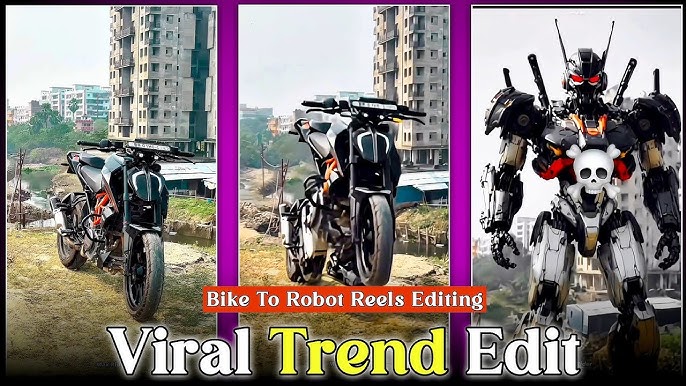
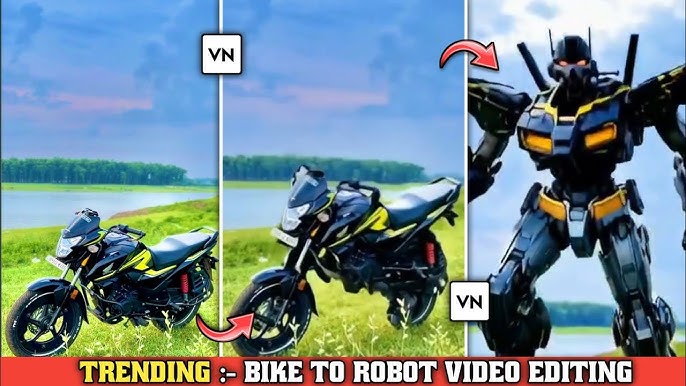
    Creators upload video clips or photos of their bikes and use AI tools—like Pixverse AI, CapCut, or similar apps—to automatically animate a transformation, morphing the bike into a lifelike robot filmed from multiple angles. The final result usually features:

    • Wheels becoming robot legs
    • Handlebars turning into mechanical arms
    • Headlights transforming into glowing eyes
    • Smooth transformation animation synced to trending audio

    This futuristic visual trick is both cinematic and easy to produce, even for beginners, and it’s quickly gaining popularity on Instagram Reels and TikTok editprotips.in+4promptseen.com+4dhupeditor.com+4apnaeditz.comdhupeditor.com.


    🚀 Why It’s Blowing Up

    1. Minimal editing skill needed: Just one click on Pixverse AI or CapCut yields dramatic results .
    2. High shareability: The magical transformation is visually compelling, making it perfect ‘For You’ feed fodder.
    3. Personalized creativity: Owners can showcase their own bike rendered as a powerful robot avatar.
    4. AI fascination: It’s a fun demonstration of how AI can morph reality in novel ways.

    🧰 Tools Behind the Trend

    • Pixverse AI Video Generator: Users select the “Bike to Robot” template, upload footage or image, and click “Generate.” The AI animates a futuristic transformation in seconds ispyprice.co.
    • CapCut and other apps: Mobile apps or filters that apply automated robot transformations with no manual editing required youtube.com+10dhupeditor.com+10promptseen.com+10.
    • Advanced options: Some creators combine AI render with CapCut for effects and syncing to trending music tracks.

    📝 Step-by-Step Guide: Create Your Own Bike-to-Robot Edit

    1. Record quality footage: A clear shot of your bike in outdoor or neutral settings helps the AI detect shape and structure.
    2. Open Pixverse AI:
    3. Enhance in CapCut or Similar:
      • Import the AI video.
      • Add transitions, overlays, and sync to trending audio.
    4. Use trending audio: Popular Reels music enhances discovery.
    5. Post & engage: Use hashtags like #BikeToRobot, #AITransforms, and tag AI editing accounts.

    Bike Robot Reels Editing | Bike Transform In To Robot | Bike Robot Trending  Reels Editing

    🎥 Examples in the Spotlight


    🎯 Pro Tips for Trend-Topping Content

    • Clear visuals: Clean, well-lit bike footage enhances AI detection.
    • Short and sharp: Keep edits 10–15 seconds for optimal engagement.
    • Sync with music: Align transformation timing with audio beats.
    • Experiment: Try different bike angles—side view, close-up wheels, or creative POV shots.
    • Tag right: Follow trending tags and remix popular templates for algorithm boosts.

    🌐 Broader Context & AI Fascination

    This trend parallels wider AI-powered creative shifts:


    🧭 Ethical & Practical Considerations

    • Ownership of AI assets: Check Pixverse’s terms to confirm your right to share generated content.
    • Avoid misleading captions: Label content as “AI transformation” so viewers aren’t misled.
    • Use responsibly: If commercial—e.g. brand promos—ensure appropriate licensing or disclaimers.

    🔮 What’s Next?

    • AI‑generated real-time AR filters: Soon, rising creators may morph objects live during filming.
    • Other object transformations: “Car to robot” or “phone to drone” effects could follow.
    • Deeper integrations: Bike-to-robot content may merge with smart-bike tech (navigation, AI assistants), bridging real and virtual editprotips.in+4zeldazon.com+4promptseen.com+4.

    Trending Bike To Robot Transformation Video Editing 100% Viral🔥? Instagram  Trending Bike Robot Edit - YouTube

    ✅ Final Take

    The Bike-to-Robot AI trend demonstrates how accessible AI tools can unlock imaginative, high-impact content. What started as a fun sci-fi flick is now a creative phenomenon: no editing skills required, just bold visuals and viral energy. Whether you’re a biking enthusiast, content creator, or NFT artist, this trend offers an exciting way to reframe everyday items as futuristic icons.

    Ready to transform your ride? Have your bike at the ready—I’ll walk you through the AI template, editing tips, and posting strategy to help your reel take off.

    Ride the future—and become a trend pioneer!

  • 3D Name Art AI Photo Editing: Transform Your Name into Stunning Visual Art

    In an age of personalization and aesthetic expression, 3D name art has emerged as one of the hottest photo editing trends, especially when powered by AI. Whether it’s for profile pictures, digital posters, YouTube thumbnails, or social media posts, AI-generated 3D name art turns ordinary text into mesmerizing visual identities.

    Let’s dive into how this trend works, the tools that make it happen, and how you can create your own eye-catching 3D name art using AI.


    🔍 What Is 3D Name Art?

    3D Name Art is the creative transformation of names or initials into three-dimensional digital designs. These designs use shadows, depth, textures, and lighting effects to give names a lifelike, embossed, or holographic appearance. When paired with AI, the result is faster creation, smarter design, and visually stunning results.


    🚀 Why Is 3D Name Art AI Editing Trending?

    ✅ 1. Personal Branding

    Influencers, gamers, and creators are using 3D name logos for YouTube intros, Twitch overlays, and Instagram bios to build unique identities.

    ✅ 2. Profile Pictures & Digital Identity

    Instead of using selfies, many users now create stylized name-based profile pictures with neon, metallic, or glowing effects.

    ✅ 3. Viral Social Media Edits

    Reels, TikToks, and shorts that feature spinning 3D names, graffiti-style text, or glowing fonts are going viral — especially when users share their customized names.

    ✅ 4. Easy with AI

    AI has simplified the 3D text creation process — no more Photoshop or Blender knowledge needed.


    🧠 How AI Is Powering 3D Name Art

    AI tools use text prompts, name inputs, and pre-trained visual models to generate name art in seconds. These systems recognize style requests like:

    • “Graffiti-style 3D name”
    • “Metallic gold 3D letters with glowing blue background”
    • “Futuristic neon nameplate”
    • “Wooden embossed initials in fantasy lighting”

    AI understands the prompt, applies 3D depth, and stylizes the font with lighting, textures, and backgrounds.


    🛠️ Top AI Tools for 3D Name Art Editing

    Here are some of the best tools available right now:

    ToolFeaturesBest For
    Text to Image by CanvaPrompt-based design, font style controlQuick edits
    NameArt.AISpecializes in stylized name generationName logos
    Craiyon (DALL·E Mini)Free AI image generation from textCreative experimentation
    Fotor AIPhoto effects + text overlays with 3D supportInstagram content
    Photoshop (AI Beta)Generative fill for custom name art backgroundsPro editing
    NightCafe AIStyle transfer + text embeddingArtistic name designs
    ZMO.AISocial media-ready 3D designsBranding, profile pics

    Photo Editing

    ✍️ How to Create Your Own 3D Name Art with AI

    Here’s a step-by-step guide using free and easy tools:

    Step 1: Choose Your AI Tool

    For beginners, use Canva, NameArt.AI, or ZMO.AI for templates. Advanced users can try Photoshop AI or NightCafe.

    Step 2: Input Your Name

    Type your full name, nickname, or initials.

    Step 3: Choose a Style

    Pick a 3D style:

    • Chrome letters
    • Neon graffiti
    • Fantasy fire/ice
    • Retro game pixel font
    • Gold embossed royal style

    You can also type it as a prompt:

    “3D glowing white name art of ZAIN in futuristic blue tech background”

    Step 4: Customize Background & Effects

    Use AI-powered sliders or generate a matching background:

    • Galaxy, tech, vintage, grunge, minimal, bokeh

    Step 5: Export & Share

    Download the design in high-resolution PNG or JPEG format. Post on:

    • WhatsApp DPs
    • TikTok story intros
    • YouTube thumbnails
    • Instagram name grids
    • Profile banners

    🖼️ Examples of 3D Name Art Styles

    StyleDescription
    Cyberpunk GlowNeon blue/pink 3D text on dark city backdrop
    Luxury GoldShiny embossed golden text with velvet background
    Fire & IceRed/blue dual-tone exploding text animation
    Cartoon BubbleRounded 3D letters with soft pastel colors
    Graffiti WallSpray-painted bold names on brick textures

    🎯 Who Is Using This Trend?

    • YouTubers & Streamers: For intros and branded overlays
    • Students: For digital notebooks, bios, and stickers
    • Artists: Posting stylized name edits as portfolio pieces
    • Couples & Friends: Making matching name DP sets
    • Marketers: For eye-catching banners, CTAs, or headers

    Photo Editing

    ⚠️ Tips for Better 3D Name Art

    • Use short names or initials for maximum impact.
    • Avoid clutter—pick one focus style (glow, chrome, texture).
    • Use AI upscalers to improve image quality.
    • Combine tools: e.g., generate in Canva, animate in CapCut.

    🔮 Future of AI Name Art

    AI is only getting better at understanding artistic context. Soon we’ll see:

    • Real-time 3D text animations via voice commands
    • Augmented Reality name art for Instagram stories
    • Personalized merch designs: mugs, T-shirts, phone cases
    • Name-to-video generators creating animated intros

    ✅ Final Thoughts

    3D Name Art AI Photo Editing isn’t just a passing trend — it’s a digital evolution of self-expression. With powerful AI tools now at everyone’s fingertips, turning your name into a stunning visual brand has never been easier.

    Whether you’re an aspiring designer, influencer, or just love personalized art — AI name editors offer you limitless possibilities.

  • Blast VFX Editing with AI: The Future of Explosive Visuals


    In the world of digital storytelling—whether it’s blockbuster movies, gaming trailers, music videos, or social media content—blast effects or explosions are among the most exciting and eye-catching visual effects (VFX). But creating high-quality blast VFX has traditionally required expensive software, skilled professionals, and countless hours of rendering. Today, AI is changing everything.

    In this blog post, we’ll dive into how AI-powered tools are revolutionizing blast VFX editing, making it faster, easier, and more accessible than ever before.


    🔥 What is Blast VFX?

    Blast VFX refers to the use of digital effects to simulate explosions, shockwaves, fireballs, debris, and related environmental reactions like smoke or light bursts. These effects are commonly seen in:

    • Action movies
    • Sci-fi and war games
    • Anime and animated series
    • Music videos and trailers
    • YouTube edits and short films

    Traditionally, VFX artists use tools like Adobe After Effects, Houdini, or Blender to design blast effects. These tools are powerful but complex, often requiring years of experience to master.


    🤖 How AI is Revolutionizing Blast VFX Editing

    AI-driven video editing tools have stepped into the game, offering intelligent automation, faster render times, and incredible realism with less manual work. Here’s how:

    1. Automatic Object Tracking and Masking

    AI can automatically detect and track objects or characters in a scene. This allows for precise placement of blast effects, so they react correctly to the environment—whether it’s behind a building, bursting from a vehicle, or impacting a character.

    2. Pre-trained Explosion Models

    AI VFX platforms now offer pre-trained neural networks that understand physics-based simulations. These tools can create realistic explosions that adapt to different surfaces, lighting conditions, and motion dynamics—all without starting from scratch.

    3. Drag-and-Drop VFX Templates

    Tools like RunwayML, Pika Labs, and Kaiber allow creators to add explosion effects by simply choosing a template and placing it in the timeline. The AI adjusts color grading, lighting, and perspective to match your footage automatically.

    4. Real-Time Previews and Edits

    With AI assistance, creators can now preview blast VFX in real-time without long rendering wait times. Instant feedback means faster decision-making and more creative flexibility.

    5. Text-to-Effect Generation

    Some cutting-edge tools are experimenting with text-based VFX commands. For example, typing “add a fiery explosion at 2.3 seconds near the car” generates the effect automatically, thanks to natural language processing and AI video understanding.


    🛠️ Top AI Tools for Blast VFX Editing

    Here’s a curated list of AI-powered tools making waves in blast VFX editing:

    ToolKey FeaturesBest For
    Runway MLAI-generated explosions, auto-masking, real-time effectsShort films, YouTube
    Pika LabsText-to-video generation with VFX promptsAI-based concept visuals
    Wonder Studio by Wonder DynamicsAuto-motion tracking and integration of 3D elementsFilm and character animation
    KaiberStyle transfer with AI-generated motion graphicsMusic videos
    Luma AI3D scene reconstruction with blast integrationAR/VR and 3D environments
    GenmoAnimate still images or video with AIVisual storytelling

    Realistic Building Blast Video Editing || Realistic Vfx Effect Using Ai  Tool | Viral Blast Reel Edit

    🎬 Real-World Use Cases

    🎥 Indie Filmmakers

    An indie director can now add believable explosions to an action sequence without a million-dollar budget. AI tools generate the necessary blast VFX that syncs with camera shake, lighting, and debris.

    🎮 Game Trailer Creators

    Video editors for games can simulate in-game explosion scenes for trailers using AI-generated blasts that mimic the original game’s physics and design aesthetic.

    📱 Social Media Content Creators

    Influencers and editors on platforms like TikTok, Instagram Reels, and YouTube Shorts use AI to create eye-popping visuals—like a person walking away from a slow-mo explosion—boosting engagement and watch time.


    💡 Tips for Creating Stunning Blast VFX with AI

    1. Start with High-Quality Footage: The better your original video, the more realistic the AI VFX will look.
    2. Match Lighting and Shadows: Use tools that let AI detect ambient light to create natural-looking blast effects.
    3. Layer Sound Design: Add appropriate explosion sounds, shockwave bass, and debris sounds for full immersion.
    4. Use AI for Camera Shake: Simulate camera shake post-explosion using AI-based motion tools to enhance realism.
    5. Combine Multiple Effects: Fire, debris, smoke, and light flashes all add layers of realism to a blast scene.

    📈 The Future of Blast VFX with AI

    AI isn’t replacing VFX artists—it’s empowering them. Expect to see:

    • Voice-driven editing: “Add a fiery explosion in the background” as a command.
    • Real-time multiplayer collaboration on cloud platforms.
    • VFX suggestion engines: AI recommends explosion types based on scene context.
    • In-camera AI VFX: Smart AR filters creating blast effects live while filming.

    As the line between real and digital continues to blur, blast VFX will become an everyday tool, not just a blockbuster luxury.


    YouTube

    🧠 Final Thoughts

    Blast VFX editing with AI is no longer a futuristic dream—it’s happening now. Whether you’re an aspiring filmmaker, a digital artist, or a content creator, AI tools are your new creative partner.

    From realistic fireballs to stylized anime explosions, the power of explosive storytelling is literally at your fingertips.

    Boom! Your story just got a whole lot louder.


    ✅ Key Takeaways:

    Whether for films, games, or reels—anyone can create stunning explosions.

    AI simplifies complex blast VFX creation through automation and templates.

    Tools like Runway, Kaiber, and Pika Labs are leading the charge.

    Real-time previews, object tracking, and text-based prompts make editing efficient and fun.

  • Download Free VPN for iPhone and Android (2025 Guide)

    In a world of data breaches, online tracking, and geo-blocked content, a VPN (Virtual Private Network) isn’t just for techies anymore — it’s essential. Whether you’re trying to access blocked websites, secure your public Wi-Fi usage, or unlock global content on Netflix, TikTok, or YouTube, a good VPN on your smartphone makes a world of difference.

    And guess what? You don’t need to pay to get solid protection. In this post, we’ll walk you through:

    • What a VPN is and why it matters
    • Top free VPN apps for iPhone and Android (2025 picks)
    • How to download and set one up in under 2 minutes
    • The pros and cons of using free VPNs

    🛡️ What Is a VPN and Why Do You Need One?

    A VPN (Virtual Private Network) encrypts your internet connection and hides your IP address by routing your traffic through a secure server.

    Benefits:

    • ✅ Browse anonymously
    • ✅ Access geo-blocked content (Netflix, Hulu, TikTok, websites)
    • ✅ Stay safe on public Wi-Fi
    • ✅ Prevent advertisers and ISPs from tracking you
    • ✅ Avoid censorship or local restrictions (great for travel)

    Whether you’re streaming, shopping, gaming, or just scrolling — a VPN boosts both privacy and freedom.


    📱 Best Free VPNs for iPhone and Android in 2025

    Here are the top-rated free VPN apps that work on both iOS and Android, based on security, speed, and user experience:


    1. 🌍 Proton VPN (Best for Unlimited Data)

    Platforms: iOS, Android
    No Data Limits:
    Servers: US, Netherlands, Japan
    Log Policy: No logs
    Speeds: Great for browsing, decent for streaming

    Pros:

    • No ads
    • Unlimited free data
    • Strong privacy (open-source + Swiss-based)

    Cons:

    • Free users can’t choose specific server locations
    • Can be slower during peak hours

    📥 Download:


    2. 🚀 Windscribe (Best for Streaming Access)

    Platforms: iOS, Android
    Free Data: 10 GB/month (with email signup)
    Servers: Over 10 free locations
    Speeds: Fast enough for HD streaming

    Pros:

    • Built-in ad & tracker blocker
    • Works well with Netflix
    • You can select your server region

    Cons:

    • 10 GB/month cap
    • No live chat for free users

    📥 Download:


    VPN

    3. 🔒 Hide.me (Best for Privacy First Users)

    Platforms: iOS, Android
    Free Data: 10 GB/month
    Servers: 5 locations
    No Logs: Yes
    Security: AES-256 encryption

    Pros:

    • Transparent privacy policy
    • Good speeds and solid reliability
    • No ads, even for free users

    Cons:

    • Limited server choice
    • Advanced features locked to paid tier

    📥 Download:


    4. ⚡ TunnelBear (Best for Beginners)

    Platforms: iOS, Android
    Free Data: 2 GB/month
    Servers: 20+ locations (free users included)
    User Interface: Simple & friendly

    Pros:

    • Super easy to use
    • Fun UI (great for non-techies)
    • Transparent company with regular audits

    Cons:

    • 2 GB/month is limiting
    • No P2P support on free plan

    📥 Download:


    5. 🌐 Atlas VPN (Balanced Free Option)

    Platforms: iOS, Android
    Free Data: Unlimited (with some restrictions)
    Servers: US & Netherlands
    Speeds: Stable for general use

    Pros:

    • Decent speeds for a free VPN
    • Unlimited data (with some limitations)
    • Owned by Nord Security (reputable)

    Cons:

    • Smaller free server network
    • Ads in the free version

    📥 Download:


    📲 How to Download and Set Up a Free VPN (in 2 Minutes)

    iPhone (iOS):

    1. Open the App Store
    2. Search for one of the VPN apps above (e.g., “Proton VPN”)
    3. Tap Download
    4. Open the app, create a free account
    5. Tap “Connect” or choose a location, then allow VPN configuration

    Android:

    1. Open Google Play Store
    2. Search for the VPN app (e.g., “Windscribe VPN”)
    3. Tap Install
    4. Launch app, sign up or sign in
    5. Tap Connect and grant VPN permissions

    Boom! You’re browsing privately.


    VPN

    ⚠️ Pros and Cons of Free VPNs

    ✅ Pros:

    • Free to use
    • Great for basic privacy and occasional streaming
    • Easy to install and user-friendly

    ❌ Cons:

    • Limited server access and speed
    • Data caps on many apps
    • Not all free VPNs are safe — avoid sketchy or ad-heavy apps

    Avoid: VPNs with no transparency, vague privacy policies, or suspicious permissions.


    🔐 When Should You Upgrade to a Paid VPN?

    You might want to go premium if:

    • You stream or game daily
    • You need full-speed downloads or torrenting
    • You travel frequently and want global access
    • You want 24/7 customer support

    Top paid options: NordVPN, ExpressVPN, Surfshark, ProtonVPN Plus


    🎯 Final Thoughts

    A free VPN on your iPhone or Android is a smart step toward digital freedom and privacy. While not all free options are created equal, the ones listed above are reliable, transparent, and trusted in 2025.

    Start small, stay safe, and enjoy the open internet — wherever you are.


    🔗 Quick Download Links (Recap)

    VPNiPhoneAndroid
    Proton VPNDownloadDownload
    WindscribeDownloadDownload
    Hide.meDownloadDownload
    TunnelBearDownloadDownload
    Atlas VPNDownloadDownload

    Need help picking the right VPN based on your use case (streaming, gaming, traveling)? Drop your question below — I’ll help you match the right one.

    Would you like this blog turned into a PDF or infographic for easy sharing? Just ask!

  • How to Generate a Trending “Ride My Porsche” Video Using AI

    Viral trends are changing the content creation game. One standout? The “Ride My Porsche” video trend — a high-energy blend of flex culture, catchy music, and cinematic vibes that screams luxury meets AI creativity. And the best part? You don’t need a Porsche or a film crew. With AI, you can generate a head-turning version of this trend in just a few steps.

    In this blog post, you’ll learn exactly how to create your own viral “Ride My Porsche” video using AI tools, from visuals to music and captions. Let’s roll. 🚘


    🔥 What Is the “Ride My Porsche” Video Trend?

    The trend usually features:

    • A luxury Porsche (real or AI-generated)
    • A cool, futuristic or luxury-themed setting
    • A hook like “Come ride my Porsche” or “Who wants to ride in my Porsche?”
    • Captions with attitude (“Only seats for the bold”)
    • A slick beat or viral TikTok audio
    • Often edited in a cinematic or hyper-stylized aesthetic

    It’s all about status, fantasy, and hyperreality — a perfect playground for AI-generated content.


    🧠 Step-by-Step Guide to Creating a “Ride My Porsche” Video Using AI

    1. Choose Your AI Video Generator

    Use a text-to-video tool. Here are a few options:

    • RunwayML Gen-3 (for cinematic motion)
    • Pika Labs (great for animated visuals with smooth transitions)
    • Sora by OpenAI (if available to you, for ultra-high realism)
    • Kaiber.ai (stylized, animated, music-synced videos)

    Pick one based on whether you want realism, animation, or something dreamy.

    Prompt Example:
    “A futuristic black Porsche 911 Turbo S speeding down a neon-lit city street at night, cinematic, hyperreal, luxury aesthetic, 4K”

    You can adjust for different angles (interior/exterior), environments (desert, snow, tunnel), or moods (luxury, dystopian, cyberpunk).


    2. Generate the Scene

    Input your prompt into the AI tool. Most platforms allow you to:

    • Set duration (recommendation: 6–12 seconds for TikTok or Reels)
    • Choose aspect ratio (9:16 for vertical videos)
    • Apply filters or motion styles

    Let the AI render your Porsche video. You can generate multiple versions and remix them into a montage.


    Ai Car Video Banane Ka Prompt | TikTok

    3. Add Voiceover or Captions with AI

    Use an AI voiceover tool like:

    • ElevenLabs (for lifelike voices)
    • Descript Overdub or LOVO AI
    • CapCut (easy captioning and audio syncing)

    Voiceover script idea:
    “Only legends ride in the front. Who’s coming?”
    or
    “Not everyone gets an invite. Porsche rides are earned.”

    Add dynamic captions with kinetic text or animated fonts. Tools like CapCut and Adobe Express make this super simple.


    4. Enhance with AI-Generated Music or Sounds

    Use tools like:

    • Soundraw (generate royalty-free beats)
    • AIVA (for epic cinematic music)
    • Or trending TikTok/Reels audio (search for “Ride My Porsche” audio clips)

    If you’re using real TikTok audio, make sure to match the beat drop with key visuals (like the Porsche zooming in or opening its doors).


    5. Edit and Polish

    Use AI-enhanced editors like:

    • CapCut (mobile-friendly, with templates)
    • Runway (AI-powered green screen, motion tracking)
    • DaVinci Resolve with AI tools (for pro-level color grading)

    Edit checklist:

    • Trim to 6–15 seconds
    • Sync visuals to music or voice
    • Add slow-mo or zoom effects
    • Use cinematic LUTs or filters

    6. Post with a Viral Caption

    Here are some examples:

    • “Ride my Porsche or stay home. 💅🏽 #AIvideo #PorscheVibes”
    • “Manifestation or simulation? You decide. 🚘 #AestheticAI”
    • “All generated. Still better than your reality. #RideMyPorsche”

    Don’t forget to use trending hashtags:

    #RideMyPorsche #AIgenerated #PorscheDream #LuxuryVibes #AIaesthetic #Hyperreality


    Zee editor -

    🚀 Bonus: Turn It into a Series

    Make it a Porsche cinematic universe:

    • “Ride My Porsche: Desert Edition”
    • “Midnight Porsche Run”
    • “Porsche vs AI Police Chase”
    • “Dream Garage Series”

    Series perform better in TikTok algorithms and build viewer loyalty.


    📌 Final Thoughts

    With AI tools becoming more accessible and powerful, the lines between imagination and production are blurring. You no longer need a $200K car or a professional film crew — just a killer idea and the right prompts.

    The “Ride My Porsche” trend is about power, aesthetics, and fantasy — and AI lets you own it from your laptop.

    So go ahead: generate your dream ride, flex your virtual lifestyle, and ride the algorithm all the way to the top.


    🔧 Tools Recap

    TaskTool
    Video GenerationRunwayML, Pika Labs, Sora, Kaiber.ai
    VoiceoverElevenLabs, Descript, LOVO
    MusicSoundraw, AIVA, TikTok trending sounds
    EditingCapCut, Runway, DaVinci Resolve
    CaptionsCapCut, Adobe Express

    Need help writing prompts or designing your Porsche scene? Drop a comment or ask me to generate one for you.

    Happy (virtual) driving! 🏁

  • How to Edit Photo With Ai Lumina Brush

    In today’s fast-paced digital landscape, the demand for quick and efficient photo editing solutions has skyrocketed. Whether you’re a professional photographer, a social media enthusiast, or someone who simply cherishes capturing moments, the ability to enhance images effortlessly is invaluable. Enter Artificial Intelligence (AI) – a revolutionary force transforming the realm of photo editing. Imagine achieving professional-grade edits with just a single click. This isn’t a futuristic concept; it’s the present reality.

    The Evolution of Photo Editing

    Traditional photo editing required a deep understanding of complex software, hours of meticulous adjustments, and a keen eye for detail. While these skills are still valuable, AI has democratized the process, making high-quality editing accessible to all. AI-driven tools analyze images, recognize patterns, and apply enhancements automatically, reducing the time and effort previously needed.

    How AI Achieves One-Click Photo Editing

    AI-powered photo editors utilize advanced algorithms and machine learning to assess various elements of an image, such as exposure, color balance, sharpness, and composition. By comparing these factors against vast datasets of professionally edited photos, the AI determines the optimal adjustments. When you initiate a one-click edit, the software applies a series of enhancements tailored to improve the overall aesthetic of the image.

    Leading AI One-Click Photo Editing Tools

    Several platforms have harnessed AI to offer intuitive and powerful one-click editing features:

    1. Luminar Neo

    Luminar Neo stands out with its AI-driven interface designed for both beginners and professionals. Its one-click editing feature, powered by tools like Skyᴬᴵ and Structureᴬᴵ, allows users to enhance images swiftly. The software’s user-friendly design ensures that even those with minimal editing experience can achieve stunning results. As highlighted in a recent article, the Luminar Neo Lifetime Bundle offers a comprehensive set of AI-driven photo editing tools at a fraction of the cost of subscription-based platforms.

    2. Canva’s Magic Studio

    Canva has introduced a suite of AI-powered tools under the Magic Studio banner. Features like Magic Design generate layout options based on text prompts or images, while Magic Edit allows for selective modifications. These tools simplify the editing process, enabling users to achieve desired results with minimal effort. According to a Lifewire article, Canva’s Magic Studio includes tools such as Magic Design, which generates layout options based on text prompts or images, and Magic Edit, allowing selective modifications of images.

    3. Adobe’s Firefly Bulk Create

    Adobe’s Firefly Bulk Create is a game-changer for those handling large volumes of images. This tool enables users to resize up to 10,000 images or replace their backgrounds with a single click, streamlining workflows significantly. It’s particularly beneficial for professionals dealing with extensive image libraries. As reported by The Verge, Adobe’s Firefly Bulk Create allows users to resize up to 10,000 images or replace their backgrounds with a single click.

    Benefits of One-Click AI Photo Editing

    Embracing AI-driven one-click editing offers numerous advantages:

    • Time Efficiency: Drastically reduces the time spent on manual adjustments.

    • User-Friendly: Accessible to individuals without extensive technical expertise.

    • Consistency: Ensures uniform edits across multiple images, maintaining a cohesive aesthetic.

    • Creativity Unleashed: Allows users to experiment with different styles and effects effortlessly.

    Potential Limitations and Considerations

    While AI offers remarkable capabilities, it’s essential to approach one-click editing with a discerning eye:

    • Over-Reliance: Solely depending on AI might lead to generic results. Personal touches and manual tweaks can add uniqueness.

    • Complex Scenes: AI may struggle with intricate images requiring nuanced adjustments.

    • Authenticity Concerns: Excessive editing can sometimes detach the image from reality, leading to debates about authenticity. As discussed in an article by The Verge, AI-powered photo editing tools can significantly alter images, raising questions about reality and authenticity in photography.

    The Future of AI in Photo Editing

    The trajectory of AI in photo editing is poised for continuous advancement. Future developments may include more personalized editing styles, better understanding of artistic nuances, and seamless integration across various platforms. As AI learns from a broader range of artistic inputs, users can expect even more refined and tailored editing options.

    How to Edit Photos with AI in 1 Click

    AI-powered photo editing has revolutionized the way we enhance images, making professional-quality edits accessible with a single click.

    How AI One-Click Editing Works

    AI analyzes various elements like exposure, color balance, and composition, comparing them with vast datasets of professionally edited images. When you click “edit,” the AI automatically enhances the photo, delivering a polished result instantly.

    Top AI One-Click Editing Tools

    1. Luminar Neo – Uses AI tools like Skyᴬᴵ and Structureᴬᴵ for automatic enhancements.
    2. Canva’s Magic Studio – Features Magic Edit for selective modifications and AI-generated design suggestions.
    3. Adobe Firefly Bulk Create – Allows resizing and background replacements for up to 10,000 images at once.

    Benefits of AI Photo Editing

    Saves Time – Instantly enhances images.
    User-Friendly – No technical skills needed.
    Consistent Edits – Ensures uniform image quality.
    Creative Freedom – Experiment with different styles effortlessly.

    Limitations to Consider

    • AI can sometimes produce generic edits.
    • Complex images may require manual tweaks.
    • Over-editing raises authenticity concerns.

    The Future of AI in Photo Editing

    AI is expected to become more personalized and intuitive, offering even better artistic enhancements and seamless integration across platforms.

    How to Edit Photos with AI in 1 Click: The Ultimate Guide

    AI-powered photo editing has made high-quality image enhancements easier than ever. With a single click, AI can analyze, retouch, and enhance photos in seconds, making it a game-changer for photographers, content creators, and everyday users.


    How AI One-Click Photo Editing Works

    AI-driven photo editors use machine learning and deep neural networks to analyze an image’s composition, lighting, and colors. These tools compare your image with vast databases of professionally edited photos and automatically apply enhancements such as:

    Color Correction – AI adjusts brightness, contrast, and saturation for a balanced look.
    Sharpening & Noise Reduction – Enhances details while reducing grainy textures.
    Background Removal & Object Erasing – Instantly removes unwanted elements.
    Facial Retouching – Smooths skin, brightens eyes, and enhances facial features.

    With AI, tasks that once took hours in Photoshop can now be completed in a single click.


    Top AI-Powered One-Click Editing Tools

    1. Luminar Neo

    • AI-powered adjustments like Skyᴬᴵ and Enhanceᴬᴵ for landscapes and portraits.
    • One-click filters and presets to instantly transform images.

    2. Canva Magic Studio

    • AI-driven Magic Edit and Magic Design automate photo and layout enhancements.
    • Easy for beginners to apply quick edits without manual adjustments.

    3. Adobe Firefly Bulk Create

    • Can edit up to 10,000 images at once, perfect for businesses and photographers handling large volumes.
    • AI background replacement and resizing for automation.

    4. Fotor AI Photo Editor

    • AI-powered filters and beauty retouching for social media-ready images.
    • Background remover and one-click enhancement for quick edits.

    5. Remove.bg & RetouchMe

    • AI-powered background removal and object retouching.
    • Ideal for product photography and quick touch-ups.

    Advantages of AI One-Click Editing

    🔹 Instant Results – Saves hours of manual editing.
    🔹 No Expertise Needed – Perfect for beginners and professionals alike.
    🔹 Consistent Quality – Ensures uniform enhancements across multiple images.
    🔹 Enhanced Creativity – AI allows users to experiment with different styles easily.


    Potential Drawbacks & Considerations

    🔻 Lack of Customization – AI may not always match personal artistic preferences.
    🔻 Overprocessing Risks – Some AI tools might over-edit, making images look unnatural.
    🔻 Authenticity Concerns – Excessive AI editing raises questions about realism, especially in photography competitions and journalism.

    Despite these limitations, AI editing is a powerful tool that, when used wisely, can significantly enhance photo quality while maintaining authenticity.


    The Future of AI in Photo Editing

    As AI continues to evolve, we can expect:
    More Advanced Editing Styles – AI will learn to match unique artistic preferences.
    Better Detail Recognition – AI will distinguish between different textures, lighting conditions, and objects for more precise edits.
    Seamless Mobile & Cloud Integration – AI-powered editing tools will become more accessible on mobile devices and integrated into cloud platforms for real-time editing.

    AI photo editing is no longer just a trend—it’s the future. Whether you’re a professional photographer or a casual user, one-click AI tools offer a fast, simple, and effective way to enhance your images instantly. 🚀

    Luminar Neo: The AI-Powered One-Click Photo Editor

    Luminar Neo is one of the most advanced AI-powered photo editing tools, designed for both beginners and professionals. With its one-click enhancements, AI-driven tools, and user-friendly interface, it allows users to transform photos effortlessly.


    Key Features of Luminar Neo

    1. AI-Driven One-Click Enhancements

    Enhanceᴬᴵ – Automatically adjusts brightness, contrast, and saturation.
    Skyᴬᴵ – Replaces skies in landscapes instantly, even adjusting reflections.
    Structureᴬᴵ – Enhances details and textures without affecting faces or soft elements.
    Relightᴬᴵ – Fixes lighting issues by adjusting brightness separately for foreground and background.

    2. Background Removal & Object Erasing

    Eraseᴬᴵ – Removes unwanted objects (e.g., power lines, people, distractions) with a single click.
    Portrait Background Removal – AI detects and isolates subjects from backgrounds for quick replacements.

    3. Professional-Grade Portrait Editing

    Faceᴬᴵ – Enhances facial features, smooths skin, and brightens eyes naturally.
    Bodyᴬᴵ – Reshapes body proportions subtly for a natural look.

    4. Presets & Automatic Edits

    ✅ Offers hundreds of presets tailored for different photography styles.
    ✅ AI recommends the best preset based on your photo’s composition.

    5. Batch Processing for Efficiency

    ✅ Apply AI enhancements to multiple images at once, saving time.
    ✅ Ideal for photographers and content creators handling large batches of photos.


    Why Choose Luminar Neo?

    AI-powered one-click editing for quick, high-quality results.
    User-friendly interface with professional-grade tools.
    No complex manual adjustments required.
    Affordable alternative to Adobe Photoshop & Lightroom.


    How to Edit a Photo in 1 Click with Lumina Brush

    1️⃣ Upload your photo to Lumina Brush

    2️⃣ Click “Enhanceᴬᴵ” to apply automatic improvements.
    3️⃣ Use additional AI tools (Skyᴬᴵ, Faceᴬᴵ, etc.) if needed.
    4️⃣ Save & export your professionally edited image in seconds!

    Generate


    Final Thoughts

    Luminar Neo is a powerful, AI-driven photo editor that simplifies complex edits with a single click. Whether you need quick adjustments or advanced retouching, this software delivers stunning results effortlessly. 🚀

    Conclusion

    AI-powered one-click photo editing has revolutionized the way we enhance and interact with images. By automating complex processes, it empowers users to achieve professional-quality results effortlessly. As technology continues to evolve, embracing these tools can lead to more creative and efficient workflows, allowing individuals to focus on what truly matters: capturing and sharing moments that resonate.

    For more information Click Here

  • CapCut pro 2025 latest version 100 working

    Are you looking for a powerful video editing tool with advanced features? CapCut Pro 2025 is here to revolutionize your editing experience! Whether you’re a content creator, marketer, or social media enthusiast, this latest version offers cutting-edge tools to enhance your videos effortlessly.

    In this blog post, we’ll explore the new features, benefits, and how to download CapCut Pro 2025 for free. Let’s dive in!


    🔥 What’s New in CapCut Pro 2025?

    1. AI-Powered Editing Tools

    CapCut Pro 2025 introduces advanced AI enhancements, including:

    • AI Background Removal – Instantly remove and replace backgrounds.

    • Smart Auto-Cut – Automatically trim and arrange clips for seamless transitions.

    • AI Voice Enhancement – Improve audio clarity with noise reduction.

    2. 4K & 8K Video Support

    Edit ultra-high-resolution videos without lag, thanks to optimized rendering performance.

    3. Advanced Color Grading & Filters

    New LUTs (Look-Up Tables) and real-time color correction tools give your videos a cinematic touch.

    4. Multi-Track Timeline & Keyframe Animation

    Precision editing is now easier with enhanced keyframe controls and unlimited tracks.

    5. Cloud Collaboration

    Work with your team remotely using cloud storage integration and real-time project sharing.

    6. No Watermark Export (Pro Exclusive)

    Unlike the free version, CapCut Pro 2025 allows watermark-free exports in all formats.


    💡 Why Choose CapCut Pro 2025?

    ✅ User-friendly interface – Perfect for beginners & pros.
    ✅ Fast rendering – Export videos in minutes.
    ✅ Exclusive Pro effects & templates – Stand out from competitors.
    ✅ Regular updates – Stay ahead with the latest tools.


    ⬇️ How to Download CapCut Pro 2025 (Free & Safe)

    1. Visit the official CapCut website (www.capcut.com)

    2. Choose the Pro version (Free trial available)

    3. Install & activate (Follow on-screen instructions)

    4. Start editing like a pro!

    ⚠️ Warning: Avoid third-party APK sites to prevent malware.


    🚀 SEO Focus Keywords for This Post

    To maximize search traffic, consider adding these SEO-friendly keywords:

    • “CapCut Pro 2025 download”

    • “CapCut Pro latest version features”

    • “How to get CapCut Pro for free”

    • “CapCut Pro vs Free version”

    • “Best video editing software 2025”

    • “AI video editing tools”

    Suggested Focus Keywords:
    ✔ Primary: “CapCut Pro 2025 latest version”
    ✔ Secondary: “Download CapCut Pro 2025 free”“CapCut Pro features 2025”


    🎬 Final Thoughts

    CapCut Pro 2025 is a game-changer for video editors, offering AI-powered tools, high-res support, and professional-grade effects. Whether you’re editing for YouTube, TikTok, or business promotions, this software has everything you need.

    Have you tried CapCut Pro 2025 yet? Let us know in the comments!

    📌 Pro Tip: Bookmark this page for future updates on CapCut Pro!

    #CapCutPro #VideoEditing #CapCut2025 #ContentCreation #AITools

    Download Capcut Pro

    Conclusion: Which Version is Right for You?

    CapCut 2025 is a testament to how far video editing software has come. The free version is incredibly powerful, offering features that rival premium software. However, the Pro version takes it to the next level with advanced tools, unlimited layers, and collaboration features.

    If you’re a casual user or just starting out, the free version is more than enough to meet your needs. However, if you’re a professional or serious content creator, the Pro version is worth every penny.

    Ultimately, the choice depends on your editing needs, budget, and goals. Whichever version you choose, CapCut 2025 is a tool that can help you unleash your creativity and produce stunning videos.


    Final Thoughts

    CapCut 2025 has set a new standard for video editing software. With its free version offering unprecedented features and the Pro version catering to professionals, there’s something for everyone. As video content continues to dominate the digital landscape, having a reliable and powerful editing tool like CapCut is essential.

    So, what are you waiting for? Download CapCut 2025 today and start creating! Whether you go Pro or stick with the free version, the possibilities are endless. Happy editing!

    For more information Click here

  • The Art of Transforming Images to Videos: The “Leggy Run” Trend

    The Art of Transforming Images to Videos: The “Leggy Run” Trend with Pixverse

    The digital world is a rapidly evolving landscape where trends emerge, capture attention, and inspire millions. Among the most captivating phenomena is the surge in popularity of converting static images into dynamic videos. One particular trend that has gained momentum recently is the “Leggy Run,” a quirky, creative, and entertaining concept brought to life through the advanced capabilities of Pixverse. In this blog post, we’ll dive into the essence of the “Leggy Run” trend, explore how Pixverse enables its creation, and discuss why this unique blend of art and technology is taking the internet by storm.


    The “Leggy Run” Trend: What Is It?

    “Leggy Run” is a playful video trend characterized by exaggerated, humorously elongated legs that appear to move in a running motion. It takes a static image of a character or object and transforms it into a dynamic animation, creating a surreal and often comedic effect. This trend has found its roots in social media, where creators use it to add a whimsical touch to their content. The resulting videos often feel like a blend of surrealism and cartoon-like humor, making them highly shareable and engaging.

    The charm of “Leggy Run” lies in its simplicity and versatility. Whether it’s a picture of a pet, a celebrity, or an everyday object, the concept can be adapted to almost anything. The idea is to breathe life into the static image, transforming it into something that feels both familiar and bizarrely entertaining.


    Pixverse: Revolutionizing Image-to-Video Conversion

    At the heart of the “Leggy Run” trend is Pixverse, an innovative platform designed for transforming images into videos. What sets Pixverse apart from other tools is its seamless integration of AI-powered animation technology and user-friendly design. Whether you’re a professional animator or a casual social media user, Pixverse provides the tools to create captivating animations with minimal effort.

    Key Features of Pixverse:

    1. AI Animation Engine Pixverse employs advanced AI algorithms to analyze static images and generate realistic or stylized animations. For the “Leggy Run” trend, the AI focuses on extending legs and simulating a running motion.
    2. Customizable Animations Users can tweak animations to fit their vision. Adjust the speed, direction, and exaggeration of the “run,” ensuring every video is unique.
    3. Intuitive Interface The platform’s interface is designed for ease of use. Drag-and-drop functionality, real-time previews, and straightforward controls make it accessible for all skill levels.
    4. High-Quality Output Despite its simplicity, Pixverse doesn’t compromise on quality. Videos are rendered in high resolution, ensuring they look great on any platform.
    5. Cloud-Based Storage Pixverse offers cloud-based storage, allowing users to save their projects and access them from anywhere. This feature is particularly useful for creators on the go.

    Creating a “Leggy Run” Video with Pixverse

    Turning your static image into a viral “Leggy Run” video is easier than you might think. Here’s a step-by-step guide to help you get started:

    Step 1: Choose Your Image

    Select an image that you want to animate. The “Leggy Run” trend works best with images that have a clear subject, such as a person, animal, or object.

    Step 2: Upload to Pixverse

    Log in to Pixverse and upload your chosen image. The platform supports various file formats, including JPG, PNG, and more.

    Step 3: Apply the “Leggy Run” Animation

    Navigate to the animation options and select the “Leggy Run” effect. The AI will automatically analyze the image and add elongated legs with a running motion.

    Step 4: Customize the Animation

    Use the customization tools to tweak the animation. You can adjust:

    • Leg Length: Increase or decrease the exaggeration.
    • Speed: Make the running motion faster or slower.
    • Background: Add or change the background for a more dynamic effect.

    Step 5: Preview and Edit

    Preview your animation to see how it looks. Make any necessary adjustments before finalizing the video.

    Step 6: Export and Share

    Once you’re satisfied with your video, export it in your desired resolution. Share it on social media platforms to join the “Leggy Run” trend!


    Why the “Leggy Run” Trend Resonates

    The success of the “Leggy Run” trend can be attributed to several factors:

    1. Humor and Whimsy The exaggerated proportions and absurdity of the animation evoke laughter and joy. It’s a form of lighthearted entertainment that resonates with a wide audience.
    2. Ease of Creation With tools like Pixverse, creating these videos is simple and accessible. This lowers the barrier to entry, allowing more people to participate.
    3. Shareability The quirky nature of “Leggy Run” videos makes them highly shareable on platforms like TikTok, Instagram, and Twitter. Viral potential is built into their DNA.
    4. Creative Freedom The trend encourages experimentation. Users can apply the concept to various subjects, styles, and contexts, fostering creativity.
    5. Engagement Boost For content creators and brands, “Leggy Run” videos are a great way to boost engagement. Their unique appeal captures viewers’ attention and encourages interaction.

    Real-World Applications

    While “Leggy Run” is primarily a trend for entertainment, its applications extend beyond casual content creation. Here are a few ways it’s being used:

    1. Marketing and Advertising Brands are leveraging the trend to create eye-catching advertisements. A “Leggy Run” version of a product or mascot can make campaigns more memorable.
    2. Educational Content Educators and institutions are using the format to create engaging learning materials. For instance, animating historical figures or scientific concepts in a “Leggy Run” style can make lessons more fun.
    3. Personal Projects Artists and hobbyists are exploring the trend as a medium for self-expression, pushing the boundaries of its creative potential.

    Tips for a Viral “Leggy Run” Video

    To maximize the impact of your “Leggy Run” video, keep these tips in mind:

    1. Choose a Relatable Subject Select images that your audience can connect with. Popular characters, pets, or objects with cultural significance work well.
    2. Add a Twist Incorporate unexpected elements to surprise viewers. For example, make the legs dance mid-run or interact with the environment.
    3. Use Captions Add humorous or descriptive captions to enhance the storytelling aspect of your video.
    4. Leverage Trends Combine the “Leggy Run” concept with other trending themes for added relevance.
    5. Engage with Your Audience Encourage viewers to create their own “Leggy Run” videos and tag you. This fosters a sense of community and increases reach.

    Generate


    The Future of Image-to-Video Trends

    The “Leggy Run” trend is a testament to the creative possibilities unlocked by modern technology. As platforms like Pixverse continue to innovate, we can expect even more exciting trends to emerge. From hyper-realistic animations to AI-generated storytelling, the potential is limitless.

    For now, the “Leggy Run” trend reminds us that creativity doesn’t have to be complicated. Sometimes, all it takes is a static image, a touch of imagination, and the right tools to create something truly magical.


    Conclusion

    The “Leggy Run” trend is more than just a fleeting fad; it’s a celebration of creativity, humor, and the power of technology. With Pixverse at your fingertips, you can join the movement and bring your static images to life in a way that’s both entertaining and uniquely your own. Whether you’re a casual creator, a brand marketer, or an artist, the possibilities are endless.

    So, what are you waiting for? Dive into Pixverse, unleash your creativity, and start your “Leggy Run” journey today. Who knows? Your video might just be the next viral sensation.

  • Converting Photos into Videos with RunwayML AI

    The Ultimate Guide to Converting Photos into Videos with RunwayML AI

    In today’s fast-evolving digital landscape, creating visually captivating content has become more important than ever. Whether you’re a content creator, a digital marketer, or someone who simply loves experimenting with visual storytelling, the ability to transform static photos into dynamic videos can be a game-changer. Thanks to tools like RunwayML AI, this process has become incredibly accessible and efficient.

    This guide dives deep into how you can use RunwayML to convert photos into videos, why this technology matters, and how you can leverage it to stand out in the crowded world of digital content creation.


    What is RunwayML AI?

    RunwayML is an advanced AI-powered platform that enables users to create, edit, and manipulate multimedia content effortlessly. Designed with accessibility in mind, it empowers professionals and hobbyists alike to utilize state-of-the-art machine learning models without requiring deep technical expertise. One standout feature is its ability to convert static images into dynamic, high-quality videos, enabling creators to breathe life into their photos.

    Why Convert Photos into Videos?

    Before we delve into the step-by-step process, it’s important to understand why converting photos into videos is such a compelling feature:

    1. Enhanced Engagement: Videos are inherently more engaging than static photos. Studies show that video content generates 1200% more shares on social media compared to text and images combined.
    2. Creative Storytelling: Videos allow for dynamic storytelling by adding movement, effects, and transitions to static imagery.
    3. Time-Saving for Content Creation: Instead of sourcing or shooting video footage, you can repurpose existing images and bring them to life.
    4. Versatility: These videos can be used in presentations, social media posts, ads, and more.
    5. Professional Quality on a Budget: AI-powered tools like RunwayML offer professional-grade results without expensive equipment or software.

    Step-by-Step Guide to Converting Photos into Videos Using RunwayML AI

    Follow these steps to turn your photos into captivating videos with RunwayML.

    Step 1: Sign Up for RunwayML

    Start by creating an account on the RunwayML website. The platform offers a range of subscription plans, including a free tier for beginners. Select the plan that suits your needs.

    Step 2: Upload Your Photo(s)

    Once you’ve signed in:

    1. Navigate to the dashboard and create a new project.
    2. Upload the photo or photos you want to convert into a video. You can upload images in various formats like JPEG, PNG, or even RAW.

    Step 3: Choose the Right Model

    RunwayML provides multiple AI models designed for creative transformations. To convert a photo into a video, you’ll want to explore these options:

    1. Video Generation Models: Select models specifically tailored for generating video from images, such as Text-to-Video or Image Animation.
    2. Motion-Driven Models: Some models enable you to add motion effects, transitions, or 3D depth to your static photos.
    3. Style Transfer Models: You can apply artistic styles to your video to give it a unique and creative flair.

    Step 4: Add Animation or Movement

    Once you’ve chosen a model:

    1. Adjust parameters such as speed, direction, and intensity of the movement.
    2. Experiment with features like panning, zooming, and rotating to create a cinematic effect.
    3. For portraits, use tools that simulate realistic facial expressions or gestures to animate the subject.

    Step 5: Fine-Tune with Additional Effects

    RunwayML allows you to layer additional effects to make your video truly stand out:

    1. Background Manipulation: Replace or blur the background to draw focus to the main subject.
    2. Lighting Adjustments: Simulate natural or artificial lighting effects for added realism.
    3. Text Overlays: Add captions, titles, or watermarks to make the video more informative or branded.

    Step 6: Export Your Video

    When you’re happy with your video:

    1. Choose the resolution and format (e.g., MP4, AVI, or MOV).
    2. Click on the export button and wait for the rendering process to complete.
    3. Download the video to your device and share it with your audience!

    Pro Tips for Stunning Photo-to-Video Conversions

    1. Start with High-Quality Photos: The better the quality of your original photo, the more impressive your video will be.
    2. Use Consistent Lighting: If you’re animating multiple photos into a single video, ensure the lighting and colors are consistent across all images.
    3. Experiment with AI Settings: Don’t be afraid to tweak the settings—this is where the magic happens. Try out different motion effects and styles.
    4. Leverage Templates: RunwayML offers pre-made templates for beginners to streamline the process.
    5. Incorporate Audio: Adding background music or sound effects can significantly enhance the emotional impact of your video.
    6. Test and Iterate: Create multiple drafts and gather feedback to refine your final output.

    Applications of Photo-to-Video Conversion

    The possibilities with this technology are endless. Here are some creative use cases:

    1. Social Media Content: Convert travel photos into engaging reels or TikTok videos.
    2. Marketing Campaigns: Animate product images to create eye-catching advertisements.
    3. Personal Projects: Turn family photos into heartwarming videos for special occasions.
    4. Professional Portfolios: Showcase your photography skills in a dynamic format.
    5. Education: Create visual aids for teaching by animating diagrams or illustrations.
    6. Artistic Projects: Experiment with surreal animations for art exhibitions or NFT creations.

    Step-by-Step Guide to Convert a Photo into a Video with RunwayML

    1. Sign Up for a RunwayML Account

    First, head over to RunwayML’s website and create an account. You can sign up using your email or existing Google account. RunwayML offers free and paid plans, so choose one that fits your project needs.

    2. Upload Your Photo

    Once you’re logged in:

    • Navigate to the Projects section.
    • Click on New Project and select the appropriate model for photo-to-video conversion, such as Image Animation or Video Synthesis.
    • Upload the photo you want to transform.

    3. Choose a Video Animation Model

    RunwayML provides multiple AI models to animate your photo. Here are some popular options:

    • First Order Motion Model: Ideal for adding motion to portraits or faces.
    • Deforum Stable Diffusion: Great for creating artistic and surreal animations.
    • StyleGAN and GANimation: Perfect for stylized or cartoonish effects.

    Select the model that aligns with your creative vision.

    4. Adjust Settings

    Each AI model offers customizable parameters. You can:

    • Set the animation’s speed and duration.
    • Add motion paths to guide the animation.
    • Adjust lighting and effects to enhance realism.

    Experiment with these settings to achieve your desired output.

    5. Preview and Edit

    RunwayML allows you to preview the video before finalizing it. If needed, you can:

    • Refine the motion paths.
    • Adjust colors or apply filters.
    • Combine multiple animations for a complex effect.

    6. Export Your Video

    Once you’re satisfied with the preview:

    • Click on Export and choose your preferred resolution and format.
    • Download the video to your device or directly share it to social platforms.

    Pro Tips for Best Results

    1. Choose High-Quality Photos: The better the resolution of your photo, the more detailed and professional the video will look.
    2. Use Consistent Lighting: Avoid photos with harsh shadows or uneven lighting for smoother animations.
    3. Combine Models: For unique effects, layer animations from multiple models.

    Applications of Photo-to-Video Conversion

    The ability to animate photos has wide-ranging applications:

    • Social Media Content: Create engaging posts and reels.
    • Marketing Campaigns: Add a dynamic touch to product images.
    • Creative Projects: Experiment with artistic visuals for films or music videos.
    • Education: Bring historical photos or diagrams to life.

    Final Thoughts

    Converting a photo into a video is no longer a complex task, thanks to platforms like RunwayML. With its cutting-edge AI tools and intuitive interface, anyone can create stunning animations in minutes. So, why wait? Start your photo-to-video journey today and unlock a new realm of creative possibilities.

    Ready to Try?

    Sign up for RunwayML now and discover the magic of photo-to-video transformation. Let your creativity soar!


    Why Choose RunwayML Over Other Tools?

    There are several AI-based tools available, but RunwayML stands out due to its:

    1. User-Friendly Interface: No coding skills are required, making it accessible for everyone.
    2. Diverse Model Library: From video generation to style transfer, RunwayML offers a comprehensive suite of models.
    3. Real-Time Collaboration: Work with team members in real-time, perfect for professional projects.
    4. Affordable Pricing: With flexible plans, RunwayML caters to both hobbyists and professionals.
    5. Cloud-Based Flexibility: No need for powerful hardware—everything runs seamlessly in the cloud.
    Generate

    Future Trends in AI-Powered Visual Content Creation

    As AI technology continues to advance, we can expect the following trends to shape the future of photo-to-video conversions:

    1. Increased Realism: AI models will achieve even greater levels of detail and lifelike animation.
    2. Integration with AR/VR: Converted videos may become integral to augmented and virtual reality experiences.
    3. Interactive Storytelling: Users will be able to create interactive videos where viewers can influence the narrative.
    4. Customizable AI Models: Greater control over training and fine-tuning AI models to suit specific needs.
    5. Mainstream Adoption: As tools become more accessible, photo-to-video conversion will become a standard feature across creative platforms.

    Conclusion

    Converting photos into videos with RunwayML AI unlocks a world of creative possibilities. Whether you’re looking to enhance your personal projects, captivate your social media audience, or elevate your marketing campaigns, this powerful tool offers everything you need to transform static images into dynamic masterpieces. By following the steps outlined in this guide and experimenting with the platform’s features, you can create visually stunning videos that leave a lasting impact.

    So why wait? Dive into RunwayML today and start turning your photos into videos that inspire, engage, and impress!

    FOR MORE INFORMATION CLiCK HeRe

  • How to Expand Backgrounds with AI

    How to Expand Backgrounds with AI Using the Hypic App: A Comprehensive Guide

    In today’s digital age, image editing has become a significant skill, whether for professional purposes, personal projects, or social media posts. One of the most common challenges users face is expanding the background of an image while maintaining its aesthetic appeal and realism. Fortunately, the Hypic app offers a cutting-edge solution powered by artificial intelligence (AI) to simplify this process. This article dives deep into how you can use the Hypic app to expand backgrounds with ease and creativity.


    What is the Hypic App?

    The Hypic app is an AI-driven photo editing tool that combines user-friendly functionality with advanced image manipulation capabilities. Known for its precision and intuitive interface, Hypic offers a range of tools, including background expansion, color adjustments, object removal, and more. Designed for users of all skill levels, Hypic is especially valuable for those seeking high-quality edits without investing hours in manual editing.


    Why Expand Backgrounds?

    Expanding the background of an image can transform its overall composition and utility. Here are some reasons why this feature is so powerful:

    1. Enhance Aesthetic Appeal: A well-extended background can add balance and harmony to an image, making it more visually pleasing.
    2. Adjust for Social Media Formats: Platforms like Instagram, Pinterest, and Facebook often have specific aspect ratios. Expanding a background ensures your photo fits without cropping key elements.
    3. Create Space for Text or Graphics: If you’re designing posters, ads, or invitations, an expanded background provides more room to overlay text or other elements.
    4. Eliminate Distractions: Adding to the background can draw focus away from cluttered areas or centralize the main subject.

    How Does AI Assist in Background Expansion?

    AI algorithms analyze the elements of your image, such as textures, colors, and patterns, to seamlessly generate new areas of the background. Hypic’s AI goes a step further by understanding the context of the image, ensuring that the expanded sections look natural and blend flawlessly with the original.


    Step-by-Step Guide to Expanding Backgrounds with Hypic

    Here’s a detailed walkthrough of how to use the Hypic app for background expansion:

    1. Download and Install the Hypic App

    • Available on both iOS and Android platforms, Hypic can be downloaded from the App Store or Google Play Store.
    • Once installed, create an account or sign in with your existing credentials to access its full suite of features.

    2. Upload Your Image

    • Open the app and tap the “+ New Project” button.
    • Select the image you want to edit from your gallery or take a new photo using the app’s camera function.

    3. Select the Background Expansion Tool

    • Navigate to the “Editing Tools” section and choose the “Background Expansion” option.
    • The AI will analyze your photo and prepare it for modification.

    4. Define the Expansion Area

    • Use the drag handles or brush tool to specify which parts of the image you want to expand.
    • You can expand in specific directions (top, bottom, sides) or all around the image, depending on your needs.

    5. Customize the Output

    • After the AI processes the expansion, you’ll see a preview of the extended background.
    • Fine-tune the results by adjusting the blend settings, adding blur, or manually editing minor inconsistencies.

    6. Apply Filters or Enhancements (Optional)

    • Hypic also offers filters, color grading options, and enhancement tools. You can apply these to the entire image for a cohesive look.

    7. Save and Export

    • Once satisfied with your edit, save the image in your desired resolution.
    • You can directly share your creation on social media or save it to your device.

    How to Expand the Reach of the Background Hypic App

    In today’s digital era, photo editing apps are a staple for social media enthusiasts and content creators. Background Hypic, with its innovative background editing features, has gained a foothold in this competitive space. But to truly dominate the market, strategic expansion is crucial. Here’s a comprehensive guide on how to expand the reach of the Background Hypic app.

    1. Leverage Influencer Marketing

    Collaborating with influencers in photography, travel, fashion, and lifestyle niches can amplify Hypic’s visibility. These influencers can showcase Hypic’s capabilities through tutorials, before-and-after comparisons, or creative challenges.

    Action Plan:

    • Identify micro and macro influencers with engaged audiences.
    • Offer free app subscriptions or exclusive features in exchange for authentic reviews.
    • Run a campaign with a unique hashtag to encourage user participation.

    2. Optimize for App Store Visibility (ASO)

    App Store Optimization ensures Hypic ranks higher in search results, attracting more downloads. A well-optimized app listing improves discoverability and credibility.

    Action Plan:

    • Use relevant keywords like “photo background editor” or “AI photo editing app” in the app title and description.
    • Include high-quality screenshots and a demo video showcasing standout features.
    • Regularly update the app to align with user feedback and trends.

    3. Localize for Global Markets

    To appeal to a broader audience, Hypic should cater to users in diverse languages and cultures. Localization involves translating the app’s interface, description, and marketing content.

    Action Plan:

    • Prioritize languages with high app adoption rates, such as Spanish, Mandarin, or Hindi.
    • Partner with native speakers to ensure culturally relevant translations.
    • Highlight localized case studies or success stories in specific regions.

    4. Invest in Paid Advertising

    Strategically placed ads can create awareness and drive downloads. Platforms like Google Ads, Instagram, and TikTok offer powerful tools to target specific demographics.

    Action Plan:

    • Run display ads focusing on Hypic’s unique features, like background removal and AI enhancements.
    • Use retargeting ads to reach potential users who visited the app page but didn’t download.
    • Test ad creatives to identify what resonates most with your audience.

    5. Develop Community Engagement

    Building an engaged user community can transform Hypic into more than an app—it becomes a movement. Users who feel part of a community are more likely to advocate for the app.

    Action Plan:

    • Launch a dedicated social media group where users share tips, edits, and feedback.
    • Host editing contests with rewards to drive participation.
    • Regularly feature user-generated content on Hypic’s official pages.

    6. Expand Feature Set Based on Trends

    Staying ahead in the photo editing space requires continuous innovation. By analyzing market trends and user preferences, Hypic can introduce new, sought-after features.

    Action Plan:

    • Conduct surveys and polls to understand user needs.
    • Integrate AI-driven tools like video background editing or AR effects.
    • Roll out seasonal updates, such as holiday-themed backgrounds or filters.

    7. Partner with Complementary Apps and Services

    Collaborations with other apps or brands can help Hypic tap into new user bases. For instance, partnering with travel apps or e-commerce platforms could be mutually beneficial.

    Action Plan:

    • Bundle Hypic with subscription services of complementary apps.
    • Offer joint promotions, such as discounts or exclusive features for partnered app users.
    • Collaborate with photography schools or online courses to introduce Hypic to aspiring photographers.

    8. Focus on User Retention

    While acquiring new users is essential, retaining existing ones is equally important. A loyal user base ensures steady growth and enhances word-of-mouth marketing.

    Action Plan:

    • Implement push notifications to alert users about new features or updates.
    • Introduce a rewards program for loyal users.
    • Address bugs and issues promptly, ensuring a seamless experience.

    Tips for a Professional-Looking Background Expansion

    To ensure your expanded backgrounds look flawless, keep the following tips in mind:

    1. Choose High-Resolution Images: High-quality images provide more detail for the AI to analyze, resulting in better background expansion.
    2. Match Textures and Colors: Use Hypic’s manual editing tools if necessary to match the textures and colors of the extended areas with the original background.
    3. Avoid Overexpansion: Expanding too much can sometimes lead to visible inconsistencies. Work within realistic limits to maintain authenticity.
    4. Experiment with Layers: If you’re adding elements like text or graphics, use Hypic’s layering features to experiment with positioning and effects.
    5. Preview on Target Platforms: Before finalizing your image, preview how it looks on the platforms or formats you’ll be using.

    Advanced Features of Hypic for Background Edits

    Beyond basic background expansion, Hypic offers several advanced features that elevate your editing experience:

    1. Content-Aware Fill: Hypic’s AI can intelligently fill areas with complex patterns, such as trees, clouds, or water.
    2. Object Removal: Easily remove unwanted elements from your image while expanding the background seamlessly.
    3. Layer-Based Editing: Edit specific layers independently, allowing for more precise adjustments and creative freedom.
    4. Batch Processing: Save time by editing multiple images with similar background expansion requirements.
    Download Apk
    Downlaod iOs

    Use Cases for Background Expansion

    1. Social Media Posts: Make your photos stand out with balanced compositions and sufficient room for captions.
    2. E-Commerce: Showcase products with clean, extended backgrounds that draw attention to the item.
    3. Event Invitations: Create visually striking invites with ample space for text overlays.
    4. Photography Portfolios: Add depth and drama to portraits or landscapes by extending their backgrounds.

    Conclusion

    Expanding image backgrounds has never been easier, thanks to the Hypic app’s AI-powered tools. Whether you’re a seasoned photographer, a designer, or just someone looking to enhance their social media game, Hypic’s background expansion feature is a must-try. With its intuitive interface and powerful AI capabilities, Hypic ensures that every edit looks professional and seamless. Download the app today and unleash your creativity like never before!

    For more information Click Here……