Category: Chatgpt

  • Trending ChatGPT Photo Editing Prompts 2025: Create Viral AI Art in Seconds

    In 2025, AI photo editing has exploded into the mainstream—with tools like ChatGPT integrated into creative workflows. From viral Instagram reels to realistic photo transformations, AI-powered editing is revolutionizing how people customize, stylize, and remix their images.

    This blog will guide you through the top trending ChatGPT photo editing prompts of 2025, how to use them, and how to create stunning visuals with zero design experience.


    📷 Why ChatGPT Photo Editing Prompts Matter

    Thanks to multimodal capabilities, ChatGPT can now generate and modify images using natural language. By giving the right prompt, you can:

    • Enhance selfies
    • Change outfits or hairstyles
    • Add cinematic effects
    • Create 3D name art
    • Turn a photo into a comic, anime, cartoon, or futuristic version

    💡 You don’t need Photoshop—just the right prompt and the AI does the rest.


    💡 How ChatGPT Edits Images with Prompts

    In 2025, ChatGPT works with built-in image editing tools or connects to services like DALLE, Photoshop AI, Midjourney, and Sora. Once you upload an image (or describe one), ChatGPT can:

    • Retouch the image
    • Change the background
    • Add lighting or artistic effects
    • Transform styles (cyberpunk, cinematic, cartoon, sketch, etc.)
    • Generate new AI photos from scratch

    🚀 Top Trending ChatGPT Photo Editing Prompts (2025)

    Here are the hottest prompt styles going viral across social media:


    1. 👦 “Turn Me Into an Anime Character”

    Prompt:

    “Make this portrait anime-style with large expressive eyes, sharp jawline, pastel background, and light sparkles.”

    Trend: Popular on TikTok & YouTube Shorts
    Use Case: Profile pics, storytelling reels, cosplay edits


    2. 🦾 “Futuristic Cyber Look”

    Prompt:

    “Transform this photo into a cyberpunk character with neon circuits on face, holographic visor, and city lights in the background.”

    Trend: Great for tech influencers and gamers
    Use Case: AI avatar creation, intro videos, posters


    3. 🎨 “3D Name Art Profile”

    Prompt:

    “Create a glowing 3D name art with metallic textures, floating neon letters, in a dark space galaxy background.”

    Trend: Heavily used in Instagram reels, CapCut intros
    Use Case: YouTube channels, TikTok intros, mobile wallpapers


    4. 🧝 “Fantasy Elf Transformation”

    Prompt:

    “Change the portrait into a magical elf with glowing blue eyes, pointed ears, forest background, and fantasy armor.”

    Trend: Rising in 2025 fantasy roleplay content
    Use Case: Game profile pics, fantasy edits, storytelling blogs


    5. 🔥 “Old Photo Recolor and Reimagine”

    Prompt:

    “Restore and colorize this old black-and-white photo, add soft skin tones, clean background, and smooth textures.”

    Trend: #ThrowbackTransformation on Instagram
    Use Case: Memory restoration, family videos


    6. 🏍️ “Bike to Robot AI Transformation”

    Prompt:

    “Convert this bike into a standing humanoid robot with chrome armor, glowing eyes, and urban tech background.”

    Trend: Viral among tech lovers and transformation shorts
    Use Case: Fun futuristic videos, reels, AI storytelling
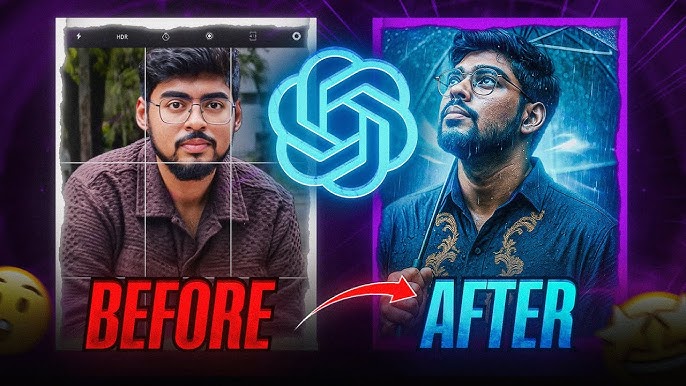

    Photo Editing Prompts

    7. 🎭 “Split Personality Concept”

    Prompt:

    “Create a poster showing a person with a split personality—one side calm and colorful, the other dark and mysterious with shadows.”

    Trend: Deep emotional content & reels
    Use Case: Short films, creative posters, CapCut thumbnails


    8. 🌆 “View My Home in 3D”

    Prompt:

    “Generate a 3D model-like rendering of my house with realistic angles, lighting, and zoom-in furniture layout.”

    Trend: AI-generated house tours
    Use Case: Real estate, lifestyle, architecture blogs


    9. 🧒 “Cartoonify My Child’s Photo”

    Prompt:

    “Make this kid’s photo into a Pixar-style 3D cartoon character with big eyes, soft textures, and colorful background.”

    Trend: Parents and creators love this one
    Use Case: Child podcast intros, family memories, reels


    10. 🌈 “Color Splash Art Style”

    Prompt:

    “Apply a splash art effect with high contrast, vibrant paint strokes, and dynamic motion lines.”

    Trend: High-engagement CapCut thumbnails
    Use Case: Motivational videos, fashion clips, Instagram art


    🛠️ How to Use These Prompts in ChatGPT

    1. Upload or Describe Your Photo
      Just say: “This is me in a plain background. Make it sci-fi style.”
    2. Paste or Speak Your Prompt
      Ask: “Turn this into a futuristic cyber samurai with glowing armor.”
    3. Review and Refine
      ChatGPT may offer variations or let you adjust colors, lighting, or style.
    4. Download and Use
      Export your final image for Reels, Shorts, CapCut, profile pictures, or thumbnails.

    ✨ Extra Trending Prompt Ideas (Quick List)

    StylePrompt
    DSLR Look“Enhance this photo with DSLR-style background blur and natural lighting”
    Comic Style“Turn this into a high-contrast comic panel with bold outlines and speech bubbles”
    AI Toy Figure“Make this person look like a boxed action figure toy with labeled equipment”
    Hollywood Poster“Create a cinematic movie poster with dramatic lighting and glowing title text”
    Angel & Devil Concept“Split this person into angelic and demonic versions side by side”

    🧠 Why These Prompts Go Viral

    1. Visual Impact – Bold changes catch attention within seconds
    2. Emotional Appeal – Child edits, throwbacks, and transformations evoke feelings
    3. Shareability – Easy to repost on TikTok, Instagram, Facebook
    4. Personalization – Everyone wants to see “themselves” in new creative forms
    5. No Editing Skills Needed – AI handles the complex parts

    Photo Editing Prompts

    📈 Final Thoughts: ChatGPT Is the New Photo Editor

    In 2025, ChatGPT isn’t just for text—it’s a creative visual powerhouse. With the right prompt, you can create attention-grabbing photo edits in seconds, ready to go viral.

    So whether you’re a content creator, digital artist, small business, or just having fun—start prompting and watch the magic happen.


    📥 Want 50 FREE viral ChatGPT editing prompts?
    Comment below or DM us and we’ll send you the ultimate 2025 prompt cheat sheet!
  • Why View Your Home 3D?

    Turning your home into a navigable 3D model unlocks a host of benefits:

    • Interior Design & Renovation: Visualize new layouts, furniture placement, or paint colors before committing.
    • Real Estate & Virtual Tours: Share immersive walkthroughs with buyers or renters, boosting engagement and trust.
    • Insurance & Documentation: Record the exact dimensions and condition of your property for claims or restoration.
    • DIY & Home Improvement: Measure spaces accurately, generate floor plans, and plan projects with precision.

    📲 What You’ll Need

    1. A Compatible Smartphone
      • iPhone 12 Pro/13 Pro/14 Pro/15 Pro with LiDAR scanner
      • Recent Android devices with ARCore support (e.g., Samsung S22+, Pixel 7)
    2. Good Lighting & Clear Space for accurate scans.
    3. Stable Grip or Tripod (optional) to reduce motion blur.

    🛠️ Top Apps for 3D Home Capture

    1. Polycam (iOS & Android)

    Polycam uses both photogrammetry and LiDAR (on supported iPhones) to create high‑resolution 3D models and floor plans. Instantly shareable and editable, it’s ideal for architects, designers, and hobbyists alike poly.cam.

    2. Matterport for Mobile

    Matterport’s mobile app transforms any phone into a professional 3D scanner. Capture immersive digital twins of rooms or entire properties, then view and annotate them directly on your device matterport.com.

    3. RoomScan Pro LiDAR (iOS)

    Built on Apple’s RoomPlan framework, RoomScan Pro LiDAR offers brick‑mode scanning for lightning‑fast floor plans and accurate 3D meshes—even in dim light via “Touch Mode.” It also integrates with Bosch and Leica laser measures for precise results apps.apple.comapps.apple.com.

    4. Live Home 3D (iOS & Android)

    Live Home 3D focuses on home design and renovation tasks. Its LiDAR room scanner creates editable 3D copies of houses, rooms, or offices, complete with walls, windows, and furniture recognition livehome3d.com.

    5. Other Notable Mentions

    All3DP’s roundup highlights additional scanner apps like Canvas, 3D Scanner App, and Home Design 3D—each with unique strengths in photogrammetry or LiDAR capture all3dp.com.


    Your Home

    🚀 Step‑by‑Step: Capturing Your Home in 3D

    1. Prepare the Space
      • Clear clutter and open doors to adjacent rooms.
      • Ensure even lighting—natural daylight is best.
    2. Calibrate Your App
      • Open your chosen app (e.g., Polycam or Matterport).
      • Follow on‑screen prompts to calibrate motion sensors or LiDAR.
    3. Perform the Scan
      • Move slowly: sweep the camera around the room, keeping all surfaces in view.
      • For multi‑room scans, finish one space before moving to the next.
    4. Generate the Model
      • Let the app process your captures (this may take a few minutes).
      • Preview the 3D mesh, adjust textures, or trim unwanted sections.
    5. View & Navigate
      • Explore your model in full‑screen, zooming into corners or view from above.
      • On iPhone, use AR mode to overlay your model on the physical space.
    6. Export & Share
      • Export formats: USDZ, OBJ, PLY, GLTF for compatibility.
      • Share via link, embed in websites, or import into CAD/design software.

    🧠 Advanced Tips & Tricks

    • Use Vision 25 Features in Polycam: New 2025 updates include automated scene segmentation and spatial reports for quicker collaboration blog.lidarnews.com.
    • Generate 2D Floor Plans directly from your 3D capture for quick layout sketches.
    • Combine with Drone Footage for expansive exterior models (Polycam’s aerial mode supports this).
    • Collaborate in Real Time: Matterport and Polycam both allow teammates to comment or annotate shared models.

    🔒 Privacy & Best Practices

    • Secure Your Data: Use password‑protected links or invite‑only shares.
    • Respect Neighbors: Avoid capturing private adjoining properties.
    • Backup Raw Scans: Store originals and exports in cloud storage for safekeeping.

    Your Home

    🔮 The Future of Mobile 3D Scanning

    As AI and ARCore/ARKit evolve, we’ll see:

    • Instant mesh generation on‑device
    • Smarter object recognition (furniture, décor tagging)
    • Live collaborative editing in VR/AR
    • Integration with smart‑home systems for virtual walkthroughs

    In 2025, viewing your home in 3D is just a few taps away. Whether you’re a homeowner, designer, or real‑estate pro, these tools turn your pocket device into a powerful 3D studio.

  • Unveiling the World of 3D Art Painting Realism

    In the realm of artistic expression, 3D art painting has emerged as a revolutionary medium that transcends traditional boundaries. Among the diverse styles within the 3D art spectrum, realistic photo painting stands out as an awe-inspiring technique that blurs the lines between the virtual and the tangible. In this comprehensive guide, we’ll delve into the enchanting world of 3D art painting realism, offering actionable tips, real-life examples, and insights that will empower both beginners and seasoned artists alike.

    Understanding 3D Art Painting Realism

    At its core, 3D art painting realism is the meticulous craft of creating images that closely resemble real-life photographs. Artists harness advanced digital tools to breathe life into their creations, capturing every nuance, texture, and detail with astonishing precision. This style allows for the creation of visuals that are so lifelike they often prompt double takes.

    Actionable Tips for Mastering 3D Art Painting Realism

    1. Study Real Photographs: Begin by closely observing high-resolution photographs. Pay attention to lighting, shadows, and the subtle interplay of colors. This foundation will serve as a reference point for your 3D art painting.
    2. Master Digital Tools: Familiarize yourself with cutting-edge software like Blender, ZBrush, or Autodesk Maya. These tools empower artists to sculpt and paint with unprecedented realism, offering features like texture mapping and dynamic lighting.
    3. Experiment with Lighting Techniques: Lighting is a critical aspect of realism. Understand the impact of different light sources on the subject and experiment with various lighting setups to achieve the desired effect.
    4. Focus on Details: It’s the small details that elevate a 3D art painting from good to exceptional. Zoom in on your work regularly, addressing fine details such as pores, wrinkles, and reflections.

    Real-Life Examples: Inspiring the Next Masterpiece

    1. “The Hyperrealistic Portraits of [Artist Name]”: Explore the work of renowned artists who have mastered the art of hyperrealistic portraits. Analyze their techniques, brushstroke choices, and how they manage to convey emotions with unparalleled realism.
    2. “Landscapes that Transcend Reality: A Showcase of [Artist Name]’s Work”: Immerse yourself in the breathtaking landscapes crafted by artists who seamlessly blend the digital with the tangible. Learn how they create immersive environments that transport viewers to alternate realities.

    Insights into the Evolving World of 3D Art Painting

    1. Incorporating AI for Realism: Artificial Intelligence (AI) is increasingly being integrated into 3D art creation, allowing for more efficient and realistic rendering. Explore AI tools that can assist in generating lifelike textures and enhancing overall realism.
    2. The Rise of VR in 3D Art Galleries: Virtual Reality (VR) is transforming the way we experience art. Some artists are leveraging VR platforms to showcase their 3D art paintings in immersive digital galleries, providing viewers with a unique and interactive experience.

    Advanced Techniques for Realistic 3D Art Painting:

    1. Material Rendering Mastery: Achieving realistic textures is paramount in 3D art painting. Learn to master material rendering techniques, such as subsurface scattering for skin, displacement mapping for intricate surfaces, and shader development to mimic various materials like metal, glass, or fabric.
    2. Photogrammetry Integration: Photogrammetry involves capturing real-world objects and environments through photographs, creating highly detailed 3D models. Integrating photogrammetry into your workflow can provide an authentic foundation for your 3D art, ensuring accurate proportions and lifelike details.

    Innovations in Realistic 3D Art Painting:

    1. Holographic Art Installations: Pushing the boundaries of traditional galleries, some artists are experimenting with holographic art installations. These immersive experiences use holographic technology to bring 3D paintings to life, creating dynamic and interactive exhibits.
    2. Collaboration with Other Art Forms: Cross-disciplinary collaborations are becoming more prevalent in the world of 3D art painting. Collaborating with musicians, writers, or even virtual reality developers can result in multi-sensory experiences, pushing the boundaries of traditional art forms.

    Tips for Balancing Realism and Artistic Expression:

    1. Embrace Imperfections: While the goal is often to achieve hyperrealism, don’t be afraid to embrace imperfections. Sometimes, subtle deviations from absolute realism can inject personality and emotion into your work, making it more relatable and engaging.
    2. Experiment with Stylization: Realism doesn’t always mean replicating reality exactly. Experiment with stylized elements within your 3D art painting to create a unique signature style. Balancing realism with artistic expression allows for a broader range of creative possibilities.

    Staying Relevant in the Evolving Landscape:

    1. Continuous Learning and Community Engagement: The world of 3D art is dynamic and ever-evolving. Stay updated on the latest software updates, techniques, and industry trends by actively participating in online forums, attending workshops, and engaging with the vibrant 3D art community.
    2. Environmental Realism and Sustainability: Consider the environmental impact of your digital art creation. Explore sustainable practices in rendering and hardware usage, as the industry shifts towards eco-friendly solutions to minimize the carbon footprint associated with high-performance computing.

    Conclusion: Elevating Your 3D Art Painting to New Heights

    In your journey through the mesmerizing realm of 3D art painting realism, remember that innovation and creativity are your greatest allies. Experiment with cutting-edge techniques, draw inspiration from diverse sources, and continue pushing the boundaries of what’s possible within this captivating art form.

    Feel free to share your insights, discoveries, and questions in the comments section below. For a deeper dive into the world of 3D art painting and to stay abreast of the latest trends, explore additional content on https://zeeeditor.com/. Happy painting and creating!

  • Create a Custom Picture Using ChatGPT Prompt in 2024

    In the rapidly ChatGPT evolving world of artificial intelligence, generating custom pictures using text prompts has become an exciting and accessible possibility. AI-driven tools like DALL·E, Midjourney, and others allow users to create stunning visuals simply by describing what they want to see. But did you know that you can also use ChatGPT to craft the perfect prompt that will guide these AI art generators to produce exactly what you envision?

    In this blog post, we will walk you through the process of creating custom pictures using a ChatGPT prompt, covering everything from understanding AI-generated art to crafting effective prompts and refining your results.

    Understanding AI-Generated Art

    AI-generated art involves using machine learning models that have been trained on vast datasets of images and their descriptions. These models can interpret a text prompt and generate a corresponding image based on patterns and knowledge they’ve learned from their training data.

    Popular AI Art Generators

    1. DALL·E: Developed by OpenAI, DALL·E is a powerful AI model that can generate images from text descriptions. It’s known for its ability to create detailed and imaginative images based on complex prompts.
    2. Midjourney: Midjourney is another popular AI art generator, known for its artistic and stylistic approach to creating images. It’s widely used by digital artists and content creators.
    3. Stable Diffusion: This AI model is similar to DALL·E and is open-source, allowing users to experiment with custom configurations and generate unique images.

    Each of these tools works differently, but the common factor is the quality and clarity of the prompt you provide.

    Step 1: Define Your Vision

    Before you begin crafting a prompt, it’s essential to have a clear vision of what you want to create. Ask yourself these questions:

    • What is the subject of the image? (e.g., a landscape, portrait, abstract concept)
    • What style do you want? (e.g., realistic, cartoonish, surreal, impressionistic)
    • Are there specific elements or details you want to include? (e.g., colors, objects, backgrounds)
    • What mood or atmosphere are you aiming for? (e.g., dark, vibrant, calm, energetic)

    Having a clear idea of these aspects will help you create a more effective and detailed prompt.

    Example Vision

    Let’s say you want to create an image of a futuristic cityscape at night, with neon lights reflecting on the wet streets, and a flying car in the background. The mood is vibrant and slightly dystopian.

    Step 2: Crafting the Prompt with ChatGPT

    Once you have your vision, the next step is to craft a detailed prompt. ChatGPT can help you refine and expand your ideas to create a prompt that’s clear, detailed, and likely to produce the desired result in an AI art generator.

    Start with a Basic Description

    Begin by describing the core elements of your image. Use ChatGPT to help you formulate this description.

    Example Prompt: “ChatGPT, help me write a detailed description for an AI-generated image of a futuristic city at night, with neon lights, wet streets, and a flying car.”

    ChatGPT might respond with something like:

    ChatGPT Response: “Imagine a sprawling futuristic cityscape bathed in the glow of neon lights. The streets, slick with recent rain, reflect vibrant colors—pinks, blues, and greens—emanating from towering skyscrapers. In the background, a sleek, aerodynamic flying car hovers above, its headlights cutting through the misty night air. The atmosphere is alive with energy, yet there’s a hint of dystopia, as if this city holds secrets in its shadows.”

    Refine the Details

    Use ChatGPT to add more specific details to your description, ensuring the AI art generator has all the information it needs.

    Refinement Prompt: “Can you add details about the architectural style, the sky, and any people or robots in the scene?”

    ChatGPT Refinement: “The architecture is a blend of ultra-modern and cyberpunk aesthetics, with towering buildings that pierce the sky, adorned with digital billboards and holographic advertisements. The sky is overcast, with clouds reflecting the city’s neon glow, giving the night an otherworldly hue. On the streets, a few figures in futuristic attire walk briskly, their faces illuminated by the soft glow of their devices, while robots patrol the area, maintaining order in this advanced yet eerily quiet metropolis.”

    Finalize the Prompt

    Combine all the elements into a final, polished prompt that you can use with your chosen AI art generator.

    Final Prompt: “A sprawling futuristic cityscape at night, bathed in neon lights. The wet streets reflect vibrant colors—pinks, blues, and greens—from towering skyscrapers adorned with digital billboards and holographic advertisements. A sleek flying car hovers above the streets, its headlights cutting through the misty night air. The architecture blends ultra-modern and cyberpunk styles, with towering buildings piercing the overcast sky, which reflects the neon glow of the city. On the streets, a few figures in futuristic attire walk briskly, their faces illuminated by their devices, while robots patrol the area, maintaining order in this advanced yet eerily quiet metropolis.”

    This prompt is now ready to be used in an AI art generator like DALL·E, Midjourney, or Stable Diffusion.

    Step 3: Using the Prompt in an AI Art Generator

    With your prompt in hand, it’s time to use it in an AI art generator.

    DALL·E

    1. Open DALL·E: Log in to DALL·E or access it through OpenAI’s platform.
    2. Enter the Prompt: Paste your final prompt into the input box.
    3. Generate: Click the generate button and wait for DALL·E to create the image based on your prompt.
    4. Refine (if necessary): If the first image isn’t exactly what you wanted, you can tweak the prompt or regenerate the image.

    Midjourney

    1. Join Midjourney: If you haven’t already, join Midjourney’s Discord server and get access to the bot.
    2. Enter the Prompt: Use the /imagine command followed by your prompt in the bot’s channel.
    3. Generate and Review: Wait for Midjourney to generate the image. You can upscale or refine the image if needed.

    Stable Diffusion

    1. Access Stable Diffusion: You can run Stable Diffusion locally or use an online service.
    2. Enter the Prompt: Input your prompt into the model.
    3. Generate: Click generate and review the image. Stable Diffusion allows for more customization, so you can adjust settings for different results.

    Step 4: Refining and Enhancing the Image

    After generating the initial image, you might want to refine or enhance it further.

    Iterative Prompt Refinement

    Sometimes, the generated image might not fully match your vision. You can iterate by modifying the prompt slightly:

    • Add More Detail: If the image lacks specific elements, add more detail to your prompt.
    • Change Style: If the style isn’t right, specify a different art style or mood.
    • Simplify: If the image is too cluttered or complex, simplify your prompt by removing unnecessary details.

    Post-Processing

    Once you have a satisfactory image, you can use other tools to enhance it:

    • Photo Editing: Use apps like Photoshop, GIMP, or even mobile apps like Snapseed to tweak colors, contrast, or add effects.
    • AI Upscaling: If the image resolution is low, use AI upscaling tools like Topaz Gigapixel AI to improve the quality.

    Step 5: Sharing Your Custom Picture

    Finally, share your custom-created picture with the world! Whether it’s for a social media post, a project, or personal enjoyment, AI-generated art can be a unique and creative way to express your ideas.

    Platforms to Share

    • Social Media: Share on platforms like Instagram, Twitter, or Facebook, where AI-generated art is becoming increasingly popular.
    • Art Communities: Platforms like DeviantArt or ArtStation are great for sharing and discussing AI-generated art.
    • Personal Projects: Use the image in blogs, websites, or as part of a digital portfolio.

    Giving Credit

    When sharing AI-generated art, it’s good practice to credit the tools used. Mention that the image was generated using an AI tool like DALL·E, Midjourney, or Stable Diffusion and that the prompt was crafted with the help of ChatGPT.

    Conclusion

    Creating a custom picture using a ChatGPT prompt is a fascinating blend of creativity and technology. By carefully crafting your prompt, you can guide AI art generators to produce stunning visuals that match your vision. With tools like ChatGPT to help you refine your ideas, and AI generators like DALL·E and Midjourney to bring them to life, the possibilities for custom digital art are virtually limitless.

    Whether you’re an artist looking to experiment with new techniques, a content creator in need of unique visuals, or just someone curious about AI, the process of creating custom pictures through text prompts is an exciting journey worth exploring. So, why not give it a try and see what amazing images you can create with the power of AI.

    Read more articles zee editor

    visit more

  • How to Download CapCut Premium Version for Free Legally 2024

    CapCut is a widely popular video editing app developed by ByteDance, the same company behind TikTok. With its intuitive interface and robust editing tools, CapCut has become a go-to app for both amateur and professional video editors. While the free version of CapCut offers an impressive range of features, the premium version unlocks additional tools and effects that can take your video projects to the next level.

    In this blog post, we will explore how to download the CapCut Premium version for free legally. We will discuss the features of CapCut Premium, the common misconceptions about “free” versions, and provide you with legitimate methods to access premium features without violating any terms of service.

    Understanding CapCut Premium

    Before diving into how to access CapCut Premium for free, it’s important to understand what the premium version offers and why it’s highly sought after.

    Key Features of CapCut Premium

    1. Advanced Filters and Effects: CapCut Premium includes a wide range of filters, transitions, and effects that are not available in the free version. These can help you create more professional and polished videos.
    2. No Watermark: One of the most significant benefits of upgrading to the premium version is the removal of the CapCut watermark, giving your videos a clean and professional appearance.
    3. High-Quality Exports: Premium users can export their videos in higher resolutions and without compression, ensuring the best quality for your projects.
    4. Extended Music Library: Access to a broader selection of royalty-free music and sound effects is another perk of the premium version.
    5. Exclusive Fonts and Text Styles: CapCut Premium offers a variety of unique fonts and text styles that can enhance your video’s visual appeal.

    The Importance of Legal Downloads

    Downloading software, including video editing apps like CapCut, from unofficial or pirated sources can have serious consequences. Not only does it violate the app’s terms of service, but it can also expose your device to malware and other security risks. Therefore, it’s crucial to seek legal and legitimate methods to access premium features.

    Common Misconceptions About “Free” Premium Versions

    Many users search online for ways to download CapCut Premium for free, often encountering websites that promise cracked versions or unauthorized downloads. These sites can be misleading and pose significant risks.

    Risks of Downloading Cracked Versions

    1. Security Threats: Downloading cracked software can introduce viruses, malware, and spyware to your device, compromising your personal data and security.
    2. Legal Consequences: Using cracked software is illegal and can result in legal action from the software developers.
    3. Lack of Updates and Support: Cracked versions do not receive official updates, meaning you will miss out on new features and bug fixes. Additionally, you won’t have access to customer support if you encounter issues.
    4. Unstable Performance: Cracked software often has performance issues, including crashes, glitches, and reduced functionality, making it unreliable for serious projects.

    Legal Ways to Access CapCut Premium for Free

    Now that we’ve established the importance of downloading software legally, let’s explore some legitimate methods to access CapCut Premium features without paying for a subscription.

    Method 1: Free Trials

    Many apps, including CapCut, offer free trials of their premium features. These trials typically last for a limited period, such as 7 or 14 days, allowing you to explore the full range of premium tools and effects.

    Steps to Access a Free Trial:

    1. Download CapCut from the Official Source: Ensure you have the latest version of CapCut installed from the Google Play Store or Apple App Store.
    2. Sign Up for the Free Trial: Open the app and navigate to the premium section. You’ll often find an option to start a free trial. Follow the prompts to activate the trial.
    3. Explore Premium Features: During the trial period, take full advantage of all the premium tools and effects. Be sure to export any important projects before the trial ends.
    4. Cancel Before Billing: If you decide not to continue with the premium subscription, remember to cancel the trial before the billing cycle begins to avoid being charged.

    Method 2: Promotional Offers

    From time to time, CapCut or its parent company ByteDance may offer promotional discounts or free access to premium features through partnerships or special events.

    How to Find Promotional Offers:

    1. Follow CapCut on Social Media: Stay updated by following CapCut’s official social media accounts where they may announce special offers or giveaways.
    2. Subscribe to Newsletters: Sign up for newsletters or updates from CapCut or ByteDance. These communications often include information about upcoming promotions.
    3. Check with Partner Platforms: Sometimes, CapCut may partner with other apps or services to offer bundled promotions. For example, users of certain mobile carriers or cloud storage services might receive free premium access as part of a deal.

    Method 3: Refer a Friend Programs

    Some apps incentivize users to refer friends in exchange for rewards, which can include free access to premium features. CapCut might offer such programs periodically.

    Steps to Utilize Refer-a-Friend Programs:

    1. Check for Referral Programs: Explore the settings or promotions section of the CapCut app to see if there’s an active referral program.
    2. Share with Friends: If available, share your referral code with friends and encourage them to download and use CapCut.
    3. Redeem Rewards: Once your friends sign up and use the app, you may earn rewards such as free premium access or discounts.

    Method 4: Educational or Non-Profit Access

    In some cases, CapCut may offer free or discounted premium access to educational institutions, students, or non-profit organizations. This is often part of an initiative to support learning and creative projects.

    How to Apply for Educational Access:

    1. Contact CapCut Support: Reach out to CapCut’s customer support or check their website for information on educational or non-profit access.
    2. Provide Necessary Documentation: You may need to provide proof of your status as a student, educator, or non-profit organization to qualify for free or discounted access.
    3. Utilize Premium Features: Once approved, you can use CapCut Premium features for your educational or organizational projects.

    Maximizing Your CapCut Experience

    Whether you’re using the free version, a trial, or have found a legal way to access premium features, there are several ways to maximize your CapCut experience:

    Tips for Effective Video Editing with CapCut

    1. Learn the Basics: Familiarize yourself with CapCut’s interface and basic editing tools. Understanding how to trim, split, and merge clips is essential for creating smooth, professional videos.
    2. Experiment with Effects: Don’t be afraid to experiment with filters, transitions, and effects. CapCut offers a wide range of creative tools that can elevate your content.
    3. Use Templates: CapCut provides templates that can help you quickly create stylish videos, especially if you’re new to video editing.
    4. Save Your Projects: Always save your projects regularly, and consider backing them up to cloud storage to avoid losing your work.
    5. Watch Tutorials: There are countless tutorials available online that can help you learn advanced editing techniques and make the most of CapCut’s features.

    Capcut

    Conclusion

    While the allure of accessing CapCut Premium for free may be tempting, it’s essential to prioritize legality and safety when downloading software. By using methods like free trials, promotional offers, referral programs, and educational access, you can enjoy the full range of CapCut’s premium features without breaking the law or risking your device’s security.

    Remember, the value of CapCut Premium goes beyond its price tag, offering powerful tools that can significantly enhance your video editing projects. By following the tips and strategies outlined in this guide, you can explore these features and decide whether upgrading to CapCut Premium is the right choice for you.

    Whether you’re creating content for social media, working on a personal project, or just experimenting with video editing, CapCut provides the tools you need to bring your vision to life. So, start exploring, get creative, and make the most of what this powerful app has to offer—legally and safely.

    Read more articles zee editor

    visit more