Category: Cool tricks

  • How to Use Face Swap Tools for Fun and Creativity

    Face swap tools are applications that allow you to replace the face of one person with another in a photo or video. You can use face swap tools for various purposes, such as:

    • Pranking your friends and family by swapping their faces with celebrities, animals, or cartoon characters.
    • Creating memes and funny videos by swapping faces with famous people, politicians, or movie stars.
    • Experimenting with different looks and hairstyles by swapping faces with models, actors, or singers.
    • Transforming yourself into your favorite character from movies, games, or comics by swapping faces with them.
    • Making personalized yearbook photos, holiday-themed costumes, or gender swap effects by swapping faces with different templates.

    There are many face swap tools available online, but not all of them are easy to use, high quality, or free. In this blog post, we will introduce you to some of the best face swap tools that you can use for fun and creativity.

    DeepSwapper AI – Free and Unlimited Face Swaps

    DeepSwapper AI is a free and unlimited face swap tool that uses artificial intelligence to create realistic and high-quality face swaps in just a click. You can use DeepSwapper AI to swap faces with anyone you want, without any watermark, ads, or limitations. You just need to upload two images: a base image and a face image. The base image is the photo that you want to swap the face in, and the face image is the photo that you want to swap the face with. Then, you can click on the “Swap Face” button and wait for a few seconds. You will get a stunning face swap result that you can download and share with your friends.

    DeepSwapper AI also provides some examples of face swaps that you can see on their website. You can swap faces with celebrities, animals, historical figures, or even yourself. You can also provide feedback to improve their service and suggest new features.

    Fotor – Free AI Face Swapper

    Fotor is another free AI face swap tool that you can use online. Fotor is a popular photo editing platform that offers various features, such as photo collage, photo effects, photo filters, and more. One of their features is the AI face swapper, which allows you to swap faces with anyone you want in a few steps. You can use Fotor to swap faces with your friends, celebrities, superheroes, or any figure you like.

    To use Fotor’s AI face swapper, you need to click on the “Add Face” icon and upload your selfie. Then, you can upload or select a photo to reface from their library or your own device. You can also scroll down to use their preset templates, such as AI yearbook, virtual hairstyle, or holiday-themed costumes. After that, you can click on the “Swap Face Now” button and wait for a few moments. You will get a flawless and natural face swap result that you can download and edit further.

    Fotor’s AI face swapper is driven by AI technology that ensures amazing experience and endless fun. You can use Fotor to create personalized and creative face swaps for any occasion or project.

    Pica AI – Free Face Swap Online

    Pica AI is a free face swap online tool that makes face swapping faster and easier than ever. Pica AI uses advanced AI technology to create seamless and hyper-realistic face swaps in seconds. You can use Pica AI to swap faces with anyone you want, without any manual adjustments or skills required. You just need to upload two photos: one photo of the person you want to swap the face in, and one photo of the person you want to swap the face with. Then, you can click on the “Generate” button and watch as the AI swaps faces in seconds. You will get a polished and professional face swap result that you can download and enjoy.

    Pica AI is a simple and powerful face swap tool that you can use for fun and entertainment. You can use Pica AI to create hilarious and realistic face swaps with your friends, family, or celebrities. You can also use Pica AI to try on different looks, styles, or expressions.

    Conclusion

    Face swap tools are great applications that you can use for fun and creativity. You can use face swap tools to prank your friends, create memes, experiment with different looks, transform yourself into your favorite character, or make personalized photos. There are many face swap tools available online, but some of the best ones are DeepSwapper AI, Fotor, and Pica AI. These face swap tools use AI technology to create realistic and high-quality face swaps in a few clicks. You can use these face swap tools for free and unlimited, without any watermark, ads, or limitations. Try them out and see how you can have fun and be creative with face swap tools.
  • Mastering the Art of Video Retouching in Wink App

    In the dynamic world of digital content creation, video retouching has become an indispensable skill for anyone looking to enhance the visual appeal of their videos. Among the myriad of tools available, Wink App stands out as a user-friendly and powerful option. In this comprehensive guide, we will walk you through the process of retouching videos using Wink App, ensuring your content shines with professional polish.

    Step 1: Getting Started with Wink App Begin by downloading and installing Wink App on your device. Whether you’re an iOS or Android user, Wink App is readily available on both platforms. Once installed, open the app and familiarize yourself with the intuitive interface.

    Step 2: Importing Your Video Tap on the “Import” button to select the video you wish to retouch. Wink App supports a variety of video formats, making it versatile for different projects. Once imported, your video will be ready for the retouching magic to begin.

    Step 3: Basic Adjustments Before diving into advanced retouching, start with the basics. Wink App provides user-friendly tools for adjusting brightness, contrast, saturation, and sharpness. Experiment with these settings to achieve the desired overall look for your video.

    Step 4: Fine-Tune with Filters Take advantage of Wink App’s impressive array of filters to add a touch of creativity to your video. From vintage vibes to modern aesthetics, Wink App offers a diverse range of filters that can be applied and customized to suit your unique style.

    Step 5: Smooth Transitions with Transitions Smooth transitions are essential for a polished video. Wink App offers a selection of transitions to choose from, ensuring your video flows seamlessly from one scene to the next. Experiment with different options to find the perfect transition style for your content.

    Step 6: Precision Editing with Advanced Tools Delve into Wink App’s advanced tools to address specific areas of your video. Use the precision editing tools to remove blemishes, correct color inconsistencies, and enhance details. This step allows you to refine your video with meticulous attention to detail.

    Step 7: Adding Music and Sound Effects Elevate your video by incorporating music or sound effects. Wink App allows you to seamlessly integrate audio, enhancing the overall viewing experience. Choose music that complements the mood of your content and adjust the volume to achieve the perfect balance.

    Step 8: Preview and Save Before finalizing your masterpiece, take advantage of Wink App’s preview feature to ensure everything looks just right. Once satisfied, save your retouched video in the desired format and resolution.

    Conclusion: Elevate Your Videos with Wink App In conclusion, mastering the art of video retouching is within reach with Wink App. This user-friendly yet powerful tool empowers content creators to enhance their videos with ease. Experiment with the various features, unleash your creativity, and watch as your videos captivate audiences with a professional touch. Elevate your content creation game with Wink App today!

    Certainly! Let’s delve deeper into some advanced features offered by Wink App for video retouching:

    Step 6: Precision Editing with Masking and Layers Take your video retouching to the next level with Wink App’s advanced masking and layering tools. Masking allows you to selectively apply edits to specific areas of the video, offering unparalleled precision. Combine this with layers to create complex edits without altering the entire video. This feature is particularly useful for detailed color grading, retouching specific objects, or adjusting lighting in isolated regions.

    Step 9: Motion Tracking for Dynamic Elements Wink App offers motion tracking capabilities, enabling you to apply retouching effects that follow moving objects within your video. This feature is invaluable for maintaining consistency in edits across dynamic scenes. Whether it’s tracking a person, object, or specific area, motion tracking ensures your retouching efforts remain seamlessly integrated throughout the video.

    Step 10: 3D Effects and Animation Add a cinematic flair to your videos by incorporating 3D effects and animations. Wink App provides a range of dynamic effects that can be applied to elements within your video, creating a visually stunning result. Experiment with depth, perspective, and movement to bring your content to life, turning ordinary footage into an engaging visual experience.

    Step 11: AI-Powered Enhancements Wink App harnesses the power of artificial intelligence to offer automatic enhancements to your videos. The AI algorithms can analyze and optimize aspects like color balance, sharpness, and overall visual quality. This feature streamlines the retouching process, making it more efficient while maintaining professional results.

    Step 12: Green Screen Editing For users looking to integrate their videos into different backgrounds or add creative visual elements, Wink App supports green screen editing. Remove the background from your video footage and replace it with images or videos of your choice. This feature opens up a world of possibilities for creative storytelling and visually captivating content.

    Step 13: Time-Lapse and Slow Motion Editing Wink App allows you to manipulate the speed of your video with time-lapse and slow-motion editing. Create captivating time-lapse sequences to condense lengthy events or slow down specific moments for dramatic effect. Adjusting the speed adds a cinematic touch to your videos, enhancing the overall storytelling and visual impact.

    Conclusion: Pushing the Boundaries of Video Retouching with Wink App By exploring these advanced features, you can push the boundaries of video retouching and elevate your content to professional levels. Wink App’s commitment to innovation and user-friendly design empowers creators to bring their visions to life with precision and creativity. Embrace these advanced tools, experiment with their possibilities, and witness your videos transform into captivating visual masterpieces. With Wink App, the only limit is your imagination.

    Read more articles to find out more about your specific topic. Click here

  • How to Create AI Generated Profile Picture using Prompt

    I can provide you with a general guide on how you might approach creating AI Generated Profile picture using GPT-3 or a similar language model, and you can adapt this information as new tools and features become available.

    1. Access GPT-3 or GPT-4:
    • Ensure you have access to a GPT-3 or GPT-4 API. You may need to sign up for access on the OpenAI platform or use other platforms that provide access to these models.
    1. Understand the API:
    • Familiarize yourself with the API documentation provided by OpenAI or the platform you are using. Understand how to send requests and receive responses.
    1. Generate Image Descriptions:
    • Use the AI model to generate textual descriptions of the profile picture you want. For example, you could request the AI to describe a fictional character, specifying details like hairstyle, clothing, facial expressions, etc.
    1. Convert Text to Image:
    • Once you have the textual description, you’ll need to convert it into an image. This can be done by using image generation tools or APIs that can interpret the textual information and generate corresponding images.
    1. Image Manipulation (Optional):
    • If the generated image needs further refinement or personalization, you can use image manipulation tools or libraries to edit the image. This might include adjusting colors, cropping, or adding specific details.
    1. Integrate with Bing Chat (if available):
    • If Bing Chat provides integration capabilities or an API, you can incorporate the AI-generated image into your profile picture through the chat interface. This step would depend on the specific features and capabilities offered by Bing Chat. AI Generated Profile picture
    1. Test and Iterate:
    • Test the generated profile picture within the context of Bing Chat to ensure that it meets your requirements. Iterate on the process as needed, adjusting the textual input or image generation parameters.

    Keep in mind that the availability of GPT-4 and other technologies may have changed since my last update, so it’s a good idea to check the latest resources and documentation for the most accurate and up-to-date information. Additionally, new tools or features may have been introduced that offer more streamlined ways to achieve AI-generated profile pictures.

    Certainly! To generate AI prompts for different profile images, you can provide specific details or characteristics that you want the AI model to consider when generating the images. Below are a few prompts that you can use:

    1. Casual Avatar with Smiling Expression:
    • “Generate an AI-generated profile picture of a person with a casual style, wearing a t-shirt and jeans, with a friendly and smiling expression.” AI Generated Profile picture
    1. Futuristic Tech Enthusiast:
    • “Create an AI profile image of a tech enthusiast with futuristic elements, like holographic glasses or virtual reality headset, showcasing a confident and innovative demeanor.”
    1. Artistic Bohemian Look:
    • “Generate an artistic and bohemian-style profile picture with vibrant colors, flowing hair, and creative accessories, capturing a free-spirited and unique personality.”
    1. Sci-Fi Cyberpunk Avatar:
    • “Create an AI-generated profile image with a cyberpunk theme, incorporating neon lights, futuristic clothing, and a cool, edgy expression.”
    1. Nature Lover:
    • “Generate an AI profile picture of a person who loves nature, featuring elements like a background with trees, soft sunlight, and a peaceful expression.”
    1. Vintage Film Aesthetics:
    • “Create a profile picture with vintage film aesthetics, adding a classic touch with sepia tones, film grain, and a pose reminiscent of old Hollywood glamour.”
    1. Minimalist Professional:
    • “Generate a minimalist and professional AI profile image with clean lines, neutral colors, and a composed expression suitable for a business or corporate setting.”
    1. Futuristic Sci-Fi Warrior:
    • “Create an AI profile picture of a futuristic sci-fi warrior, incorporating elements like high-tech armor, glowing eyes, and a determined or fierce expression.”
    1. Gamer Avatar:
    • “Generate an AI profile image of a gamer with a headset, incorporating gaming elements like controllers, keyboards, or game-related symbols, with an excited or focused expression.”
    1. Mystical Fantasy Character:
      • “Create an AI-generated profile picture of a mystical fantasy character, featuring magical elements like ethereal lighting, fantasy clothing, and a mysterious expression.”

    Copy Prompt

    👇

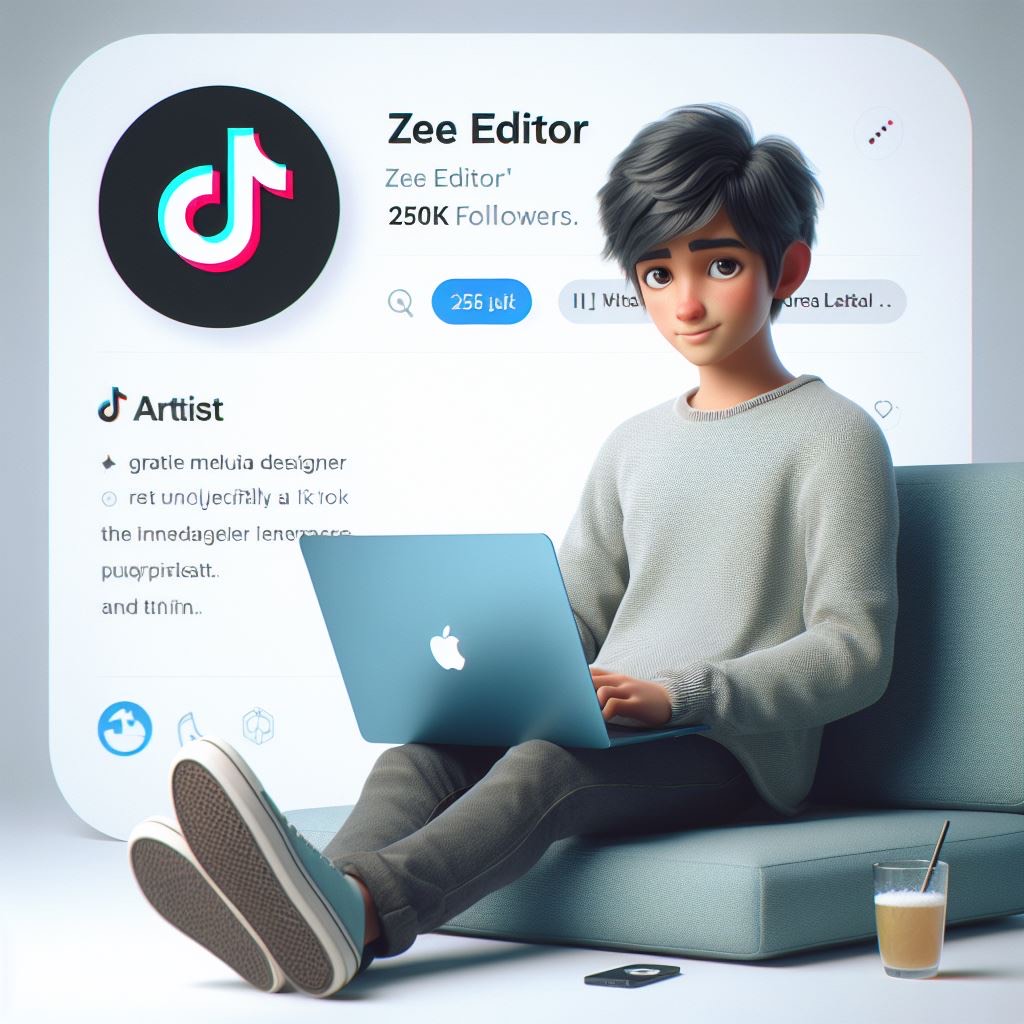
    http://”Create a 3D illustration featuring a realistic boy, casually sitting with a blue apple MacBook beside of a social media logo, specifically ‘TikTok’ The character should look like he is Artist, Graphic designer and Enterprenure, background of the image should showcase a social media profile page real data, username ‘Zee Editor’ and a matching.profile picture. He have 250K followers.”

    Remember to adjust the prompts based on your preferences and the style you’re looking for in the AI-generated profile images. The more specific and detailed your prompts are, the better the AI model can understand and generate images that match your criteria.

  • CapCut Best Features in 2024: A Game-Changer for Content Creators

    CapCut Features in 2024: A Game-Changer for Content Creators

    In the ever-evolving landscape of digital content creation, staying ahead of the curve means having access to the best tools and features. CapCut, a popular video editing app, has continually pushed the boundaries of what’s possible in mobile video editing. In 2024, CapCut has introduced a slew of new features that promise to revolutionize the way content creators produce and share their work. This blog post will delve into these groundbreaking features, showcasing why CapCut remains a game-changer for content creators in 2024.

    1. AI-Powered Editing

    Intelligent Scene Detection

    One of the standout features of CapCut in 2024 is its AI-powered editing capabilities. The app now includes intelligent scene detection, which automatically analyzes your footage and identifies key scenes and transitions. This feature is particularly useful for creators who want to streamline their editing process, as it can significantly reduce the time spent manually cutting and arranging clips.

    Automated Highlight Reels

    Building on its AI capabilities, CapCut can now automatically generate highlight reels from your videos. Whether you’re compiling a travel vlog or a highlights package from a sports event, CapCut’s AI can identify the most exciting moments and create a polished reel with minimal input from the user.

    2. CapCut Enhanced User Interface

    Customizable Workspaces

    CapCut’s user interface has received a major overhaul in 2024. The app now offers customizable workspaces, allowing users to tailor the editing environment to their specific needs. This feature enhances productivity by enabling creators to prioritize the tools and panels they use most frequently.

    Improved Timeline Editing

    The timeline editing interface has been refined for greater precision and ease of use. With enhanced drag-and-drop functionality, snap-to-grid options, and more intuitive zoom controls, editing on CapCut is smoother and more efficient than ever.

    3. CapCut Advanced Audio Tools

    AI-Driven Audio Enhancement

    Audio quality is just as important as video quality, and CapCut’s new AI-driven audio enhancement tools ensure that your sound is always crisp and clear. The app can automatically remove background noise, balance audio levels, and enhance voice clarity, making your videos sound professional without the need for extensive audio editing expertise.

    Music Library Expansion

    CapCut’s music library has been expanded significantly in 2024, offering a wider range of royalty-free tracks and sound effects. The new search and filter options make it easier to find the perfect soundtrack for your videos, ensuring that your audio complements your visuals seamlessly.

    4. Creative Effects and Filters

    Real-Time Effects Preview

    One of the most exciting new features is the real-time effects preview. This allows creators to see how different filters and effects will look on their footage without having to apply them first. This feature not only saves time but also encourages experimentation, enabling creators to find the perfect look for their videos more efficiently.

    Enhanced AR Filters

    Augmented Reality (AR) filters have become a staple in social media content, and CapCut has taken these to the next level in 2024. The app now includes more sophisticated AR filters that can track facial expressions and movements with greater accuracy, providing a more immersive and engaging viewer experience.

    5. Collaboration and Cloud Integration

    Real-Time Collaboration

    In an increasingly connected world, collaboration features are essential. CapCut now supports real-time collaboration, allowing multiple users to work on the same project simultaneously. This feature is perfect for teams of content creators who need to coordinate their efforts and share ideas seamlessly.

    Cloud Storage and Syncing

    CapCut’s integration with cloud storage services has been enhanced, offering more robust syncing capabilities. Projects are automatically saved to the cloud, ensuring that your work is always backed up and accessible from any device. This feature also makes it easier to switch between devices without losing your progress.

    6. Export Options and Social Media Integration

    High-Quality Exports

    CapCut now supports a wider range of export options, including 4K resolution and various aspect ratios optimized for different social media platforms. The app’s improved rendering engine ensures that exports are faster and of higher quality, allowing creators to share their work with confidence.

    Direct Social Media Posting

    Sharing your finished videos has never been easier thanks to CapCut’s direct social media posting feature. You can now export and upload your videos directly to platforms like YouTube, Instagram, TikTok, and Facebook from within the app. This seamless integration saves time and ensures that your content reaches your audience as quickly as possible.

    7. Tutorials and Community Engagement

    In-App Tutorials and Tips

    To help users get the most out of its new features, CapCut has introduced a series of in-app tutorials and tips. These resources cover everything from basic editing techniques to advanced effects, ensuring that both new and experienced users can take full advantage of the app’s capabilities.

    Creator Community

    CapCut has also fostered a vibrant creator community within the app. Users can share their projects, seek feedback, and collaborate with others, creating a supportive environment for learning and growth. This community aspect helps creators stay inspired and connected with like-minded individuals.

    8. Mobile and Desktop Sync

    Cross-Platform Compatibility

    Recognizing the need for flexibility, CapCut has improved its cross-platform compatibility. Projects can now be easily transferred between the mobile and desktop versions of the app, allowing creators to start editing on one device and continue on another. This feature ensures that your workflow remains uninterrupted, regardless of where you are or what device you’re using.

    Seamless Project Management

    CapCut’s project management system has been streamlined to support cross-platform editing. The app automatically syncs your projects across devices, keeping all your media files, edits, and settings intact. This seamless integration makes it easier to manage your projects and ensures that you always have access to the latest version of your work.

    9. AI-Assisted Storyboarding

    Automated Storyboard Creation

    Storyboarding is a crucial step in the video production process, and CapCut’s new AI-assisted storyboarding feature simplifies this task. The app can analyze your footage and automatically generate a storyboard, complete with suggested scenes and transitions. This feature helps creators visualize their projects and plan their edits more effectively.

    Customizable Templates

    In addition to automated storyboards, CapCut offers a variety of customizable templates. These templates provide a starting point for your projects, allowing you to quickly create professional-looking videos with minimal effort. You can easily adjust the templates to fit your specific needs, ensuring that your content stands out.

    10. Comprehensive Performance Analytics

    Viewer Engagement Metrics

    Understanding how your audience interacts with your content is key to improving your videos, and CapCut now includes comprehensive performance analytics. The app provides detailed metrics on viewer engagement, including watch time, likes, comments, and shares. This data helps you understand what works and what doesn’t, allowing you to refine your content strategy.

    A/B Testing

    CapCut’s A/B testing feature lets you experiment with different versions of your videos to see which performs better. By comparing metrics like engagement and retention rates, you can make informed decisions about your content and optimize it for maximum impact.

    Conclusion

    In 2024, CapCut continues to set the standard for mobile video editing with its innovative features and user-friendly design. From AI-powered editing tools to enhanced audio capabilities, real-time collaboration, and advanced export options, CapCut offers everything content creators need to produce high-quality videos quickly and efficiently.

    Whether you’re a seasoned professional or just starting your content creation journey, CapCut’s comprehensive suite of features will help you bring your creative vision to life. With its commitment to constant improvement and community engagement, CapCut remains a game-changer in the world of digital content creation.

    Explore the new features of CapCut in 2024 and see how they can elevate your video editing process. With the right tools at your disposal, there’s no limit to what you can create and share with the world.

    Read more articles zee editor

    visit more

  • Elevate Your Instagram Presence with Stunning Instagram Post Mockup Previews

    Elevate Your Instagram Presence with Stunning Instagram Post Mockup Previews

    In today’s visually-driven digital landscape, Instagram has become a powerful platform for personal branding, business marketing, and creative expression. With millions of users scrolling through their feeds daily, making your posts stand out is crucial. One effective way to capture attention and enhance your Instagram presence is by using Instagram post mockup previews. These mockups allow you to showcase your content in a professional and visually appealing manner, helping you make a strong impression on your audience. In this guide, we’ll explore how to leverage Instagram post mockup previews to elevate your social media game.

    What Are Instagram Post Mockup Previews?

    Instagram post mockup previews are digital templates that allow you to visualize and present your Instagram posts in a realistic and attractive way. These mockups can feature your designs, graphics, or photos displayed on various devices, such as smartphones, tablets, or even in physical settings like frames or billboards. They help you see how your content will appear on Instagram, offering a polished and professional preview before you publish.

    Benefits of Using Instagram Post Mockup Previews

    1. Enhanced Visual Appeal: Mockups provide a polished and professional look, making your posts more attractive and engaging.
    2. Brand Consistency: Using mockups ensures that your posts align with your brand’s aesthetic and maintain consistency across your feed.
    3. Improved Presentation: Mockups help you present your content in a visually appealing context, showcasing how it will appear to your audience.
    4. Effective Marketing: For businesses, mockups can be used to preview promotional content, product launches, and advertisements in a realistic setting.
    5. Easy Comparison: Mockups allow you to compare different design options and choose the best one for your Instagram feed.

    How to Create Stunning Instagram Post Mockup Previews

    Creating Instagram post mockups is easier than you might think. Here’s a step-by-step guide to help you get started:

    1. Choose the Right Mockup Template

    Selecting the right mockup template is crucial for creating effective previews. There are various types of mockups, including:

    • Device Mockups: Showcase your posts on smartphones, tablets, or desktop screens.
    • Physical Mockups: Display your posts in real-life contexts such as frames, posters, or billboards.
    • Social Media Templates: Use templates designed specifically for Instagram posts, stories, or ads.

    You can find mockup templates on graphic design platforms like Canva, Adobe Spark, or dedicated mockup websites like Placeit and Smartmockups. Many of these platforms offer both free and premium options.

    2. Customize Your Mockup

    Once you’ve chosen a template, it’s time to customize it with your content. Follow these steps:

    • Upload Your Design: Add your Instagram post design or image to the mockup template. Most mockup tools allow you to drag and drop your content directly into the template.
    • Adjust for Realism: Ensure that your design fits well within the mockup. Adjust the size, orientation, and placement as needed to make it look realistic.
    • Edit and Enhance: Use editing tools to adjust colors, add text, or apply filters to make your mockup stand out. Some platforms offer built-in editing features to enhance your content.

    3. Preview and Refine

    Before finalizing your mockup, preview it to ensure it looks as expected. Check for any alignment issues, color discrepancies, or other elements that might need adjustment. Make any necessary refinements to ensure your mockup is visually appealing and accurately represents your content.

    4. Export and Share

    Once you’re satisfied with your mockup, export it in the desired format. Most mockup tools allow you to download your preview in high resolution, making it suitable for sharing on Instagram. Save your mockup as an image file (e.g., JPEG or PNG) and upload it to your Instagram account.

    5. Incorporate Into Your Strategy

    Use your Instagram post mockups strategically to enhance your overall social media strategy. Here are some ideas:

    • Content Planning: Create mockups for upcoming posts to visualize how they will fit into your feed and ensure a cohesive look.
    • Marketing Campaigns: Design mockups for promotional content, product launches, or special events to generate excitement and anticipation.
    • Client Presentations: If you’re working with clients, use mockups to present your design concepts and gather feedback before finalizing the content.

    Tips for Creating Impactful Instagram Post Mockups

    To make your Instagram post mockups truly effective, keep these tips in mind:

    1. Maintain Consistency

    Ensure that your mockups align with your brand’s visual identity. Use consistent colors, fonts, and styles to maintain a cohesive look across your Instagram feed.

    2. Highlight Key Elements

    Focus on showcasing the most important elements of your post, such as promotional messages, product details, or key visuals. Ensure these elements are prominent and easily readable in your mockup.

    3. Keep It Simple

    Avoid cluttering your mockups with too much information or too many design elements. Keep your mockups clean and focused to ensure they are visually appealing and effective.

    4. Use High-Quality Images

    Ensure that your mockups use high-resolution images to maintain a professional appearance. Low-quality or pixelated images can detract from the overall impact of your mockups.

    5. Test Different Designs

    Experiment with different mockup designs and formats to find what works best for your content. Testing various options can help you identify the most effective approach for showcasing your posts.

    Tools and Resources for Instagram Post Mockups

    Here are some popular tools and resources to help you create stunning Instagram post mockups:

    • Canva: A user-friendly graphic design platform with a wide range of mockup templates and editing tools.
    • Adobe Spark: Offers customizable templates and design features for creating professional mockups.
    • Placeit: Provides a vast collection of mockup templates for various devices and contexts.
    • Smartmockups: Features an extensive library of high-quality mockup templates and customization options.
    • MockupWorld: Offers free and premium mockup templates for various design needs.

    Conclusion

    Elevating your Instagram presence requires more than just posting great content; it involves presenting your content in a way that grabs attention and resonates with your audience. Instagram post mockup previews are a powerful tool to help you achieve this by offering a professional and visually appealing way to showcase your posts. By selecting the right mockup templates, customizing them effectively, and incorporating them into your social media strategy, you can enhance your Instagram feed and make a lasting impression on your audience.

    Remember to keep your mockups consistent with your brand’s identity, focus on key elements, and use high-quality images to create impactful previews. With the right approach and tools, you can elevate your Instagram presence and stand out in the crowded social media landscape.

    Check out more articles here

    For more related articles visit this site

  • How to Download CapCut Premium Version for Free Legally 2024

    CapCut is a widely popular video editing app developed by ByteDance, the same company behind TikTok. With its intuitive interface and robust editing tools, CapCut has become a go-to app for both amateur and professional video editors. While the free version of CapCut offers an impressive range of features, the premium version unlocks additional tools and effects that can take your video projects to the next level.

    In this blog post, we will explore how to download the CapCut Premium version for free legally. We will discuss the features of CapCut Premium, the common misconceptions about “free” versions, and provide you with legitimate methods to access premium features without violating any terms of service.

    Understanding CapCut Premium

    Before diving into how to access CapCut Premium for free, it’s important to understand what the premium version offers and why it’s highly sought after.

    Key Features of CapCut Premium

    1. Advanced Filters and Effects: CapCut Premium includes a wide range of filters, transitions, and effects that are not available in the free version. These can help you create more professional and polished videos.
    2. No Watermark: One of the most significant benefits of upgrading to the premium version is the removal of the CapCut watermark, giving your videos a clean and professional appearance.
    3. High-Quality Exports: Premium users can export their videos in higher resolutions and without compression, ensuring the best quality for your projects.
    4. Extended Music Library: Access to a broader selection of royalty-free music and sound effects is another perk of the premium version.
    5. Exclusive Fonts and Text Styles: CapCut Premium offers a variety of unique fonts and text styles that can enhance your video’s visual appeal.

    The Importance of Legal Downloads

    Downloading software, including video editing apps like CapCut, from unofficial or pirated sources can have serious consequences. Not only does it violate the app’s terms of service, but it can also expose your device to malware and other security risks. Therefore, it’s crucial to seek legal and legitimate methods to access premium features.

    Common Misconceptions About “Free” Premium Versions

    Many users search online for ways to download CapCut Premium for free, often encountering websites that promise cracked versions or unauthorized downloads. These sites can be misleading and pose significant risks.

    Risks of Downloading Cracked Versions

    1. Security Threats: Downloading cracked software can introduce viruses, malware, and spyware to your device, compromising your personal data and security.
    2. Legal Consequences: Using cracked software is illegal and can result in legal action from the software developers.
    3. Lack of Updates and Support: Cracked versions do not receive official updates, meaning you will miss out on new features and bug fixes. Additionally, you won’t have access to customer support if you encounter issues.
    4. Unstable Performance: Cracked software often has performance issues, including crashes, glitches, and reduced functionality, making it unreliable for serious projects.

    Legal Ways to Access CapCut Premium for Free

    Now that we’ve established the importance of downloading software legally, let’s explore some legitimate methods to access CapCut Premium features without paying for a subscription.

    Method 1: Free Trials

    Many apps, including CapCut, offer free trials of their premium features. These trials typically last for a limited period, such as 7 or 14 days, allowing you to explore the full range of premium tools and effects.

    Steps to Access a Free Trial:

    1. Download CapCut from the Official Source: Ensure you have the latest version of CapCut installed from the Google Play Store or Apple App Store.
    2. Sign Up for the Free Trial: Open the app and navigate to the premium section. You’ll often find an option to start a free trial. Follow the prompts to activate the trial.
    3. Explore Premium Features: During the trial period, take full advantage of all the premium tools and effects. Be sure to export any important projects before the trial ends.
    4. Cancel Before Billing: If you decide not to continue with the premium subscription, remember to cancel the trial before the billing cycle begins to avoid being charged.

    Method 2: Promotional Offers

    From time to time, CapCut or its parent company ByteDance may offer promotional discounts or free access to premium features through partnerships or special events.

    How to Find Promotional Offers:

    1. Follow CapCut on Social Media: Stay updated by following CapCut’s official social media accounts where they may announce special offers or giveaways.
    2. Subscribe to Newsletters: Sign up for newsletters or updates from CapCut or ByteDance. These communications often include information about upcoming promotions.
    3. Check with Partner Platforms: Sometimes, CapCut may partner with other apps or services to offer bundled promotions. For example, users of certain mobile carriers or cloud storage services might receive free premium access as part of a deal.

    Method 3: Refer a Friend Programs

    Some apps incentivize users to refer friends in exchange for rewards, which can include free access to premium features. CapCut might offer such programs periodically.

    Steps to Utilize Refer-a-Friend Programs:

    1. Check for Referral Programs: Explore the settings or promotions section of the CapCut app to see if there’s an active referral program.
    2. Share with Friends: If available, share your referral code with friends and encourage them to download and use CapCut.
    3. Redeem Rewards: Once your friends sign up and use the app, you may earn rewards such as free premium access or discounts.

    Method 4: Educational or Non-Profit Access

    In some cases, CapCut may offer free or discounted premium access to educational institutions, students, or non-profit organizations. This is often part of an initiative to support learning and creative projects.

    How to Apply for Educational Access:

    1. Contact CapCut Support: Reach out to CapCut’s customer support or check their website for information on educational or non-profit access.
    2. Provide Necessary Documentation: You may need to provide proof of your status as a student, educator, or non-profit organization to qualify for free or discounted access.
    3. Utilize Premium Features: Once approved, you can use CapCut Premium features for your educational or organizational projects.

    Maximizing Your CapCut Experience

    Whether you’re using the free version, a trial, or have found a legal way to access premium features, there are several ways to maximize your CapCut experience:

    Tips for Effective Video Editing with CapCut

    1. Learn the Basics: Familiarize yourself with CapCut’s interface and basic editing tools. Understanding how to trim, split, and merge clips is essential for creating smooth, professional videos.
    2. Experiment with Effects: Don’t be afraid to experiment with filters, transitions, and effects. CapCut offers a wide range of creative tools that can elevate your content.
    3. Use Templates: CapCut provides templates that can help you quickly create stylish videos, especially if you’re new to video editing.
    4. Save Your Projects: Always save your projects regularly, and consider backing them up to cloud storage to avoid losing your work.
    5. Watch Tutorials: There are countless tutorials available online that can help you learn advanced editing techniques and make the most of CapCut’s features.

    Capcut

    Conclusion

    While the allure of accessing CapCut Premium for free may be tempting, it’s essential to prioritize legality and safety when downloading software. By using methods like free trials, promotional offers, referral programs, and educational access, you can enjoy the full range of CapCut’s premium features without breaking the law or risking your device’s security.

    Remember, the value of CapCut Premium goes beyond its price tag, offering powerful tools that can significantly enhance your video editing projects. By following the tips and strategies outlined in this guide, you can explore these features and decide whether upgrading to CapCut Premium is the right choice for you.

    Whether you’re creating content for social media, working on a personal project, or just experimenting with video editing, CapCut provides the tools you need to bring your vision to life. So, start exploring, get creative, and make the most of what this powerful app has to offer—legally and safely.

    Read more articles zee editor

    visit more