Category: Cool tricks

  • How to make Music Beats ball Video

    How to Create a Music Beats Ball Video with Beat Bounce Game: A Comprehensive Guide

    In today’s digital age, music videos are evolving into highly interactive and visually captivating experiences. One of the latest trends sweeping across social media and gaming platforms is the combination of music beats and bouncing balls, which syncs animation to the rhythm of a song, creating an immersive audiovisual experience. This type of video, which closely resembles the mechanics of rhythm games like Beat Saber or Geometry Dash, merges creativity, technology, and entertainment. In this guide, we’ll explore how to make a music beats ball video, using tools and techniques inspired by the beat bounce game concept.

    Whether you’re a musician, content creator, or just someone looking to have fun with music, this step-by-step guide will help you create engaging and dynamic music videos with beat-synced bouncing balls.


    Table of Contents

    1. Introduction to Music Beats Ball Videos
    2. The Concept of Beat Bounce Games
    3. Essential Tools and Software You’ll Need
    4. Step-by-Step Guide to Making a Music Beats Ball Video
    5. Tips for Creating Engaging Videos
    6. Advanced Techniques for Beat Sync Animation
    7. Conclusion

    1. Introduction to Music Beats Ball Videos

    Music beats ball videos are highly engaging audiovisual experiences where balls (or other shapes) move, bounce, or react in time with the rhythm of a music track. These videos can range from simple bouncing animations to more complex, game-like interactions where users can control the balls in real-time, turning the experience into a fully immersive game.

    Many creators from India, for example, are using these videos on platforms like YouTube and Instagram Reels to boost engagement with music-based content. These videos are especially popular for EDM, hip-hop, and Bollywood dance tracks, where the beat drives dynamic motion.


    2. The Concept of Beat Bounce Games

    A beat bounce game involves syncing actions (such as a ball bouncing, jumping, or moving) with the beats of a song. Games like Beat Saber, Osu!, and Geometry Dash have set the foundation for this trend, combining rhythm-based challenges with visually satisfying animations.

    In a beat bounce game, every musical element—whether it’s a kick drum, snare, or bassline—triggers a movement. This principle can be applied to video creation, where visual elements react perfectly in time with the music, making each beat not only audible but also visible and interactive.

    Creating this type of video means bringing that gaming concept to life in a visual format. It captures the rhythm and flow of the music while delivering an engaging viewing experience, similar to watching someone play a rhythm game, but with added visual appeal.


    3. Essential Tools and Software You’ll Need

    Before you start creating your music beats ball video, you’ll need the right tools. Depending on your level of experience, you can choose from a variety of software that will help you animate, sync, and render your final project.

    Beginner-Friendly Software:

    • FL Studio + ZGameEditor Visualizer: Popular among music producers for audio-reactive visualizations.
    • DaVinci Resolve: A free, feature-packed video editor with basic animation tools.

    Intermediate Tools:

    • Adobe Premiere Pro: Offers basic keyframe animation, perfect for syncing visuals to audio.
    • After Effects: A robust animation and compositing tool that excels in syncing objects to music.

    Advanced Tools:

    • Blender: Open-source 3D software for more complex animations.
    • Unity or Unreal Engine: Game engines for interactive beat bounce games.

    Hardware:

    • A powerful computer or laptop for smooth rendering and animation.
    • High-quality headphones or speakers to accurately hear the beats and sync the visuals properly.

    4. Step-by-Step Guide to Making a Music Beats Ball Video

    Step 1: Choose Your Music

    First, select the music track you want to use. This track should have a clear, distinct beat to make syncing easier. You might want to choose an EDM track with strong drops, a hip-hop beat, or even a traditional Indian dance song, where dhol or tabla beats can drive the animation.

    Ensure you have the rights to use the music, especially if you’re planning to share the video on platforms like YouTube or Instagram. There are many royalty-free music websites like Epidemic Sound or Artlist where you can find great music options.

    Step 2: Prepare the Scene in Your Software

    For this guide, let’s use Adobe After Effects:

    • Open After Effects and create a new project.
    • Import your chosen music file by dragging it into the project window.
    • Create a new composition that matches the length of your track and set the resolution (e.g., 1920×1080 for Full HD).

    Step 3: Create the Ball

    To represent the beat, you’ll use a simple animated ball:

    • Select the Ellipse Tool and draw a circle in the composition window. Hold Shift while dragging to ensure the ball is perfectly circular.
    • Name this layer Ball to keep your project organized.

    Step 4: Sync the Ball Movement with the Music

    The next step is to sync the ball’s movement (e.g., bouncing) with the music’s beats.

    Manual Syncing:

    1. Play the music and identify the key beats by scrubbing through the timeline.
    2. Add keyframes to the ball’s position and scale properties at each beat.
    3. Make the ball bounce up when the beat hits by adjusting its position and scale.

    Automated Syncing Using Audio Amplitude:

    1. Select your music layer, then go to Keyframe Assistant > Convert Audio to Keyframes.
    2. This will create an “Audio Amplitude” layer that captures the music’s volume over time.
    3. Link the ball’s position or scale to the amplitude of the audio using an expression:
      • Hold Alt and click the stopwatch next to the ball’s Scale property.
      • Use the Pick Whip tool to drag the expression to the “Audio Amplitude” keyframes.

    This technique will automate the ball’s movement to sync with the intensity of the music.

    Step 5: Add Visual Enhancements

    To make the video more dynamic, you can add visual effects and enhancements:

    • Color Changes: Change the ball’s color in sync with different parts of the song (e.g., red during bass-heavy sections, blue during the melody).
    • Motion Blur: Apply motion blur to the ball’s movement to create a sense of speed and fluidity.
    • Glow Effect: Add a glow to the ball to make it more visually striking.

    Step 6: Create a Bouncing Platform

    To make the ball bounce more realistically, you can create a platform or floor for it to land on:

    • Use the Rectangle Tool to draw a platform at the bottom of your composition.
    • Animate the platform to respond slightly when the ball hits it by applying small position shifts or deformations.

    5. Tips for Creating Engaging Videos

    1. Use Multiple Balls for Different Elements

    You can have different balls reacting to various elements of the song. For example, one ball might sync with the bass drum, while another could react to the melody. This adds visual complexity and makes the video more engaging.

    2. Add Particle Effects

    When the ball hits the ground, trigger an explosion of particles or sparks to give it a more dramatic impact. This can be done using the Particle Systems II effect in After Effects.

    3. Sync with Lyrics

    If your music contains lyrics, consider syncing the ball’s movement or color with certain words or phrases. For example, every time the word “love” is mentioned in the song, the ball could change to a heart shape.


    6. Advanced Techniques for Beat Sync Animation

    Once you’ve mastered the basics, you can move on to more advanced techniques:

    1. Use 3D Tools in Blender

    For more advanced users, Blender allows for 3D modeling and animation that can take your music beats ball video to the next level. You can create bouncing 3D balls or objects that move in sync with the music, offering a more immersive experience.

    Download Apk
    Download iOS

    2. Implement Interactive Beat Bounce Games

    If you want to turn the video into a game, tools like Unity or Unreal Engine allow you to create interactive beat bounce games where the player controls the ball and reacts to the beat. This is a popular concept in rhythm-based games.

    3. Integrate AI for Dynamic Effects

    With the rise of AI in video editing, you can use tools like RunwayML to automatically apply dynamic effects based on the music’s emotional tone. This can automate color grading, special effects, or even the movement of the ball.


    7. Conclusion

    Creating a music beats ball video is an exciting way to combine your love for music with animation and technology. Whether you’re making a visually compelling video to share on social media or exploring game design through beat-synced interactions, this guide provides the foundational steps to get started. From syncing animations manually to automating the process with audio amplitude, there’s a wealth of possibilities for crafting unique and engaging music videos.

    With the right tools, some creativity, and an understanding of rhythm, you can produce captivating beat bounce videos that will engage and entertain viewers worldwide.

    For More Information Click Here………..

  • Mastering Video Editing Like Raja Umar

    Mastering Video Editing Like Raja Umar: A Comprehensive Guide

    In the age of digital content, video editing has become an essential skill for creators looking to stand out. Raja Umar is a notable figure in the video editing community, known for his engaging content and unique editing style. This blog post will explore Raja Umar’s approach to video editing, breaking down his techniques and offering a step-by-step guide for aspiring editors to achieve similar results.

    Understanding Raja Umar’s Style

    Raja Umar’s videos are characterized by several key elements:

    1. Dynamic Storytelling

    Raja’s content often tells a story, whether it’s a travel vlog or a tutorial. He engages viewers by creating a narrative that draws them in, often using personal anecdotes or relatable situations.

    2. Creative Transitions

    One of the standout features of Raja’s editing style is his use of dynamic transitions. He doesn’t just cut from one clip to another; instead, he employs creative transitions that enhance the storytelling. This could involve zooms, spins, or fade effects that make the viewing experience seamless.

    3. Vibrant Color Grading

    Color grading plays a significant role in Raja’s videos. He utilizes a vibrant color palette that enhances the visual appeal and sets the tone for the content. The colors evoke emotions, helping to connect with the audience on a deeper level.

    4. Engaging Text Overlays

    Text overlays are used not only for context but also as a stylistic element. Raja employs stylish fonts, animations, and colors to keep the text visually appealing while conveying information effectively.

    5. Attention to Audio

    Raja’s videos also demonstrate a keen understanding of audio. He selects background music that complements the visuals and maintains a balanced audio mix, ensuring that dialogues, sound effects, and music work together harmoniously.

    Getting Started with Video Editing

    To begin editing like Raja Umar, you’ll need to follow a series of steps that cover everything from pre-production to final export.

    Step 1: Pre-Production Planning

    Conceptualization

    Before diving into editing, it’s essential to conceptualize your video. Define the purpose of your content and outline the key messages you want to convey.

    Storyboarding

    Creating a storyboard can help visualize the flow of your video. Sketch out key scenes, transitions, and shots to ensure a coherent narrative.

    Step 2: Gather Quality Footage

    High-Resolution Clips

    Invest in a good camera or smartphone to capture high-resolution footage. Good lighting and stabilization are crucial for professional-looking videos.

    Collecting B-Roll

    Gather supplementary footage (B-roll) that complements your primary content. This additional footage can enhance storytelling and make your video more dynamic.

    Step 3: Importing Footage

    Using the Ninja app, import your footage by:

    1. Creating a New Project: Open the app and start a new project.
    2. Importing Clips: Tap the “+” icon and select the clips you want to include. Organize them in a logical order.

    Step 4: Basic Editing Techniques

    Trimming Clips

    Start by trimming your clips to remove any unnecessary sections. Focus on keeping the most engaging parts to maintain viewer interest.

    Cutting for Flow

    If a clip has multiple segments, cut out the less interesting parts. This helps maintain a fast-paced narrative, which is essential for keeping viewers engaged.

    Step 5: Adding Dynamic Transitions

    Raja’s videos are known for their seamless transitions. To add transitions in the Ninja app:

    1. Select Transition Points: Tap between two clips where you want to add a transition.
    2. Choose Your Transition: Experiment with different transitions like fades, slides, and zooms to see what enhances your video best.

    Step 6: Text Overlays

    Adding Titles and Captions

    Text can reinforce your message. Use the text feature to introduce segments or emphasize key points.

    Font Selection

    Choose fonts that are both stylish and readable. Avoid overly decorative fonts for longer texts, and use contrasting colors for visibility.

    Animating Text

    Consider adding entrance and exit animations to your text overlays. This adds a layer of dynamism and keeps viewers engaged.

    Step 7: Color Grading

    Color grading is crucial for achieving a professional look. Here’s how to do it:

    1. Access Color Settings: Select a clip and navigate to the color adjustments.
    2. Adjust Levels: Experiment with brightness, contrast, saturation, and hue to find a consistent look that fits your narrative.
    3. Apply Filters: Use filters to enhance your footage, but ensure they align with the mood you want to convey.

    Step 8: Applying Effects

    Using effects effectively can elevate your storytelling:

    Slow Motion

    Use slow motion to highlight key moments or reactions. This can evoke stronger emotional responses from viewers.

    Speed Ramps

    Speed ramps, which involve changing the speed within the same clip, can create excitement, especially during action sequences.

    Step 9: Audio Management

    Audio is just as important as visuals. Here’s how to refine your audio:

    Selecting Background Music

    Choose background music that complements the tone of your video. Ensure it doesn’t overpower any dialogue or important sounds.

    Voiceovers and Sound Effects

    If you have a voiceover, record it directly in the app or import it. Adjust the volume levels so that your voice is clear and prominent.

    Step 10: Final Review and Export

    Reviewing Your Video

    Before exporting, watch your video in its entirety. Look for any awkward cuts or audio mismatches that need attention.

    Exporting Your Video

    When you’re satisfied with your edits, it’s time to export:

    1. Select the Export Option: Find the export button in the Ninja app.
    2. Choose Resolution: Select the appropriate resolution for the platform you’ll be using (e.g., 1080p for YouTube).
    3. Export and Save: Allow the app to process your video and save it to your device.

    Advanced Techniques for Aspiring Editors

    1. Analyze Successful Videos

    Spend time watching Raja Umar’s videos, breaking them down frame by frame. Note specific techniques he uses, such as timing, transitions, and color grading. Understanding these elements can help you incorporate them into your own work.

    2. Practice Regularly

    Editing is a skill that improves with practice. Set aside time to edit different types of videos, focusing on specific skills like transitions or audio mixing.

    3. Seek Feedback

    Share your work with friends or fellow creators to get constructive feedback. This can help you identify areas for improvement and refine your style.

    Download Apk

    Download IOS

    4. Stay Updated on Trends

    Video editing trends evolve quickly. Follow popular creators on social media to keep your skills and content relevant. Platforms like YouTube and TikTok often showcase the latest editing techniques and trends.

    5. Invest in Learning Resources

    Consider taking online courses or watching tutorials focused on video editing. Websites like Skillshare, Udemy, or even YouTube offer valuable resources that can enhance your skills.

    Conclusion

    Raja Umar’s editing style is a blend of creativity, technical skill, and storytelling. By understanding his approach and implementing these techniques using the Ninja app, you can elevate your video editing to new heights. Remember to focus on dynamic transitions, vibrant color grading, and engaging audio to create content that resonates with your audience.

    With dedication and practice, you’ll develop a unique editing style that not only reflects your personality but also captivates viewers. Embrace the journey of learning, and soon you’ll be on your way to creating videos that shine just like Raja Umar’s. Happy editing!

  • Urdu Status Videos in Alight Motion

    How to Create Urdu Status Videos in Alight Motion: A Step-by-Step Guide

    Are you looking to create eye-catching Urdu status videos that stand out on social media? Alight Motion is a powerful mobile app that makes it easy to craft stunning videos with beautiful animations, effects, and text. In this blog post, we’ll walk you through the process of making Urdu status videos in Alight Motion, ensuring that you impress your friends and followers.

    Why Choose Alight Motion for Urdu Status Videos?

    Alight Motion is ideal for creating status videos for several reasons:

    • User-Friendly Interface: The app is intuitive, making it accessible for both beginners and experienced editors.
    • Versatile Features: With various animation options, effects, and text styles, you can bring your creative ideas to life.
    • Support for Multiple Languages: Alight Motion supports Urdu text, allowing you to create engaging content effortlessly.

    Step-by-Step Guide to Making Urdu Status Videos in Alight Motion

    Step 1: Set Up Your Project

    1. Download and Install Alight Motion: If you haven’t already, download Alight Motion from the Google Play Store or Apple App Store and install it on your device.
    2. Open the App: Launch Alight Motion and tap the “+” icon to create a new project.
    3. Choose Aspect Ratio: Select an aspect ratio suitable for status videos, such as 9:16 for WhatsApp or Instagram Stories.

    Step 2: Add a Background

    1. Select Background Layer: Tap on the “Layer” button and choose “Background.”
    2. Choose a Background: You can opt for a solid color, gradient, or an image from your gallery. Select one that complements your message.
    3. Adjust Background: Use the transform tools to fit the background to your canvas.

    Step 3: Add Urdu Text

    1. Add Text Layer: Tap “Layer” > “Text” to create a new text layer.
    2. Type in Urdu: Use an Urdu keyboard or app (like Google Indic Keyboard) to enter your desired text. Keep it short and impactful for maximum effect.
    3. Style Your Text: Customize the font, size, color, and alignment using the text properties menu. Choose a font that resonates with your message.

    Step 4: Incorporate Animations and Effects

    1. Animate Your Text: Select the text layer, tap “Animation,” and choose from various entrance, exit, or looping animations to make your text dynamic.
    2. Add Visual Effects: Explore the “Effects” tab to enhance your video with filters, shadows, or glows. Experiment to see what fits best with your style.

    Step 5: Add Music or Sound

    1. Include an Audio Layer: Tap “Layer” > “Audio” to add background music or voiceover.
    2. Import Music: Choose a track from your device or use built-in sounds. Ensure the audio complements your video’s mood and message.

    Step 6: Preview and Export Your Video

    1. Preview Your Work: Tap the play button to see how everything comes together. Make any necessary adjustments.
    2. Export Your Video: Once you’re happy with the result, tap the export button (usually an upward arrow) to save your video. Select your desired quality and format.

    Tips for Creating Engaging Urdu Status Videos

    • Keep It Short: Status videos should be concise and engaging. Aim for a duration of 15 to 30 seconds.
    • Focus on Visuals: Use vibrant colors and eye-catching animations to attract viewers’ attention.
    • Stay Relevant: Use trending quotes or popular themes to connect with your audience effectively.

    Adding Urdu Text

    • Text Tool: Use the text tool to insert Urdu text into your video. Ensure you have a suitable Urdu font installed on your device.
    • Alignment and Formatting: Experiment with different text alignments, fonts, and sizes to achieve the desired look. Consider adding effects like shadows or outlines for added visual appeal.

    Incorporating Urdu Audio

    • Audio Import: Import your preferred Urdu audio track into the project. This could be a song, a voiceover, or any other sound effect.
    • Synchronization: Align the audio with your video’s visuals to create a seamless experience. Adjust the audio’s volume and speed if necessary.

    Using Animations and Effects

    • Animation Tools: Alight Motion offers a wide range of animation tools. Create dynamic effects like fading, zooming, and panning to enhance your Urdu status video.
    • Keyframes: Utilize keyframes to precisely control the timing and movement of elements within your video.

    Exporting Your Urdu Status Video

    • Settings: Once you’re satisfied with your creation, head to the export settings. Adjust the resolution, frame rate, and compression level based on your preferences and platform requirements.
    • Save and Share: Export your Urdu status video to your device’s gallery. You can then share it on social media platforms like Instagram, TikTok, or WhatsApp.

    How to Import XML presets file in Alight motion

    How to Import and Use XML Presets in Alight Motion: A Complete Guide

    If you’re looking to elevate your video editing game, Alight Motion is one of the best mobile applications available. Among its many features, the ability to import and use XML presets can significantly streamline your workflow, allowing you to apply professional-quality animations and effects with ease. In this blog post, we’ll walk you through the process step-by-step, ensuring you can utilize XML presets like a pro.

    What Are XML Presets?

    XML presets in Alight Motion are pre-defined animation and effect configurations that can be imported into your projects. These presets save you time and effort by providing ready-made templates for common animations, transitions, and styles. Whether you’re creating a dynamic status video or an engaging promotional clip, using XML presets can make your projects stand out.

    Why Use XML Presets?

    1. Efficiency: Speed up your editing process by applying complex effects with just a few taps.
    2. Consistency: Ensure a uniform look across multiple projects by reusing your favorite presets.
    3. Creativity: Experiment with various styles and effects without starting from scratch each time.

    Step-by-Step Guide to Importing XML Presets in Alight Motion

    Step 1: Download the XML Preset

    Before you can import an XML preset, you need to have one on your device. You can find many free and premium XML presets online:

    • Creative Communities: Websites like YouTube, forums, and social media groups often share presets.
    • Personal Websites: Many content creators offer downloadable presets on their blogs or platforms.

    Make sure to download the XML file to a location you can easily access.

    Step 2: Open Alight Motion

    1. Launch the Alight Motion app on your mobile device.
    2. Tap the “+” icon to create a new project.
    3. Select the aspect ratio that suits your video (e.g., 9:16 for Instagram Stories or WhatsApp status).

    Step 3: Import the XML Preset

    1. Access the Project Menu: After setting up your project, tap on the screen to bring up the layer options.
    2. Add Layer: Tap the “+” icon to add a new layer.
    3. Import Project:
      • Select the option labeled “Import Project.”
      • Navigate to the folder where you saved the XML file.
      • Select the XML preset you want to import.

    Step 4: Customize Your Project

    After importing, the preset layers will appear in your project. You can:

    • Adjust Layers: Move, resize, or rotate layers to fit your video.
    • Edit Text: If the preset includes text, tap on the text layer to customize the message, font, and color.
    • Fine-tune Effects: Explore additional effects and adjustments in the layer settings to make the preset your own.

    Step 5: Preview and Export

    1. Preview Your Video: Tap the play button to see how the animations and effects look in real time.
    2. Export Your Project:
      • Once satisfied, tap the export button (usually an upward arrow).
      • Choose the quality and format that best fits your needs, and save it to your device.
    Download XML

    Tips for Using XML Presets Effectively

    • Choose High-Quality Presets: Ensure that the presets you download are from reputable sources to avoid compatibility issues.
    • Experiment: Don’t hesitate to tweak the presets to fit your style. Adding your personal touch can enhance creativity.
    • Save Frequently: Alight Motion occasionally experiences bugs; regularly save your project to prevent losing progress.

    Conclusion

    Creating Urdu status videos in Alight Motion is a fun and rewarding process. With its intuitive features and endless possibilities for customization, you can craft videos that capture your audience’s attention and convey your message beautifully. Whether you’re sharing quotes, personal thoughts, or festive greetings, Alight Motion has everything you need to bring your ideas to life.

    Call to Action

    Ready to get started? Download some exciting XML presets today and transform your video editing experience in Alight Motion! If you have any questions or need assistance, feel free to leave a comment below.

  • Generate Hugging Trending Videos

    How to Generate Hugging Trending Videos with PixVerse.ai: A Comprehensive Guide

    In the ever-evolving landscape of digital content, creating engaging and emotionally resonant videos is a powerful way to connect with audiences. Hugging videos, in particular, have become a trend due to their comforting and heartwarming nature. If you’re looking to harness the power of AI to create such content, PixVerse.ai offers an innovative platform to generate stunning hugging videos that can captivate your audience. In this detailed guide, we’ll walk you through the process of creating hugging trending videos using PixVerse.ai, optimizing your content for maximum reach and impact.

    Understanding PixVerse.ai

    PixVerse.ai is a cutting-edge platform that leverages advanced AI technologies to create high-quality, AI-generated videos. Its sophisticated algorithms and user-friendly interface make it an ideal choice for generating a variety of video content, including trending hugging videos. PixVerse.ai combines the power of deep learning and neural networks to produce realistic and emotionally engaging visuals, ensuring that your content stands out in a crowded digital landscape.

    Why Hugging Videos?

    Before diving into the technical aspects, it’s essential to understand why hugging videos are trending. Hugging videos evoke a sense of warmth and connection, tapping into fundamental human emotions. They are particularly effective in conveying messages of support, love, and compassion, making them ideal for social media and other digital platforms.

    Step-by-Step Guide to Creating Hugging Trending Videos with PixVerse.ai

    1. Sign Up and Set Up Your AccountTo get started with PixVerse.ai, you’ll first need to create an account. Visit the PixVerse.ai website and sign up using your email address or social media accounts. Once registered, you can access the platform’s features and start generating videos.
    2. Choose a Template or Start from ScratchPixVerse.ai offers a variety of templates that can serve as a starting point for your hugging videos. Browse through the available options and select a template that closely matches your vision. Alternatively, you can start from scratch if you have a specific idea in mind.
    3. Customize Your VideoAfter selecting a template, you can begin customizing your video. PixVerse.ai provides a range of tools and features to tailor the content to your needs. Here’s how to make the most of these options:
      • Select Characters: Choose characters that will appear in your hugging video. PixVerse.ai offers a diverse selection of characters, including humans and animals, to suit various themes and styles.
      • Set the Scene: Customize the background and environment where the hugging takes place. Whether it’s a cozy living room or a scenic outdoor setting, the right backdrop can enhance the emotional impact of your video.
      • Adjust Movements: Use PixVerse.ai’s intuitive interface to control the characters’ movements. Fine-tune the hugging gestures to ensure they look natural and convey the desired emotional tone.
    4. Add Audio and MusicAudio plays a crucial role in enhancing the emotional depth of your video. PixVerse.ai allows you to add background music, sound effects, and voiceovers. Choose soothing, uplifting music that complements the hugging scene and reinforces the message of warmth and connection.
    5. Preview and EditOnce you’ve customized your video, it’s time to preview it. Watch the video to ensure that all elements are aligned and that the hugging action appears realistic. Make any necessary adjustments to the characters’ movements, audio, or background to perfect your video.
    6. Optimize for SEOTo maximize the reach of your hugging video, it’s important to optimize it for search engines. Here are some SEO tips to help your video gain visibility:
      • Use Relevant Keywords: Incorporate keywords related to hugging, emotional videos, and AI-generated content in your video title, description, and tags.
      • Create an Engaging Title: Craft a compelling title that includes relevant keywords and captures the essence of your video. For example, “Heartwarming AI-Generated Hugging Video: A Comforting Touch of Warmth.”
      • Write a Detailed Description: Provide a thorough description of your video, including the purpose, emotional impact, and any relevant details about the characters or scenes. Use keywords naturally throughout the description.
      • Add Tags: Include tags that reflect the content of your video, such as “hugging video,” “AI-generated,” “emotional content,” and “PixVerse.ai.”
      • Share on Social Media: Promote your video across various social media platforms. Use relevant hashtags and engage with your audience to boost visibility and encourage sharing.
    7. Publish and MonitorAfter finalizing your video, you can publish it on your preferred platforms, such as YouTube, social media, or your website. Monitor the performance of your video using analytics tools to track views, engagement, and feedback. This data will help you refine your approach and create even more compelling content in the future.

    Tips for Success

    • Stay Updated on Trends: Keep an eye on emerging trends in video content and incorporate them into your projects. Hugging videos are just one example of how emotional themes can resonate with audiences.
    • Engage with Your Audience: Interact with viewers who comment on your video. Responding to feedback and fostering a sense of community can enhance viewer loyalty and increase the chances of your video going viral.
    • Experiment with Different Styles: Don’t be afraid to experiment with various styles and themes. PixVerse.ai’s flexibility allows you to explore different creative directions and find what works best for your audience.

    PixVerse.ai: Your Gateway to Viral Hugging Videos

    Now that you understand the allure of hugging videos, let’s dive into PixVerse.ai and unlock its potential:

    1. Prepare Your Images: The Building Blocks of Your Embrace

    The quality of your source images plays a crucial role in the final video. Here are some key things to keep in mind:

    • Clarity is King: Use clear, high-resolution photos where both individuals (or person and pet) are facing the camera.
    • Framing Matters: Close-up head-and-shoulder shots work best. Ensure there’s enough background space to accommodate the AI-generated hug animation.
    • Matching Styles: For a more realistic hug, use photos with similar lighting, poses, and clothing styles.

    2. Embark on Your Hugging Journey with PixVerse.ai

    Head over to PixVerse.ai and create an account (it’s free for basic features!). Here’s the exciting part:

    • Upload Your Photos: Select the “Image to Video” option and upload the two photos you want to feature in the hug.
    • Choose Your Hug Style: PixVerse.ai offers a variety of hug styles, from a warm embrace to a playful side hug. Pick the one that best suits your vision.
    • Customize Away (Optional): While the basic hug animation delivers heartwarming results, PixVerse.ai also allows you to add background music, text overlays, and adjust the video duration for extra personalization.

    3. Generate and Download Your Viral Masterpiece

    Once you’re happy with your selections, click on “Generate” and PixVerse.ai will work its magic. The AI will seamlessly blend your photos, creating a heartwarming hug animation. Once it’s complete, download your video and get ready to share the love!

    Click On the Click Here Button to generate the most viral trending video like hugging video in so on…

    Click Here

    4. Pro Tips for Hugging Video Mastery

    Here are some additional insights to push your hugging video from good to great:

    • Sound Effects: Adding a gentle hug sound effect can further enhance the emotional impact.
    • Captions with Heart: Craft a captivating caption that complements the emotion of your video. Use relevant hashtags like #aihug, #pixverseai, and #huggingtrend.
    • Embrace the Trend with a Twist: Don’t be afraid to put a unique spin on the trend. Consider using photos with funny costumes or unexpected pairings for a lighthearted touch.

    5. Beyond the Hug: Explore PixVerse.ai’s Potential

    PixVerse.ai isn’t just about hugging videos. This versatile platform offers a wide range of AI-powered video creation features. Experiment with different effects and transitions to create stunning visuals for your next social media post or creative project.

    By following these steps and leveraging PixVerse.ai’s powerful tools, you can be well on your way to creating a hugging video that captures hearts, ignites trends, and secures those precious social media likes. So, what are you waiting for? Unleash the power of AI-powered hugs and share the warmth!

    Conclusion

    Generating hugging trending videos with PixVerse.ai is a rewarding and creative process that allows you to connect with your audience on a deep emotional level. By following the steps outlined in this guide, you can create captivating videos that resonate with viewers and stand out in the digital landscape. From customizing characters and scenes to optimizing for SEO and promoting your content, PixVerse.ai provides all the tools you need to bring your hugging videos to life.

  • The Trend of Changing Faces with AI

    Revolutionizing Cricket Videos: The Trend of Changing Faces with AI

    In the ever-evolving landscape of digital content, artificial intelligence (AI) continues to push the boundaries of what’s possible. The Trend of Changing Faces with AI. One of the most fascinating trends currently capturing attention is the ability to change faces in videos using AI technology. This trend is particularly notable in the realm of sports, with cricket videos being a prime example of how AI can be used to alter the appearance of players, create unique content, and enhance viewer engagement.

    What Is Face Swapping in Cricket Videos?

    Face swapping, powered by AI, refers to the process of replacing a person’s face with another’s in video content. This technology uses sophisticated algorithms and deep learning models to map one face onto another, creating a realistic and seamless effect. In cricket, this can mean swapping the faces of players, coaches, or even fans in video highlights, match replays, or promotional content.

    How Does AI Face Swapping Work?

    AI face swapping involves several key technologies and processes:

    1. Facial Recognition and Detection

    AI systems begin by detecting and recognizing faces within a video. This involves identifying key facial features and mapping them using a process called facial landmarking. These landmarks help the AI understand the structure and position of facial features, such as eyes, nose, and mouth.

    2. Deep Learning Models

    Deep learning models, particularly those based on Generative Adversarial Networks (GANs), play a crucial role. GANs consist of two neural networks: a generator and a discriminator. The generator creates new images (in this case, the face swap), while the discriminator evaluates the authenticity of these images. Through continuous training, these models learn to produce highly realistic face swaps.

    3. Image and Video Synthesis

    Once the AI has learned how to generate a new face, it synthesizes this face onto the existing video footage. This involves blending the swapped face with the original body movements, ensuring that the transition is smooth and realistic. The result is a video where the swapped face seamlessly integrates with the original video content.

    4. Post-Processing

    To enhance realism, additional post-processing techniques are often used. This may include adjusting lighting, shadows, and color grading to ensure that the swapped face matches the original video environment perfectly.

    Why Is This Trend Gaining Popularity?

    1. Entertainment and Humor

    Face swapping adds an element of fun and humor to cricket videos. Imagine swapping the face of a well-known player with that of a coach or a fan during a memorable moment in a match. Such videos can go viral, providing entertainment and laughter for viewers.

    2. Personalization

    For fans, face swapping offers a personalized experience. Some platforms allow users to swap their own faces into cricket highlights or promotional videos, creating a unique and engaging way to connect with their favorite sport.

    3. Marketing and Promotion

    Brands and teams are increasingly using AI face swapping for promotional purposes. By integrating famous personalities or influencers into cricket content, they can capture the attention of a broader audience and create memorable marketing campaigns.

    4. Creative Content

    For content creators, face swapping opens up new creative possibilities. It allows them to experiment with different scenarios, create mashups, and craft innovative narratives that capture viewers’ attention.

    Real-World Examples of AI Face Swapping in Cricket

    1. Interactive Fan Engagement

    Some cricket clubs have implemented face swapping in their fan engagement strategies. Fans can upload their photos and see themselves as players in famous cricket moments. This personalized touch not only delights fans but also boosts interaction with the sport.

    2. Marketing Campaigns

    During major cricket tournaments, brands have used face swapping to feature celebrities or fictional characters in cricket-related content. These campaigns are designed to be eye-catching and memorable, leveraging the novelty of AI technology to stand out.

    3. Social Media Trends

    Social media platforms have seen a surge in face-swapped cricket videos, with users creating and sharing their own versions of famous cricket highlights. These videos often become viral sensations, demonstrating the broad appeal and versatility of the technology.

    The Ethical Considerations

    While AI face swapping offers exciting possibilities, it also raises important ethical considerations:

    1. Consent and Privacy

    Using someone’s likeness without permission can lead to privacy violations. It’s crucial to obtain consent from individuals whose faces are being swapped, especially in commercial or public contexts.

    2. Misuse and Misinformation

    Face swapping can be misused to create misleading or harmful content. There’s a risk that AI-generated videos could be used to spread misinformation or create deceptive content. It’s important for creators and viewers to be aware of these risks and to approach face-swapped content with a critical eye.

    3. Authenticity and Trust

    As AI technology becomes more advanced, distinguishing between real and altered content can become challenging. This raises concerns about the authenticity of media and the potential for erosion of trust in digital content.

    How to Create Your Own AI Face-Swapped Cricket Videos

    If you’re interested in experimenting with face swapping in cricket videos, here’s a simple guide to get started:

    1. Choose the Right Tools

    Several AI-powered tools and apps are available for face swapping. Popular options include DeepFaceLab, Reface, and Zao. Choose a tool that suits your needs and offers the features you require.

    2. Prepare Your Footage

    Select high-quality cricket videos and clear photos of the faces you want to swap. The better the quality of your source material, the more realistic the final result will be.

    3. Upload and Configure

    Upload your video and photos to the chosen tool. Follow the instructions to configure the face swap settings, including selecting the faces and adjusting the animation parameters.

    4. Generate and Edit

    Generate the face-swapped video and review the results. Use editing software if needed to refine the video, adjust lighting, and make any final tweaks.

    5. Share and Enjoy

    Once you’re satisfied with your creation, share it with your friends or on social media. Enjoy the reactions and feedback from viewers who are likely to be impressed by your innovative use of AI.

    Conclusion

    The trend of changing faces in cricket videos using AI is a testament to the incredible advancements in technology and the creative potential it unlocks. From enhancing fan engagement to creating memorable marketing campaigns, AI face swapping is revolutionizing how we experience and interact with sports content. As this technology continues to evolve, we can expect even more exciting and innovative applications in the world of cricket and beyond.

    So, whether you’re a cricket fan, a content creator, or just someone intrigued by the possibilities of AI, face swapping offers a fascinating glimpse into the future of digital media. Embrace the trend, experiment with new ideas, and enjoy the creative journey that AI has to offer!

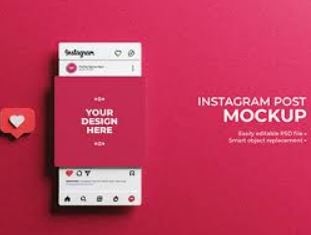
  • Elevate Your Instagram Presence with Stunning Instagram post mockup Previews

    In the age of instant gratification, first impressions are everything. This is especially true on Instagram, a visual platform where captivating content reigns supreme. But before hitting that “post” button, have you considered the power of an Instagram post mockup?

    Think of it as a backstage pass to your creative process. A mockup allows you to visualize your final post, refine its elements, and ensure it aligns with your overall brand aesthetic. Whether you’re a seasoned social media pro or just starting your Instagram journey, mastering the art of the mockup can be a game-changer.

    Why Mockups Matter: The Benefits of Pre-Visualization

    So, why should you invest time in creating mockups for your Instagram posts? Here are some compelling reasons:

    • Cohesion is Key: Instagram feeds are like visual stories. A cohesive aesthetic builds brand recognition and makes your profile instantly recognizable. Mockups allow you to experiment with color palettes, fonts, and design elements before committing, ensuring each post seamlessly integrates with the overall look and feel.
    • Planning Makes Perfect: With mockups, you can plan your feed in advance, ensuring a balanced mix of visuals, text, and content types. This strategic approach helps maintain a consistent posting schedule and avoids last-minute scrambles for content.
    • Feedback is Your Friend: Share your mockups with colleagues, friends, or even target audience members to gather valuable feedback. This can help identify areas for improvement, refine the message, and ensure your post resonates with your intended viewers.
    • Boost Confidence, Post with Flair: When you’re confident in your post’s visual appeal, it shows. Mockups help you eliminate doubts and refine details until you’re happy with the final product. This translates to a more polished and professional presentation on your Instagram feed.
    • Save Time (and Sanity): Let’s face it, creating compelling Instagram content can be time-consuming. Mockups streamline the process. Once you’ve established your preferred design elements, churning out visually consistent posts becomes a breeze.

    Crafting the Perfect Mockup: Tools and Techniques

    Now that you’re convinced of the mockup’s power, let’s delve into the practicalities of creating one. Here are some popular options and techniques:

    • Free Design Tools: Free online design tools like Canva, Adobe Spark, and Stencil offer user-friendly templates specifically designed for Instagram posts. These platforms come pre-loaded with layouts, fonts, and graphics, allowing you to quickly whip up mockups without any prior design experience.
    • Advanced Design Software: If you have a knack for design or use graphic design software in your workflow, consider using Photoshop, Illustrator, or InDesign. These programs offer complete control over every aspect of your mockup, allowing for a highly customized and brand-aligned experience.
    • Mockup Templates: Several websites offer free and premium mockup templates specifically designed for Instagram posts. These templates often feature phone mockups, including the Instagram interface, for a realistic preview of how your post will appear in the app.
    • Screenshot Magic: For a simple, on-the-go solution, consider taking a screenshot of your post in the draft stage within the Instagram app itself. While not the most polished approach, it allows for a quick visual check of its overall composition.
    instagram

    Beyond the Basics: Tips and Tricks for Stellar Mockups

    Once you’ve chosen your design platform, here are some additional tips to transform your mockups from ordinary to extraordinary:

    • Start with a Strong Foundation: A captivating image or video is the cornerstone of any successful Instagram post. Use high-quality visuals, whether it’s your own photography, purchased stock photos, or eye-catching graphics.
    • Embrace the Power of Text: While visuals lead the charge, compelling text captions add context and can make or break your post’s engagement. Include snippets of your caption in your mockup to gauge its visual weight and impact.
    • Play with Color Palettes: Color psychology is a powerful tool for influencing user perception. Experiment with different color combinations and brand-specific hues in your mockups to find a palette that aligns with your message and brand identity.
    • Don’t Forget the Details: Small details like well-chosen fonts, subtle textures, and strategic use of negative space can elevate your mockup. Consider the overall aesthetic you’re aiming for and use design elements that enhance your message.
    • Consistency is King: Develop a signature style that reflects your brand personality and maintain consistency across all your mockups. This will create a recognizable aesthetic on your Instagram feed and strengthen brand recognition.

    Taking it a Step Further: Combining Mockups with Content Strategy

    Remember, a mockup is just a piece of the puzzle. To maximize its effectiveness, integrate your mockup creation process with your broader content.

    Of course! Here are some additional tools to elevate your Instagram post mockups, catering to different needs and preferences:

    Design Powerhouses for the Pro:

    • Placeit: [Placeit] offers a vast library of mockup templates featuring a wide range of devices and backgrounds. It also boasts intuitive editing tools for fine-tuning colors, adding text, and customizing your mockup to perfection.
    • Mockplus: [Mockplus] is a comprehensive design prototyping tool that allows you to create high-fidelity mockups with interactive elements. While it has a learning curve, it’s ideal for showcasing dynamic content within your Instagram posts.
    • Proto.io: [Proto.io] is another powerful prototyping tool specifically geared towards user interface (UI) design. It allows you to create interactive mockups of Instagram Stories or carousels, showcasing transitions and user interactions within your content.

    Collaboration and Feedback Tools:

    • InVision: [InVision] is a popular design collaboration platform that integrates seamlessly with design software like Sketch or Figma. You can upload your mockups to InVision, share them with team members or clients, and incorporate their feedback directly on the platform.
    • Marvel: [Marvel] is another design collaboration tool that allows you to share mockups, gather feedback, and iterate on your designs before posting them on Instagram. It streamlines the review process and ensures everyone is on the same page.
    • Mockup World: [Mockup World] is a website offering a wide variety of free and premium mockup templates specifically designed for social media platforms like Instagram. They also offer mockup packs featuring cohesive templates for maintaining a consistent aesthetic across your mockups.

    Free and Budget-Friendly Options:

    • Lunacy: [Lunacy] is a free and open-source design tool with an interface similar to Sketch. It allows you to create basic mockups and experiment with different layouts and design elements.
    • Gravit Designer: [Gravit Designer] is another free and open-source design tool suitable for creating mockups. It offers a cloud-based version and a desktop application for offline work.
    • Unsplash & Pexels: Unsplash: https://unsplash.com/ & Pexels: https://www.pexels.com/ are excellent resources for finding high-quality, free stock photos to use in your mockups. With a vast library of images, you’ll find stunning visuals to complement your Instagram content.

    Remember, the best tool for you depends on your skill level, budget, and desired level of customization. Experiment with different options and find what works best for your workflow. With the right tools and techniques, you can create stunning mockups that will elevate your Instagram presence and help you achieve your social media goals.

  • Best Slow Motion Video Maker for Mobile device

    I can provide you with general guidance on how to create slow motion video using common video editing apps. Keep in mind that app features and interfaces may change over time, so it’s recommended to check the latest instructions for the specific app you’re using.


    Please note that the steps may vary depending on the specific features and interface of the Time Cut app. If you’re having trouble finding the slow-motion feature, consider checking the app’s official documentation or support resources for more detailed instructions.

    If there have been updates or changes to the Time Cut app after my last knowledge update, I recommend checking the app’s official website, app store listing, or user reviews for the most up-to-date information and instructions.

    atOptions = { ‘key’ : ‘8ae430e64101da926919a26d8e62e6bd’, ‘format’ : ‘iframe’, ‘height’ : 90, ‘width’ : 728, ‘params’ : {} }; document.write(”);

  • Best AI Voice Generator For YouTube and TikTok 2023

    Title: Unveiling the Best AI Voice Generator for YouTube and TikTok in 2023

    Introduction:
    Welcome back, everyone! In today’s video, we’re diving into the fascinating world of AI voice generation with the top AI website. Specifically, we’ll be exploring the text-to-speech synthesis feature of Top R AI, a tool that proves invaluable for voiceovers and various professional applications.

    Interface Overview (00:33):
    Upon entering the interface of Top R AI’s text-to-speech synthesis, we encounter a user-friendly design showcasing a plethora of features. The platform offers two voice options: Real Person and VIP. Even without VIP access, users can freely preview voices, ranging from musicians and actors to Transformers and anime characters.

    Voice Selection (01:10):
    Top R AI provides a diverse range of voices, allowing users to tailor their selections based on specific categories. Whether you’re after a YouTuber’s voice, a scientist’s tone, or even an anime character like those from Shk Animation, the platform has you covered. Customization options abound for those seeking something unique.

    Text-to-Speech Process (01:48):
    The process of converting text to speech is remarkably simple. Users can copy and paste their text or type directly into the provided box. After selecting a voice category, a click on the “convert” button initiates the transformation. Within seconds, the generated voice is ready for preview, download, and use.

    Voice Customization (02:23):
    For the Real Person voices, Top R AI offers additional customization options, allowing users to adjust pitch, speed, pause, and more. This enhances the flexibility of the generated voice to better suit individual preferences and requirements.

    Download Options (03:00):
    Once the voice is generated, users can download it in various high-quality audio formats, such as WAV. The downloaded file can be further edited to meet specific needs. An interesting feature is the option to download subtitles, adding an extra layer of utility to the tool.

    Exploring VIP Voices (03:33):
    The video demonstrates the synthesis of a voice mimicking Selena Gomez, showcasing the tool’s ability to replicate voices accurately. The preview allows users to assess the quality before deciding to download.

    Conversion History and Clone Voice Option (04:07):
    Top R AI keeps a record of conversion history, providing easy access to previously generated audio. Users can download, delete, or utilize the innovative “clone voice” option. This feature allows users to upload a voice, and the AI intelligently recreates it, providing a solution for those seeking unique voices not available in the standard options.

    Conclusion:
    In conclusion, Top R AI emerges as a powerful and user-friendly AI voice generator for YouTube, TikTok, and various professional applications. With its diverse voice options, customization features, and innovative tools like “clone voice,” it’s a must-try for content creators looking to enhance their audio content. Share your thoughts in the comments, and don’t forget to subscribe for more exciting content. Until next time!

    Certainly! There are several AI voice generators available for YouTube content creators. Here are a few notable ones:

    1. Google Text-to-Speech (TTS):
    • Features: Google Text-to-Speech is a straightforward and reliable option. It’s easy to use and integrates well with various applications.
    • How to Use: You can enable Google Text-to-Speech on your Android device in the settings. It’s often used for accessibility features, but you can also use it to generate voiceovers for your videos.
    1. Amazon Polly:
    • Features: Amazon Polly is a cloud-based text-to-speech service by Amazon Web Services. It offers a variety of voices and supports multiple languages.
    • How to Use: You can access Amazon Polly through the AWS Management Console. The service is scalable and allows for a high level of customization.
    1. IBM Watson Text to Speech:
    • Features: IBM Watson Text to Speech is powered by IBM’s AI technology. It offers lifelike voices and supports a range of applications.
    • How to Use: You can use IBM Watson Text to Speech through the IBM Cloud platform. It provides advanced customization options for voice synthesis.
    1. Microsoft Azure Speech Service:
    • Features: Microsoft Azure Speech Service is a cloud-based service that provides both speech-to-text and text-to-speech capabilities. It offers high-quality voices.
    • How to Use: Accessible through the Azure portal, it allows for customization of voice styles and supports various audio formats.
    1. iSpeech:
    • Features: iSpeech is a text-to-speech technology that offers different voices and supports multiple languages.
    • How to Use: You can use iSpeech through its API, making it convenient for integration into your applications or projects.

    Remember to review the terms of service for each platform to ensure compliance with usage policies, and explore the features offered by each service to find the one that best suits your needs. Additionally, new AI voice generators may emerge, so it’s a good idea to stay updated on the latest developments in the field.

  • Canva Thumbnails in Mobile: A Step-by-Step Guide Using Canva

    In the vast digital landscape, where content is king, the importance of a striking Canva Thumbnails cannot be overstated. Thumbnails serve as the gateway to your content, enticing viewers to click and explore further. Creating an eye-catching thumbnail is an art, and with the user-friendly platform, Canva, at your fingertips, the process becomes not only efficient but also enjoyable. In this step-by-step guide, we will delve into the world of Canva and unveil the secrets to crafting compelling thumbnails that grab attention and boost your content’s click-through rate. Canva Thumbnails

    Step 1: Sign Up and Access Canva
    If you haven’t already, sign up for a Canva account. Once logged in, navigate to the dashboard, where you’ll find a plethora of design options.

    Step 2: Choose the Right Template
    Click on “Create a design” and select the “Custom dimensions” option. For a standard YouTube thumbnail, enter 1280×720 pixels. Canva offers a range of predefined templates suitable for various platforms, including YouTube, Instagram, and more.Thumbnails in Canva

    Step 3: Select a Background
    Choose a background that complements your content and aligns with your brand. Canva provides an extensive library of backgrounds, including solid colors, gradients, and patterns. You can also upload your own images for a personalized touch. Thumbnails in Canva

    Step 4: Add Compelling Imagery
    Search Canva’s vast image library for visuals that resonate with your content. Whether it’s a photograph, illustration, or icon, select an image that conveys the essence of your video or article. Ensure that the imagery is high-quality and relevant to capture viewers’ attention. Thumbnails in Canva

    Step 5: Incorporate Text Elements
    Annotate your thumbnail with concise and compelling text. Choose a bold and legible font that aligns with your brand’s style. Canva offers various text styles, sizes, and colors, allowing you to experiment until you find the perfect combination. Consider adding a catchy title or tagline to spark curiosity.

    Step 6: Use Elements and Icons
    Enhance your thumbnail with Canva’s extensive collection of elements and icons. These can add flair and emphasis to your design, guiding the viewer’s eye and reinforcing the content’s theme. Experiment with placement and size to achieve a balanced composition.

    Step 7: Apply Filters and Adjustments
    Fine-tune your thumbnail’s appearance by applying filters and adjustments. Canva allows you to modify brightness, contrast, saturation, and more. This step ensures your thumbnail maintains a cohesive look and aligns with your brand’s aesthetic.

    Step 8: Preview and Download
    Before finalizing your design, use Canva’s preview feature to see how your thumbnail will appear on various devices. Once satisfied, click “Download” and choose the appropriate file format (JPEG or PNG). You’re now ready to upload your attention-grabbing thumbnail to your platform of choice.

    Conclusion:
    Creating a compelling thumbnail in Canva is an exciting journey that combines creativity with user-friendly design tools. By following these steps, you can elevate your content’s visual appeal, enticing viewers to click and explore what you have to offer. Remember, a well-crafted thumbnail is not just a gateway to your content; it’s a powerful invitation that sets the stage for an engaging viewer experience. Happy designing!

    check out more related posts…. Click here

  • Unveiling the World of 3D Art Painting Realism

    In the realm of artistic expression, 3D art painting has emerged as a revolutionary medium that transcends traditional boundaries. Among the diverse styles within the 3D art spectrum, realistic photo painting stands out as an awe-inspiring technique that blurs the lines between the virtual and the tangible. In this comprehensive guide, we’ll delve into the enchanting world of 3D art painting realism, offering actionable tips, real-life examples, and insights that will empower both beginners and seasoned artists alike.

    Understanding 3D Art Painting Realism

    At its core, 3D art painting realism is the meticulous craft of creating images that closely resemble real-life photographs. Artists harness advanced digital tools to breathe life into their creations, capturing every nuance, texture, and detail with astonishing precision. This style allows for the creation of visuals that are so lifelike they often prompt double takes.

    Actionable Tips for Mastering 3D Art Painting Realism

    1. Study Real Photographs: Begin by closely observing high-resolution photographs. Pay attention to lighting, shadows, and the subtle interplay of colors. This foundation will serve as a reference point for your 3D art painting.
    2. Master Digital Tools: Familiarize yourself with cutting-edge software like Blender, ZBrush, or Autodesk Maya. These tools empower artists to sculpt and paint with unprecedented realism, offering features like texture mapping and dynamic lighting.
    3. Experiment with Lighting Techniques: Lighting is a critical aspect of realism. Understand the impact of different light sources on the subject and experiment with various lighting setups to achieve the desired effect.
    4. Focus on Details: It’s the small details that elevate a 3D art painting from good to exceptional. Zoom in on your work regularly, addressing fine details such as pores, wrinkles, and reflections.

    Real-Life Examples: Inspiring the Next Masterpiece

    1. “The Hyperrealistic Portraits of [Artist Name]”: Explore the work of renowned artists who have mastered the art of hyperrealistic portraits. Analyze their techniques, brushstroke choices, and how they manage to convey emotions with unparalleled realism.
    2. “Landscapes that Transcend Reality: A Showcase of [Artist Name]’s Work”: Immerse yourself in the breathtaking landscapes crafted by artists who seamlessly blend the digital with the tangible. Learn how they create immersive environments that transport viewers to alternate realities.

    Insights into the Evolving World of 3D Art Painting

    1. Incorporating AI for Realism: Artificial Intelligence (AI) is increasingly being integrated into 3D art creation, allowing for more efficient and realistic rendering. Explore AI tools that can assist in generating lifelike textures and enhancing overall realism.
    2. The Rise of VR in 3D Art Galleries: Virtual Reality (VR) is transforming the way we experience art. Some artists are leveraging VR platforms to showcase their 3D art paintings in immersive digital galleries, providing viewers with a unique and interactive experience.

    Advanced Techniques for Realistic 3D Art Painting:

    1. Material Rendering Mastery: Achieving realistic textures is paramount in 3D art painting. Learn to master material rendering techniques, such as subsurface scattering for skin, displacement mapping for intricate surfaces, and shader development to mimic various materials like metal, glass, or fabric.
    2. Photogrammetry Integration: Photogrammetry involves capturing real-world objects and environments through photographs, creating highly detailed 3D models. Integrating photogrammetry into your workflow can provide an authentic foundation for your 3D art, ensuring accurate proportions and lifelike details.

    Innovations in Realistic 3D Art Painting:

    1. Holographic Art Installations: Pushing the boundaries of traditional galleries, some artists are experimenting with holographic art installations. These immersive experiences use holographic technology to bring 3D paintings to life, creating dynamic and interactive exhibits.
    2. Collaboration with Other Art Forms: Cross-disciplinary collaborations are becoming more prevalent in the world of 3D art painting. Collaborating with musicians, writers, or even virtual reality developers can result in multi-sensory experiences, pushing the boundaries of traditional art forms.

    Tips for Balancing Realism and Artistic Expression:

    1. Embrace Imperfections: While the goal is often to achieve hyperrealism, don’t be afraid to embrace imperfections. Sometimes, subtle deviations from absolute realism can inject personality and emotion into your work, making it more relatable and engaging.
    2. Experiment with Stylization: Realism doesn’t always mean replicating reality exactly. Experiment with stylized elements within your 3D art painting to create a unique signature style. Balancing realism with artistic expression allows for a broader range of creative possibilities.

    Staying Relevant in the Evolving Landscape:

    1. Continuous Learning and Community Engagement: The world of 3D art is dynamic and ever-evolving. Stay updated on the latest software updates, techniques, and industry trends by actively participating in online forums, attending workshops, and engaging with the vibrant 3D art community.
    2. Environmental Realism and Sustainability: Consider the environmental impact of your digital art creation. Explore sustainable practices in rendering and hardware usage, as the industry shifts towards eco-friendly solutions to minimize the carbon footprint associated with high-performance computing.

    Conclusion: Elevating Your 3D Art Painting to New Heights

    In your journey through the mesmerizing realm of 3D art painting realism, remember that innovation and creativity are your greatest allies. Experiment with cutting-edge techniques, draw inspiration from diverse sources, and continue pushing the boundaries of what’s possible within this captivating art form.

    Feel free to share your insights, discoveries, and questions in the comments section below. For a deeper dive into the world of 3D art painting and to stay abreast of the latest trends, explore additional content on https://zeeeditor.com/. Happy painting and creating!